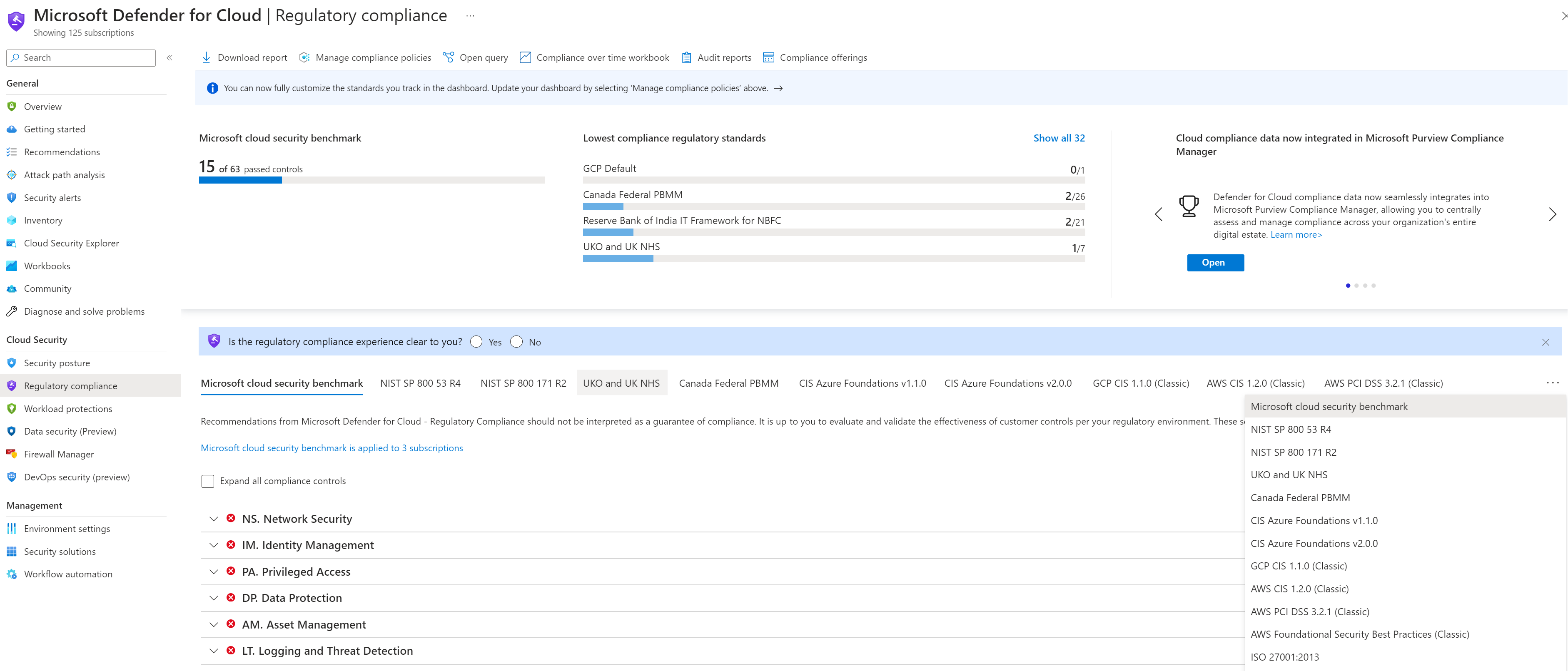
Review the regulatory compliance dashboard in Defender for Cloud
The regulatory compliance dashboard in Microsoft Defender for Cloud is an interactive view of how your hybrid cloud environment aligns with specific security standards. It is not a static report that simply tells you whether you are compliant or not. Instead, it provides a granular breakdown of controls, their assessment status, and the resources that drive them. If you are looking for a single number to prove compliance, you will find it elusive. The dashboard requires you to interpret the states of those controls and distinguish between automated assessments and areas that require manual verification.
Understanding the default assessment
When you onboard an Azure subscription to Defender for Cloud, the Microsoft Cloud Security Benchmark (MCSB) is applied automatically. This benchmark is not just an Azure-specific checklist; it is a cloud-neutral standard that applies the same principles to AWS accounts and GCP projects as it does to Azure subscriptions The Microsoft cloud security benchmark in Microsoft Defender for Cloud. This means the dashboard you are about to explore is consistent across your multi-cloud estate, provided you have connected those environments.
The MCSB is composed of security standards, which are further broken down into compliance controls. A control is a logical group of related security recommendations. Defender for Cloud continuously assesses your resources against these controls. The dashboard aggregates these assessments to give you a high-level view of your compliance standing The Microsoft cloud security benchmark in Microsoft Defender for Cloud.
Interpreting control states
When you open the Regulatory compliance dashboard, you will see a list of standards and their associated controls. Each control has a status indicator. It is crucial to distinguish between a control that is compliant, non-compliant, and unavailable.
A green circle indicates that the resources in scope are compliant with the control. A red circle indicates that resources are not compliant. However, the most common state you might encounter for certain controls is greyed out. This does not mean the control is ignored; it means that Defender for Cloud cannot automatically assess it. The documentation explicitly states that if a standard has compliance controls that cannot be automatically assessed, the control will show as greyed out Regulatory compliance in Defender for Cloud.
This distinction is vital for your remediation planning. You cannot fix a greyed-out control by changing a resource configuration within Defender for Cloud. These controls often require manual verification, external audit evidence, or configuration outside the scope of the automated assessment. Treating a greyed-out control as a failure is a common misinterpretation that leads to unnecessary work. For these controls, you must establish a separate process for evidence collection, as the dashboard does not provide automated remediation steps for them.
Navigating the dashboard for actionable insights
The dashboard is designed to help you prioritise which standards and controls need attention. You can view a summary of standards controls that have been passed, identify standards with the lowest pass rates, and review assessments for specific controls Regulatory compliance in Defender for Cloud.
To drill down into a specific standard, select it from the list. You will then see the scope of the standard, the breakdown of controls and subcontrols, and a summary of compliance assessments for resources within that scope. For each control, you can see the status of the assessments. Clicking into a control reveals the resources that have passed or failed the assessment, along with remediation steps where available Regulatory compliance in Defender for Cloud.
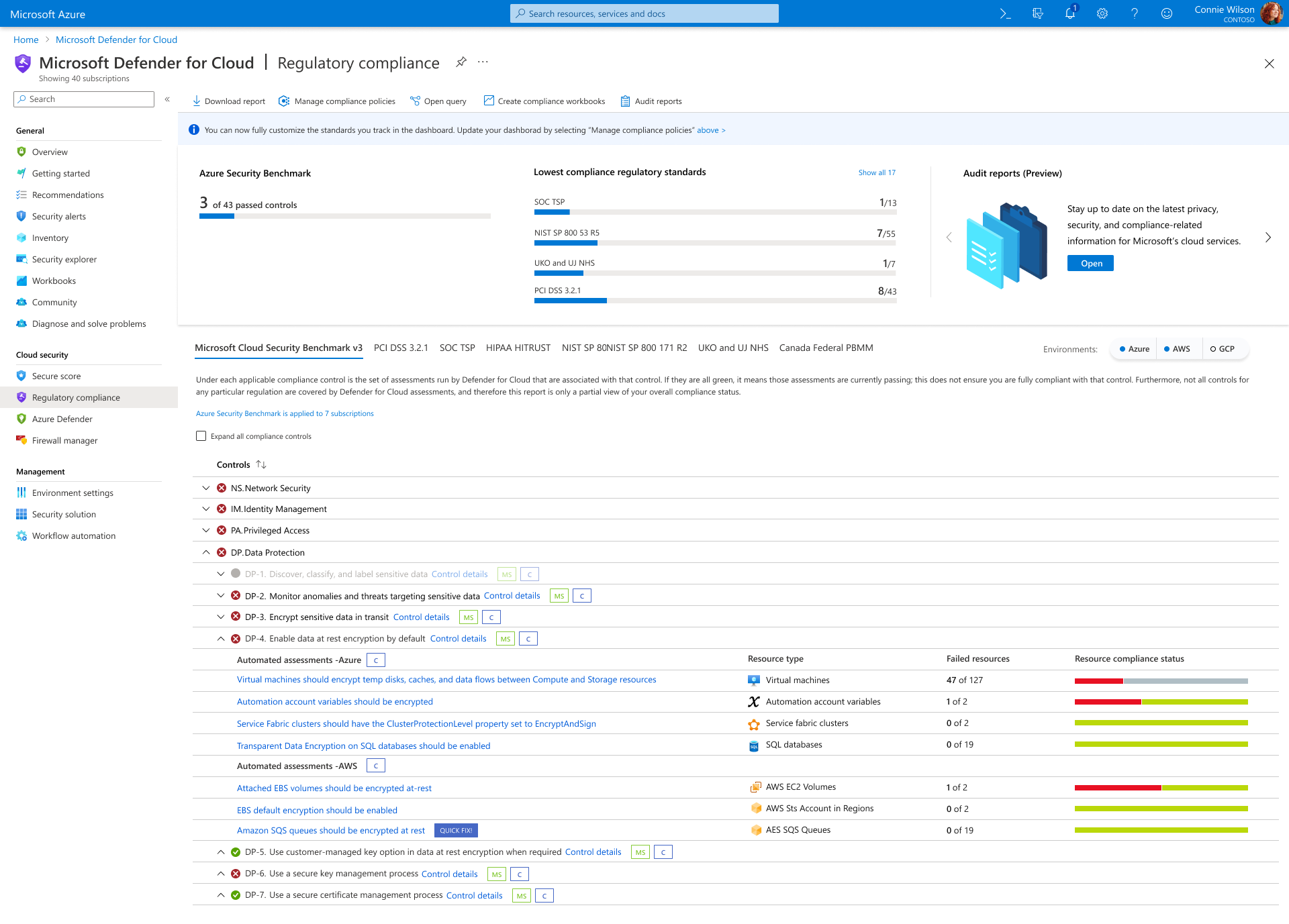
The image above shows a sample regulatory compliance page. Notice the visual indicators for compliance status. The interface allows you to manage all compliance requirements, including automatic, manual, and shared responsibilities. Note that shared responsibilities are only compatible with Azure The Microsoft cloud security benchmark in Microsoft Defender for Cloud. For AWS and GCP, the assessment is entirely based on the resources Defender for Cloud can observe through connectors. In Azure, the dashboard explicitly maps security duties between Microsoft and the customer, which helps clarify where your configuration responsibilities begin and end.
Planning remediation and reporting
Once you have identified non-compliant controls, the next step is to address them. The dashboard provides remediation steps for many controls, but it does not execute them for you. You must review the affected resources and apply the necessary changes. For controls that are greyed out, you will need to establish a manual verification process or gather evidence from other sources.
Defender for Cloud also allows you to create custom compliance reports and download audit reports. You can run queries to create custom compliance reports based on the data in the dashboard Regulatory compliance in Defender for Cloud. This is useful for generating evidence for external audits or for tracking compliance over time using workbooks. While the dashboard itself does not contain a native “compliance over time” view, you can create a workbook to track these trends separately Regulatory compliance in Defender for Cloud.
The dashboard is a starting point for your compliance journey, not the finish line. It provides the visibility needed to understand your current state and the guidance needed to improve it. By focusing on the red circles and understanding the limitations of the greyed-out controls, you can prioritise your efforts effectively.
To verify your progress, return to the dashboard after implementing changes. The status of the controls should update to reflect the new state of your resources. Remember that assessments are continuous, so the dashboard will evolve as your environment changes. Use this dynamic view to maintain a steady state of compliance rather than treating it as a one-time project.
If you need to track compliance over time, consider creating a “compliance over time workbook” as suggested in the documentation Regulatory compliance in Defender for Cloud. This provides a historical perspective that the dashboard alone does not offer. It allows you to see trends and measure the impact of your remediation efforts.
The regulatory compliance dashboard is a powerful tool for managing security standards across your hybrid cloud environment. By understanding the default assessments, interpreting control states correctly, and using the dashboard for actionable insights, you can effectively manage your compliance posture. The key is to focus on the automated assessments while establishing robust processes for the controls that require manual verification.