
Enable Defender for Cloud with a clear subscription scope
Which subscription are we protecting? It sounds like a small question, but it is the first one to answer before enabling Microsoft Defender for Cloud. A useful security dashboard starts with a known scope, an owner and a plan for acting on its findings.
Defender for Cloud brings posture management and workload protection into the same service. Those capabilities have different purposes. Foundational cloud security posture management helps you understand the configuration of your resources. Paid Defender plans add protection for particular workloads and additional capabilities. Opening the dashboard and enabling every paid plan are separate decisions. Microsoft’s subscription onboarding guidance explains that distinction.
Start with a subscription you can account for
For a first rollout, use a subscription whose resource owners you can identify. Record its subscription ID, the resources you expect to find and who will review the findings. A non-production subscription can be a sensible pilot, provided it contains representative workloads.
An empty subscription tells us very little about a production estate full of virtual machines, storage accounts and databases. The pilot needs enough substance to show whether the recommendations reach the right people.
You need permission to view the resources in scope. The onboarding documentation lists Reader, Contributor or Owner for viewing information at the relevant subscription or resource-group scope. Viewing findings does not imply permission to change security plans or remediate resources. Have the subscription administrator confirm the permissions needed for those changes before the rollout.
Open Defender for Cloud and check the view
- Sign in to the Azure portal and open Microsoft Defender for Cloud.
- Check the selected directory and subscription filter. Compare the subscription ID with your rollout record.
- Open the overview and inventory. Confirm that the expected resources appear before interpreting the security posture.
- Review the initial recommendations. Assessments may need time to populate; a quiet dashboard immediately after onboarding is not evidence that everything is secure.
The subscription filter controls what you see. It is not an alternative to enabling and checking protection at the intended resource scope.
Choose paid protection deliberately
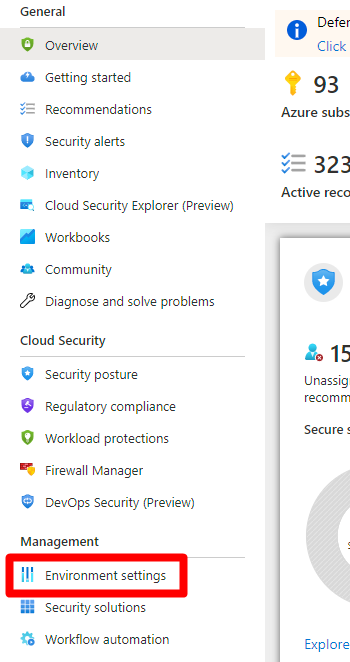
Open Environment settings and select the intended subscription. This is where the distinction between viewing posture and enabling additional protection becomes particularly important.
Review the workloads present and the Defender plans available for them. If the subscription contains servers and storage, for example, make separate decisions about server protection and storage protection. Include the workload owner in each decision. Check the plan’s prerequisites, monitoring components, coverage and charging model before saving.
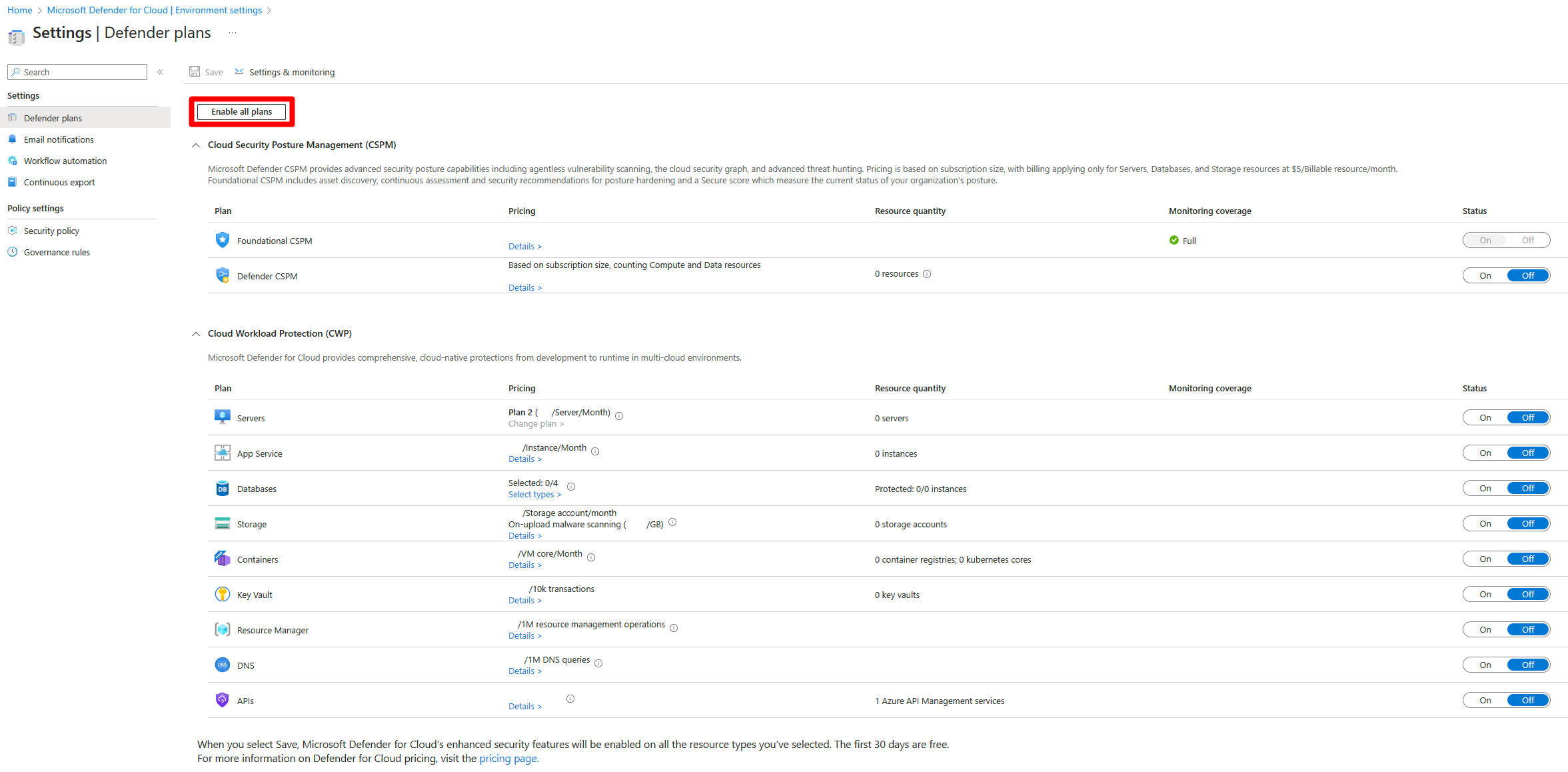
The Enable all control is convenient when every plan is intentional. For a scoped pilot, review the individual settings instead of treating that button as a harmless onboarding step. Subscription-level protection can affect existing resources across the subscription. Check the pricing information for the plans you actually select; do not assume every capability is included in the foundational posture assessment.
Record the before-and-after configuration. If you need to reverse a pilot, turn off the paid plans you enabled and check their individual offboarding requirements. Disabling a plan does not necessarily uninstall the extensions already deployed to machines.
Turn the first findings into work
A recommendation needs more context than its severity. Read the affected-resource list, the reason for the finding, the proposed change and any workload impact. Some changes are straightforward; others affect connectivity, identity or application behaviour.
Use a small working record like this:
| Finding | What to establish before changing anything |
|---|---|
| Unexpected resource in the inventory | Whether the subscription or resource ownership record is incomplete |
| Recommendation affecting several services | Which team owns the shared dependency and how to test the change |
| Workload missing expected protection | Whether its plan, resource scope and prerequisites are configured correctly |
| Accepted exception | Who accepted the risk, why, and when the exception must be reviewed |
Choose one finding, assign an owner and follow it through to reassessment. That provides a more useful first check than trying to improve every score at once. Once the subscription inventory, plan coverage and remediation process make sense together, expand the rollout using the same record for each additional subscription.