
Separate job input data from temporary compute storage
Azure Batch nodes are ephemeral. When a node is removed from a pool, or when the Batch service reimaging it for maintenance, everything stored on the local file system disappears. If your workflow treats the node’s local disk as a permanent repository for job inputs or critical outputs, you will lose data. The solution is to keep persistent data in Azure Files and use the node’s local storage only for temporary working files.
Understand the node file system structure
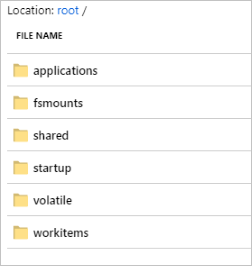
Azure Batch exposes a portion of the compute node’s file system as the root directory. This directory is located on the temporary storage drive of the VM, not on the OS drive. The Batch service provides several environment variables to help you navigate this structure, but it is crucial to understand what each part is for.
The root directory contains:
- applications: Application package details.
- fsmounts: Mounted file systems, such as Azure Files shares.
- shared: A read/write directory accessible to all tasks on the node.
- startup: The working directory for the start task.
- volatile: Internal use only; no guarantees about persistence.
- workitems: Contains the directories for jobs and their tasks.
Within the workitems directory, Batch creates a Tasks directory for each task. Inside that, a working directory (wd) is created, accessible via the AZ_BATCH_TASK_WORKING_DIR environment variable. This is where your task runs and where it can create, read, update, and delete files. However, this directory is retained only based on the RetentionTime constraint specified for the task. Once the task completes and the retention period expires, or if the node is removed, these files are gone.
The location of the root directory depends on the VM size and operating system. For Linux VMs with a local temporary disk, it is typically /mnt/batch or /mnt/resource/batch. For Windows, it is D:\batch. These values are implementation details and should not be hardcoded; always use the environment variables provided by Batch.
Use Azure Files for persistent data
To ensure your job input data and outputs survive node reimages, you should mount an Azure file share to your Batch pool. Azure Files offers fully managed file shares accessible via the SMB protocol, making them ideal for sharing data across multiple tasks and nodes.
When creating your Azure file share, consider the performance and scale targets of Azure Files, especially if you are using non-premium storage accounts. Review the performance and scale targets to determine if Azure Files is suitable for your expected pool size and number of asset files. Azure file shares are cost-efficient and can be configured with data replication to another region for global redundancy.
You can create the Azure file share in a storage account linked to your Batch account or in a separate storage account. Once created, you can mount it to your Batch pool. For detailed instructions on mounting, refer to the Mount a virtual file system on a Batch pool documentation.
Separate input data from temporary working files
A common mistake is to copy job input data to the task’s working directory (AZ_BATCH_TASK_WORKING_DIR) and then assume it will persist. Instead, follow this pattern:
- Store inputs in Azure Files: Place your job input data in the mounted Azure file share. This ensures the data is available to all tasks and persists independently of the compute nodes.
- Copy inputs to local working directory: At the start of each task, copy the necessary input files from the Azure file share to the task’s local working directory. This provides fast, local access for processing.
- Process data locally: Perform your computations using the local files in
AZ_BATCH_TASK_WORKING_DIR. - Copy outputs back to Azure Files: Once processing is complete, copy the output files back to the Azure file share. This ensures the results are preserved even if the node is removed.
This approach separates the persistent data lifecycle from the ephemeral compute lifecycle. It also allows multiple tasks to access the same input data concurrently, provided you manage concurrency correctly.
Verify your setup
To verify that your data is being stored persistently, check the mounted Azure file share after your tasks complete. Ensure that the output files are present in the share and not just in the local task directory. You can also inspect the node’s local file system to confirm that the working directory files are cleaned up according to the retention policy.
By keeping persistent data in Azure Files and using local storage only for temporary working files, you can build robust Batch workflows that survive node reimages and pool scaling events. This separation is essential for maintaining data integrity and ensuring that your job outputs are not lost due to the ephemeral nature of Batch compute nodes.
References for Separate job input data from temporary compute storage: Files and directories in Azure Batch, Azure file share for Azure Batch pools.