
Review networking requirements before selecting an accelerator VM
You are planning to run GPU-accelerated workloads on Azure Batch. The immediate question is not which GPU size to pick, but whether your virtual network can support the nodes you intend to create. Accelerator VMs have specific networking and storage constraints, and Azure Batch imposes its own networking overhead. If these requirements are not checked before provisioning, you risk partial allocation failures or blocked communication paths.
Understand the accelerator VM networking profile
GPU-optimised VM sizes are not interchangeable with general-purpose instances. The Azure VM sizes - GPU documentation outlines the specific capabilities of each series. For example, the ND A100 v4-series is designed for scale-up and scale-out deep learning training and includes 8 NVIDIA A100 TensorCore GPUs, each available with a 200 Gigabit Mellanox InfiniBand HDR connection. The NDm A100 v4-series starts with a single VM and eight NVIDIA Ampere A100 80GB Tensor Core GPUs for high-end deep learning training.
These high-performance configurations often require specific network interfaces and bandwidth. The documentation lists information about the number of vCPUs, data disks, NICs, storage throughput, and network bandwidth for sizes in this series. You must verify that the target subnet and virtual network can accommodate the network interface requirements of the chosen VM size. Some sizes, like the NCv3-series and NC T4_v3-series, are optimised for compute-intensive applications, while others, like the NVv4-series, are designed for VDI and remote visualisation with partitioned GPUs.
Crucially, N-series VMs can only be deployed in the Resource Manager deployment model. They differ in the type of Azure Storage they support for their disks. NC and NV VMs only support VM disks that are backed by Standard Disk Storage (HDD). All other GPU VMs support VM disks that are backed by Standard Disk Storage and Premium Disk Storage (SSD). This distinction affects performance and cost, but also implies that the underlying infrastructure must support the required storage tier. Note that NCv3 and NC T4_v3 are legacy sizes with HDD-only disk support. Additionally, NVv4 VMs support only Windows guest operating systems, a critical constraint for VDI scenarios.
Account for Azure Batch networking overhead
Provisioning a Batch pool in a virtual network introduces additional networking resources. According to the Provision a pool in a virtual network guidance, for each 100 dedicated or low-priority nodes, Batch creates one network security group (NSG), one public IP address, and one load balancer. These resources are limited by the subscription’s resource quotas. For large pools, you might need to request a quota increase for one or more of these resources.
The subnet specified for the pool must have enough unassigned IP addresses to accommodate the number of VMs targeted for the pool, enough to accommodate the targetDedicatedNodes and targetLowPriorityNodes properties of the pool. If the subnet doesn’t have enough unassigned IP addresses, the pool partially allocates the compute nodes, and a resize error occurs. This is a critical constraint when planning for large-scale GPU workloads, as each node consumes an IP address from the subnet.
Additionally, Batch pools can be configured in one of two node communication modes: classic or simplified. In classic mode, the Batch service initiates communication to the compute nodes. In simplified mode, the compute nodes initiate communication to the Batch Service. The networking requirements differ slightly between these modes, particularly regarding NSG rules and outbound traffic. For pools without public IP addresses using simplified communication mode and with a node management private endpoint, an NSG isn’t needed. However, for most configurations, you must ensure that the NSGs allow traffic on specific ports to and from the Batch service.
Check for IP address conflicts
A common source of conflicts is the use of a container runtime, such as Docker. Docker creates a default network bridge with a defined subnet range of 172.17.0.0/16. Any services running within a virtual network in that default IP address space will conflict with services on the compute node, such as remote access via SSH. The documentation explicitly warns to avoid using 172.17.0.0/16 for Azure Batch pool VNet. It’s the default for Docker bridge network and might conflict with other networks that you want to connect to the VNet. Creating a virtual network for Azure Batch pool requires careful planning of your network infrastructure.
Any virtual network or peered virtual network used for Batch pools should not have overlapping IP address ranges with software-defined networking or routing on compute nodes. This is particularly important when using GPU VMs that may have their own internal networking configurations for high-performance computing (HPC) tasks, such as those using MPI runtimes.
Verify storage and driver requirements
Before provisioning, ensure that the VM size supports the storage tier you require. If you are using NC or NV VMs, you are limited to Standard Disk Storage (HDD). If you need Premium Disk Storage (SSD), you must choose a different GPU series, such as the ND or NVads A10 v5-series. This decision impacts both performance and cost.
Furthermore, to take advantage of the GPU capabilities of Azure N-series VMs, NVIDIA or AMD GPU drivers must be installed. The NVIDIA GPU Driver Extension installs appropriate NVIDIA CUDA or GRID drivers. Alternatively, you may install NVIDIA drivers manually. For AMD GPUs, the AMD GPU driver extension installs appropriate AMD drivers. Ensure that the virtual network allows the necessary outbound traffic to download these extensions and drivers, or that the VM images are pre-configured with the required drivers.
Provisioning steps and verification
Once you have verified the networking, IP address space, storage, and driver requirements, you can proceed with provisioning the pool. The following steps outline the process using the Azure portal, assuming you have already created the virtual network and subnet.
- Search for and select Batch accounts in the search bar at the top of the Azure portal. Select your Batch account. This account must be in the same subscription and region as the resource group containing the Virtual Network you intend to use.
- Select Pools from the left navigation.
- On the Pools window, select Add.
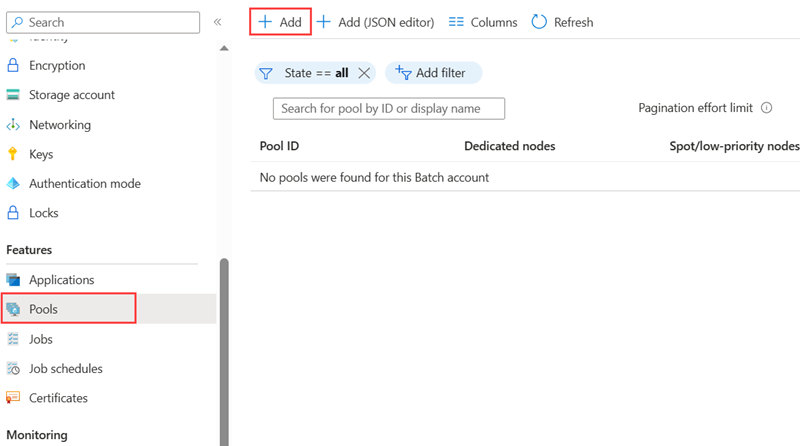
- On the Add Pool page, select the options and enter the information for your pool. Choose the Node size that matches your accelerator VM requirements. Set the Target dedicated nodes and Target Spot/low-priority nodes based on your workload needs.
- In Virtual Network, select the virtual network and subnet you wish to use. Ensure that the subnet has sufficient IP addresses and does not conflict with Docker’s default bridge network.
- Select OK to create your pool.
After the pool is created, verify that the compute nodes are in a usable state. Check the node status in the Azure portal or via the Batch API. If nodes are stuck in an unusable state, review the NSG rules and user-defined routes (UDRs) to ensure that communication between the Batch service and the compute nodes is not blocked. Specifically, ensure that the BatchNodeManagement.region service tag is correctly configured in the NSG rules and UDRs.
If you encounter partial allocation errors, check the subnet’s IP address availability. If the subnet is exhausted, you may need to expand the subnet or create a new one with a larger address space. Remember that all pools using a subnet must be deleted before you delete that subnet, so plan your subnet lifecycle accordingly.