
Monitor an HPC run without confusing observations and benchmarks
You have an HPC job running on Azure Batch and the portal shows the tasks are completing, but you need to know why one node is slower than the others. The first thing to check is whether you are looking at the right data. Azure Batch provides two distinct layers of monitoring: operational metrics for the service itself, and application telemetry for the workloads running inside the compute nodes. Confusing the two leads to false conclusions about performance. The operational metrics tell you if the Batch service is healthy; the application telemetry tells you if your code is efficient.
Understand the two monitoring layers
Azure Batch monitoring operates at the subscription and account level through Azure Monitor. This layer collects metrics and logs related to the Batch service infrastructure. The activity log records operational events such as account creation or key management. At the Batch account level, Azure Monitor collects metrics for pools, jobs, and tasks. These metrics are available by default and retain a 30-day rolling history. They allow you to see how many nodes are running, how many tasks are pending, and the general health of the pool. You can export these logs to a Log Analytics workspace if you need long-term retention or complex querying, but this incurs additional costs.
The second layer is application-level monitoring using Application Insights. This is where you gain insight into the actual HPC workload. Application Insights allows you to instrument your code to capture performance counters, exceptions, and custom metrics from the compute nodes. Unlike the default Batch metrics, which only reflect the service state, application telemetry reflects the behaviour of your specific tasks. This distinction is critical for an HPC scenario where the bottleneck is often the application logic or data access, not the Batch service itself.
Instrument the HPC application
To monitor the HPC run effectively, you need to add Application Insights to your Batch .NET application. This involves adding the Microsoft.ApplicationInsights.WindowsServer NuGet package to your project. You then create a TelemetryClient instance to send data to your Application Insights resource. The key is to instrument the parts of your code that matter for performance, such as data download times or computation steps.
For example, if your HPC task downloads a large file from Azure Blob storage before processing it, you can track the download time as a custom metric. This helps you identify if a specific node is experiencing network latency or storage throttling. You can also use TrackTrace for debugging and TrackEvent to mark significant milestones in the task execution.
public void ProcessData(string blobName, int numTopN, string storageAccountName, string storageAccountKey)
{
    // Simulate some work
    Random rand = new Random();
    if (rand.Next(0, 10) % 10 == 0)
    {
        blobName += ".badUrl";
    }

    // Log the start of the download
    insightsClient.TrackTrace(new TraceTelemetry(string.Format("Task {0}: Download file from: {1}", this.taskId, blobName), SeverityLevel.Verbose));

    // Measure download time
    var storageCred = new StorageCredentials(storageAccountName, storageAccountKey);
    CloudBlockBlob blob = new CloudBlockBlob(new Uri(blobName), storageCred);
    using (Stream memoryStream = new MemoryStream())
    {
        DateTime start = DateTime.Now;
        blob.DownloadToStream(memoryStream);
        TimeSpan downloadTime = DateTime.Now.Subtract(start);

        // Track the download time as a custom metric
        insightsClient.TrackMetric("Blob download in seconds", downloadTime.TotalSeconds, this.CommonProperties);

        // Process the data
        var sr = new StreamReader(memoryStream);
        var myStr = sr.ReadToEnd();
        string[] words = myStr.Split(' ');
        insightsClient.TrackTrace(new TraceTelemetry(string.Format("Task {0}: Found {1} words", this.taskId, words.Length), SeverityLevel.Verbose));
        insightsClient.TrackEvent("Done counting words");
    }
}
This code is an illustrative example of how to instrument a task. It assumes you have already initialised the insightsClient and configured the instrumentation key. The TrackMetric call sends the download time to Application Insights, where you can later analyse it per node.
Contextualise telemetry with node identity
By default, Application Insights uses the Azure VM Role and VM name to identify the source of telemetry. In an Azure Batch environment, this is not useful because the VM names are generated by the service and do not correspond to your pool or task structure. To make the telemetry meaningful, you need to override the default context with the Batch pool and node identifiers.
You can achieve this by implementing a custom ITelemetryInitializer. This initializer reads the AZ_BATCH_POOL_ID and AZ_BATCH_NODE_ID environment variables, which are set by the Batch agent on each compute node, and assigns them to the telemetry context. This ensures that when you view the data in Application Insights, you can filter by pool and node, allowing you to compare performance across different nodes in your HPC cluster.
using Microsoft.ApplicationInsights.Channel;
using Microsoft.ApplicationInsights.Extensibility;
using System;
using System.Threading;

namespace Microsoft.Azure.Batch.Samples.TelemetryInitializer
{
    public class AzureBatchNodeTelemetryInitializer : ITelemetryInitializer
    {
        private const string PoolIdEnvironmentVariable = "AZ_BATCH_POOL_ID";
        private const string NodeIdEnvironmentVariable = "AZ_BATCH_NODE_ID";

        private string roleInstanceName;
        private string roleName;

        public void Initialize(ITelemetry telemetry)
        {
            if (string.IsNullOrEmpty(telemetry.Context.Cloud.RoleName))
            {
                string name = LazyInitializer.EnsureInitialized(ref this.roleName, this.GetPoolName);
                telemetry.Context.Cloud.RoleName = name;
            }

            if (string.IsNullOrEmpty(telemetry.Context.Cloud.RoleInstance))
            {
                string name = LazyInitializer.EnsureInitialized(ref this.roleInstanceName, this.GetNodeName);
                telemetry.Context.Cloud.RoleInstance = name;
            }
        }

        private string GetPoolName()
        {
            return Environment.GetEnvironmentVariable(PoolIdEnvironmentVariable) ?? string.Empty;
        }

        private string GetNodeName()
        {
            return Environment.GetEnvironmentVariable(NodeIdEnvironmentVariable) ?? string.Empty;
        }
    }
}
This code is an illustrative example of a telemetry initializer. You need to register this initializer in your ApplicationInsights.config file so that it is applied to all telemetry items sent from the compute node.
Deploy telemetry to compute nodes
Instrumenting the code is only half the battle. The Application Insights binaries and configuration files must be present on every compute node before the tasks run. You can achieve this by staging the required files as part of the task definition. The Batch service will download these files to the node before executing the task command.
You need to include the Application Insights configuration file, the core assemblies, and your custom telemetry initializer assembly in the FilesToStage collection of your task. This ensures that every task execution has access to the telemetry infrastructure. If you need to monitor the compute nodes continuously, even when no tasks are running, you can use a start task to launch a background process that sends telemetry. This is useful for monitoring background work or system health that is not tied to a specific Batch task.
Verify and analyse the data
Once your job is running, you can verify the telemetry by opening the Application Insights resource in the Azure portal. The Live Stream blade shows real-time data coming from the compute nodes. This is useful for immediate debugging, allowing you to see traces and events as they are generated.
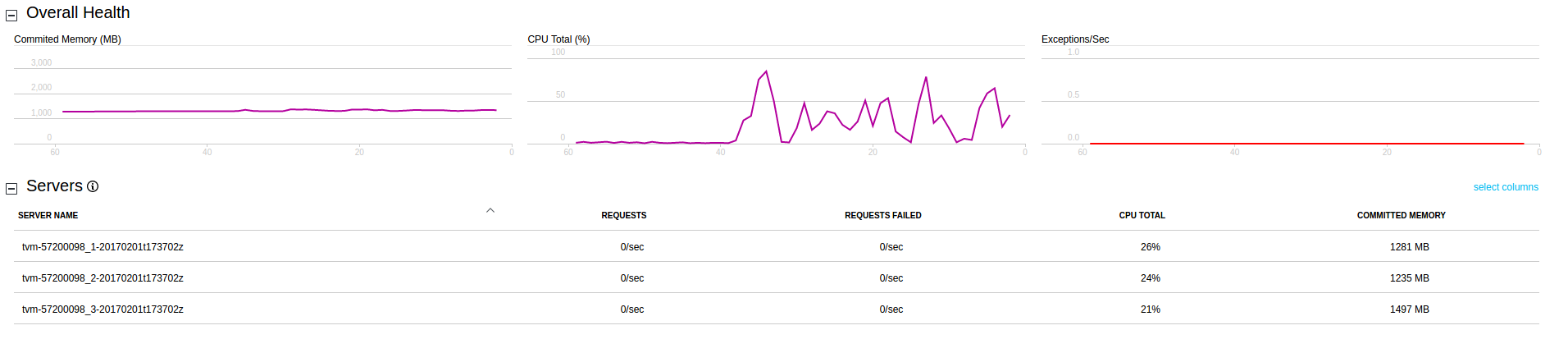
For deeper analysis, use the Search blade to query traces, events, and exceptions. You can also create custom charts in the Metrics Explorer to visualise your custom metrics. For example, you can create a grid chart that shows the average blob download time per node. This allows you to quickly identify if a specific node is underperforming compared to the rest of the cluster.
The key to effective monitoring is to use the right tool for the right job. Use Azure Batch metrics to monitor the health and capacity of the service. Use Application Insights to monitor the performance and behaviour of your HPC workloads. By keeping these layers separate and properly contextualised, you can diagnose issues faster and optimise your HPC runs more effectively.
To confirm your setup is working, submit a small test job and check the Application Insights Live Stream for traces from the compute nodes. If you see data, your instrumentation and file staging are correct. If not, check that the binaries are correctly staged and that the telemetry initializer is registered. Once verified, you can scale up your monitoring strategy to cover the full HPC workload.
References for Monitor an HPC run without confusing observations and benchmarks: Monitor Batch with Azure Application Insights, Monitor Azure Batch.