
Check regional quota before planning a GPU deployment
You have a parallel workload that needs GPU acceleration. You have selected the right VM series, such as the NCv3-series for high-performance computing or the NVv4-series for remote visualization. The next step is not writing the deployment script, but checking whether Azure will allow the deployment to succeed.
The first thing to check is the regional quota for the specific GPU VM family you intend to use. Azure enforces core quotas, but the boundary of that enforcement depends on how you allocate pools. If you attempt to create a pool with more nodes than your quota allows, the deployment will fail. This is a hard limit, not a soft recommendation.
Understand the quota boundary
Quotas are limits, not capacity guarantees. They vary based on changes from the service or a user request to change a quota value. For GPU workloads, the relevant limit is the core quota for the specific VM series in the region where you plan to deploy.
The boundary where this quota is enforced depends on your pool allocation mode in Azure Batch.
If you use Batch service mode, Batch enforces a core quota limit for each VM series and a total core quota for the entire Batch account. These limits are specific to the Batch account, not the subscription. You might have plenty of general-purpose cores available in your subscription, but zero cores allocated for the specific GPU family you need within that Batch account.
If you use user subscription mode, Batch VMs are created directly in your subscription when a pool is created or resized. In this case, the Azure Batch core quotas do not apply. Instead, the quotas in your subscription for regional compute cores and per-series compute cores are used and enforced. The distinction matters because the location of the limit changes from the Batch account to the subscription.
Check the current quota
You need to know exactly how many cores are available for your target VM series in the target region. The method for checking this depends on your allocation mode.
Batch service mode
If your Batch account uses Batch service mode, you view the quotas applied to that specific account.
- Sign in to the Azure portal.
- Select or search for Batch accounts.
- On the Batch accounts page, select the Batch account you want to review.
- On the Batch account’s menu, under Settings, select Quotas.
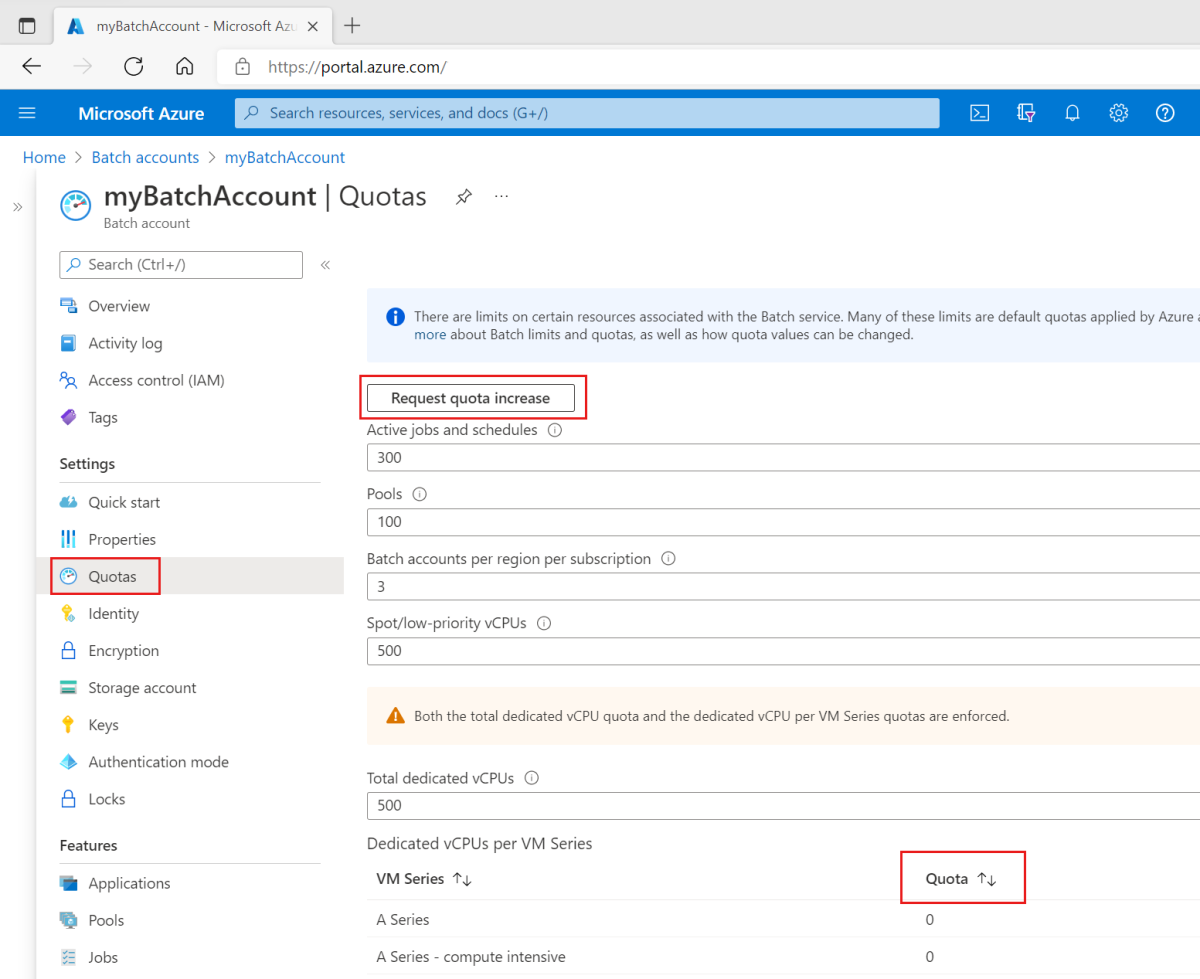
This page displays the quotas currently applied to the Batch account. Note that for capacity management purposes, default quotas for new Batch accounts in some regions have been reduced. In some cases, these limits have been reduced to zero. You must check your specific account to confirm the current limit.
User subscription mode
If your Batch account uses user subscription mode, the Batch account Quotas page does not reflect the underlying VM core quotas. You must check the subscription-level limits instead.
Navigate to the Azure subscription and service limits, quotas, and constraints page in the Azure portal for the subscription containing your Batch account. Look for the limits related to regional compute cores and per-series compute cores for the specific GPU VM family you intend to use. The default limits may vary depending on your subscription category.
Request a quota increase if needed
If your planned deployment exceeds the current quota, you must request an increase. You can do this at no charge via the Azure portal or the Azure Quota REST API. The type of quota increase depends on your pool allocation mode.
To request a quota increase using the Azure portal:
- Select or search for Quotas in the Azure portal.
- On the Quotas page, select Increase my quotas.
- On the Basics tab, select Service and subscription limits (quotas) for Issue Type and Batch for Quota type.
- On the Details tab, enter the Azure region where you want to increase the quota.
- Select the quota type. If you are not sure which option to select, see the explanation of quota types in the Azure Batch service quotas and limits documentation.
- If applicable, select the Batch account to update.
- Select which specific quotas to increase, such as dedicated cores for a specific VM series.
- Submit the support request.
Once you have submitted your support request, Azure support will contact you. Quota requests may be completed within a few minutes or up to two business days. Do not assume the increase is immediate. Plan your deployment timeline accordingly.
Verify before scaling
After the quota increase is applied, verify that the new limit is reflected in your quota page. Then, proceed with your deployment. If you are using Azure Batch, remember that pool size limits are set by the Batch service and cannot be changed. For example, pools with inter-node communication enabled have a maximum limit of 100 compute nodes in Batch service mode. These limits are separate from the core quotas.
If you plan large pool deployments in a virtual network, you may also need to request a quota increase for networking resources such as network security groups, public IP addresses, and load balancers. These resources are limited by the subscription’s resource quotas.
Check your quotas regularly as you scale. Quotas can vary based on changes from the service. If you encounter deployment failures, the first thing to check is whether you have reached your core quota limit for the specific VM series.