
Use Privileged Identity Management for Azure administration
You have a Global Administrator account. It is likely the most powerful identity in your tenant, and it is likely the one you use for daily tasks. That is a problem. If that account is compromised, the attacker has unrestricted access to every cloud service your organisation subscribes to. The first step in securing your administration is to stop using permanent privileged assignments and start using Microsoft Entra Privileged Identity Management (PIM).
PIM allows you to make users eligible for roles rather than permanently assigned to them. When you need to perform an administrative task, you activate the role for a limited time. This reduces the attack surface by ensuring that high-privilege permissions exist only when actively needed. It also provides an audit trail of who activated what, when, and for how long.
Start with the prerequisites
Before you can configure PIM, you need the right permissions and licenses. PIM is included in Microsoft Entra ID P2, which is part of the EMS E5 and Microsoft 365 E5 suites. If you do not have these licenses, the PIM features will not be available.
You also need a user with the Privileged Role Administrator or Global Administrator role to configure the initial settings. Microsoft recommends that the first person to use PIM is assigned to both the Security Administrator and Privileged Role Administrator roles. This ensures that the initial setup is secure and that you have the necessary permissions to manage role assignments.
Identify and categorise existing privileged accounts
The most critical task is to identify who currently has permanent access to highly privileged roles. The source documentation specifically highlights Global Administrator, Privileged Role Administrator, Exchange Administrator, and SharePoint Administrator as roles that require immediate attention. A Global Administrator has the same permissions across all cloud services, so this role is the highest priority.
You can use the Microsoft Entra admin center to view these assignments. Navigate to Identity > Roles & admins > Roles & admins. The Privileged column will show you which roles are classified as privileged, and the Assignments column will show you how many users are assigned to each role. You can also filter for privileged roles to make this easier.
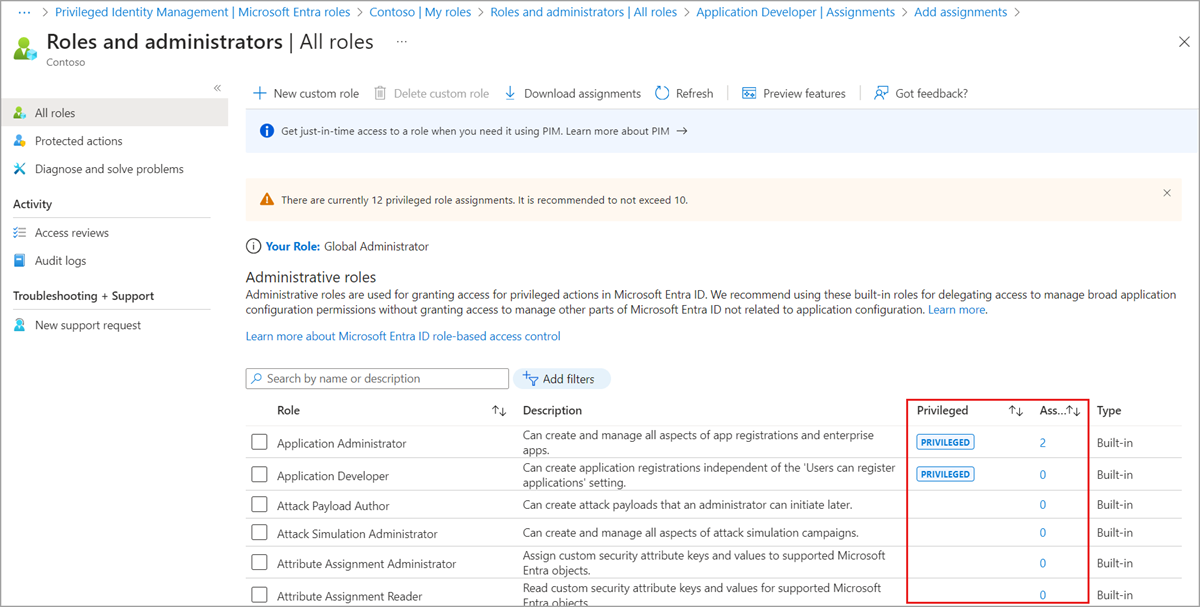
Once you have the list, categorise the accounts. Are they assigned to users who also use them for non-administrative purposes? Are they shared across multiple users? Are they break-glass emergency accounts? Remove any accounts that are no longer needed. For the remaining accounts, you need to decide whether they should be managed through PIM or kept as permanent assignments for specific reasons, such as automated scripts or emergency access.
Configure PIM for Azure administration
With the initial inventory complete, you can start configuring PIM. Sign in to the Microsoft Entra admin center as a Global Administrator or Privileged Role Administrator. Browse to Identity governance > Privileged Identity Management.
The PIM wizard will guide you through the initial discovery and assignment experience. You can exit the wizard without making changes, but it is useful to understand the structure. The key concept is the difference between Eligible and Active assignments.
An eligible assignment means the user must perform an action, such as multi-factor authentication (MFA) or providing a justification, to activate the role. An active assignment means the user has the role immediately, without any additional steps. For Azure administration, you should aim to make users eligible for roles rather than active.
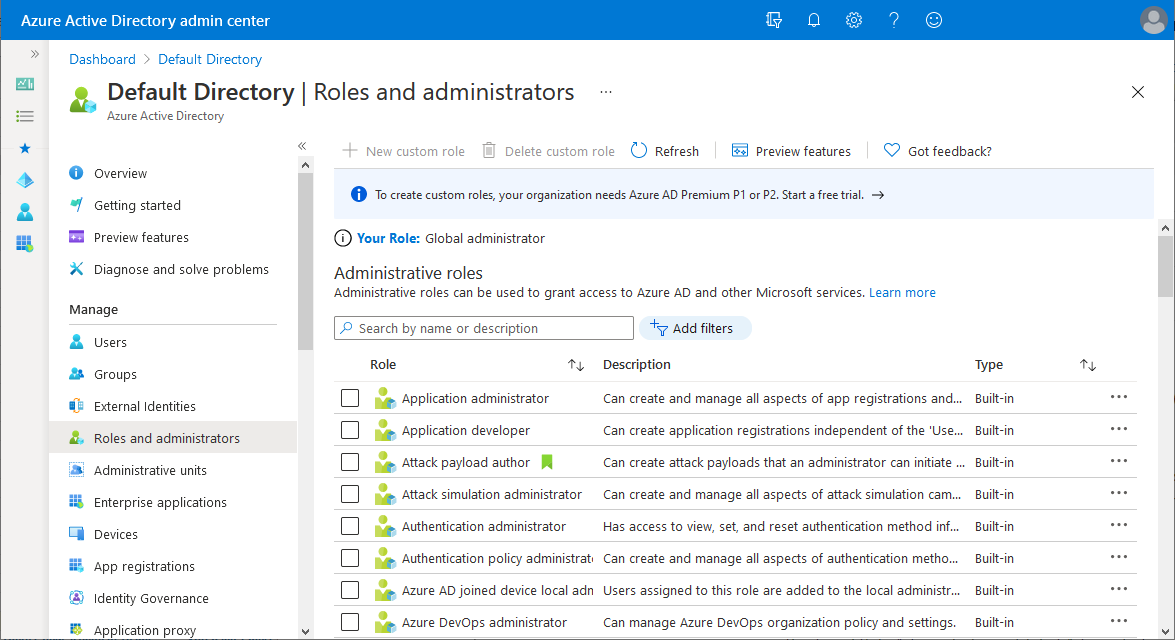
To assign a role using PIM, you can use the Roles and administrators page or the PIM experience directly. If you use the Roles and administrators page, select the role, then Add assignments. You will see an option to select No member selected and choose the users. On the Setting tab, you can choose whether the assignment is Eligible or Active. You can also set the duration for the assignment. For example, you might set an eligible assignment for a user to be valid for one year, but they can only activate it for two hours at a time.
Enforce MFA and define emergency access
PIM is only effective if the accounts themselves are secure. Microsoft recommends requiring MFA for all users in privileged roles. This can be enforced through Conditional Access policies. When a user activates a role through PIM, they are typically required to complete an MFA challenge. This adds a layer of security that prevents an attacker from using a stolen password to activate a privileged role.
You also need to define at least two emergency access accounts. These are cloud-only accounts that are permanently assigned the Global Administrator role. They are not assigned to specific individuals and are limited to emergency or “break glass” scenarios where normal accounts cannot be used. These accounts should be kept separate from daily administrative tasks and should not be used for regular administration. This ensures that you always have a way to recover access if PIM or other security controls lock you out.
Verify the configuration
To verify that PIM is working correctly, check the Assignments page in PIM. You should see a list of eligible and active assignments. You can also check the audit logs to see who has activated roles and when. This provides visibility into administrative activity and helps you identify any unusual patterns.
If you are using PowerShell, you can use the Microsoft Graph PowerShell module to manage PIM assignments. For example, you can use the New-MgRoleManagementDirectoryRoleEligibilityScheduleRequest command to create an eligible assignment. This is useful for automating the process or for managing large numbers of assignments.
# Illustrative example: Create an eligible role assignment
# Prerequisites: Microsoft.Graph.Identity.Governance module, Connect-MgGraph with RoleManagement.ReadWrite.Directory scope

$params = @{
  "PrincipalId" = "Exampleuserobjectid"
  "RoleDefinitionId" = "Exampleroledefinitionid"
  "Justification" = "Add eligible assignment for Azure administration"
  "DirectoryScopeId" = "/"
  "Action" = "AdminAssign"
  "ScheduleInfo" = @{
    "StartDateTime" = Get-Date
    "Expiration" = @{
      "Type" = "AfterDuration"
      "Duration" = "PT10H"
    }
  }
}

New-MgRoleManagementDirectoryRoleEligibilityScheduleRequest -BodyParameter $params | Format-List Id, Status, Action
This code creates an eligible assignment that is valid for 10 hours. The user will need to activate the role to use it. The Justification field is required and provides context for the assignment.
Next steps
Once PIM is configured for Azure administration, you should extend it to other services. Microsoft 365, Intune, and other cloud services can also be managed through PIM. This ensures a consistent security posture across your entire environment. You should also review the assignments regularly to ensure that they are still necessary and that the users are still authorised to have access.
The goal is to reduce the number of permanent privileged assignments and increase the use of just-in-time access. This makes it harder for attackers to gain long-term access to your environment and provides better visibility into administrative activity. By starting with the most critical roles and gradually expanding, you can secure your administration without disrupting daily operations.
Check the audit logs after the first week of PIM usage to ensure that the notifications are working and that users are activating roles as expected. If you see any unexpected activations, investigate them immediately. This is your early warning system for potential security incidents.
References for Use Privileged Identity Management for Azure administration: Privileged roles and permissions in Microsoft Entra ID (preview) - Microsoft Entra ID, Secure access practices for administrators in Microsoft Entra ID, Assign Microsoft Entra roles to users.