
Use data collection rules to control server telemetry
You have a virtual machine, but the telemetry arriving in your Log Analytics workspace is either too noisy or missing the specific performance counters you need. The legacy approach of configuring collection at the workspace level is rigid and often collects more data than necessary. The modern solution is to use Data Collection Rules (DCRs) to define exactly what the Azure Monitor Agent (AMA) collects and where it sends it.
A DCR is a set of instructions stored in Azure that tells the agent which data sources to poll, how to transform that data, and which destination to use. You create the rule, then associate it with your target resources. This decouples the collection logic from the workspace, allowing you to reuse a single rule across multiple machines or apply different rules to different workloads within the same subscription.
Prerequisites and permissions
Before creating a rule, ensure you have the necessary permissions. You need the Monitoring Contributor role at the subscription, resource group, or existing DCR scope to create or edit rules and associations. If you are deploying the agent to a new virtual machine, you also need Virtual Machine Contributor or Azure Connected Machine Resource Administrator to deploy the extension.
You must also have a Log Analytics workspace where you have at least contributor rights. The DCR itself must be created in the same Azure region as the destination workspace. However, the resources it monitors can be in any subscription or resource group within the tenant.
Creating the data collection rule
The Azure portal provides a wizard that simplifies the creation of DCRs for virtual machines. This wizard handles the JSON structure for you, reducing the risk of syntax errors.
- Navigate to Monitor in the Azure portal and select Data Collection Rules. Click Create to start the wizard [Create and edit data collection rules (DCRs) in Azure Monitor].
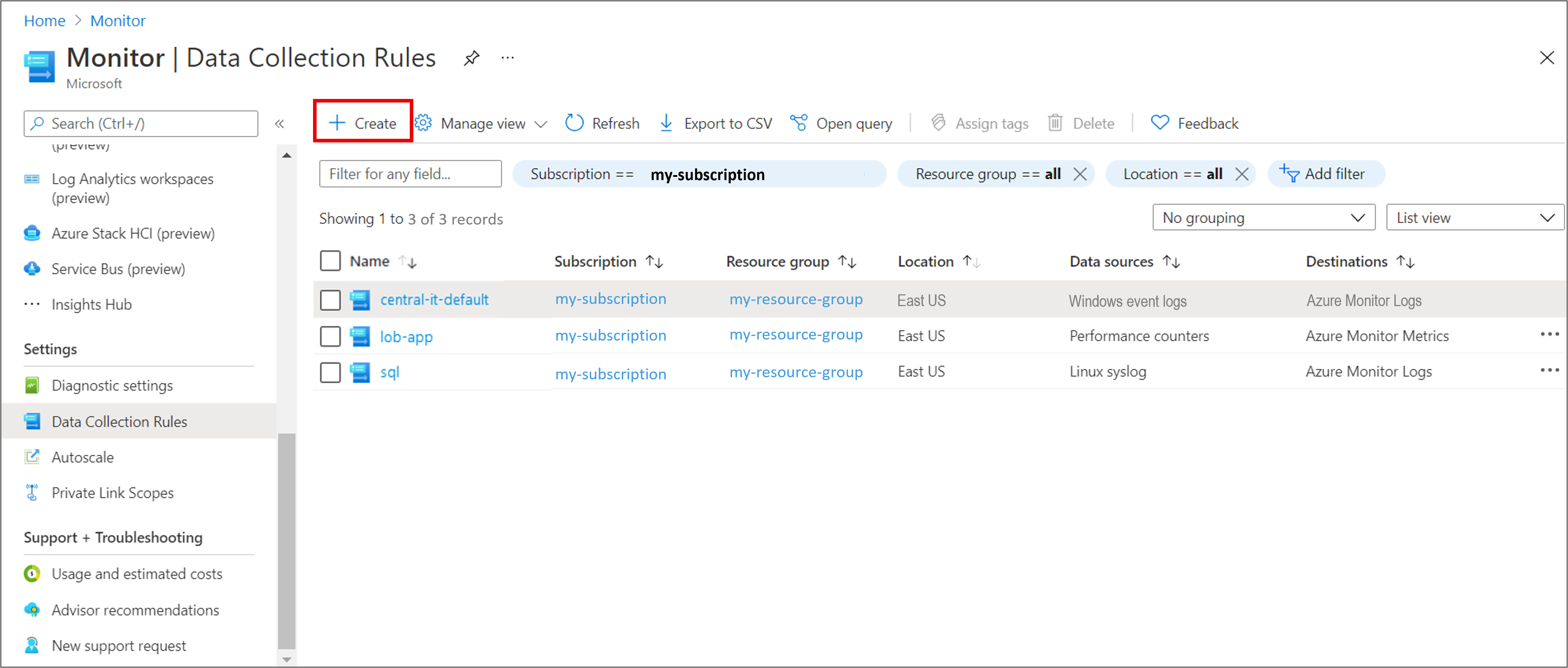
-
On the Basics tab, provide a rule name, select the subscription and resource group, and choose the region. Crucially, select the Platform Type (Windows, Linux, or All) that matches your target machines. If you plan to collect Linux syslog, IIS logs, or custom JSON/text logs, you must select or create a Data Collection Endpoint here. Performance counters and Windows event logs do not require a dedicated endpoint [Create and edit data collection rules (DCRs) in Azure Monitor].
-
On the Resources tab, click + Add resources to associate your virtual machines, Virtual Machine Scale Sets, or Azure Arc-enabled servers. The portal will automatically install the Azure Monitor Agent on any resource that does not already have it. If you need network isolation, you can select a private data collection endpoint here. The portal also configures the managed identity required for the agent to communicate with Azure Monitor [Collect events and performance counters from virtual machines with Azure Monitor Agent].
-
On the Collect and deliver tab, define your data sources. You can select predefined performance counters or event logs. For more granular control, such as filtering specific Windows events, select Custom. Here you can specify XPath queries to filter events. For example, to collect only Application events with Event ID 1035, you would use
Application!*[System[EventID=1035]][Collect events and performance counters from virtual machines with Azure Monitor Agent]. -
Select your destination. You can send data to one or more Log Analytics workspaces (multihoming). Performance counters can be sent to both Azure Monitor Logs and Azure Monitor Metrics. Note that Azure Arc-enabled servers do not currently support sending performance counters to the Azure Monitor Metrics destination [Create and edit data collection rules (DCRs) in Azure Monitor].
-
Review the configuration and click Create. It can take up to 5 minutes for data to start flowing to the destinations [Create and edit data collection rules (DCRs) in Azure Monitor].
Managing associations and automation
The association between the DCR and the resource is what activates the collection. In the portal, this is handled automatically during the creation wizard. However, for infrastructure as code, you can manage these resources using Azure Resource Manager (ARM) templates, Bicep, or the Azure CLI.
When using ARM templates, the DCR and its association are separate resources. The association resource must be scoped to the target virtual machine. Below is an illustrative example of a Bicep template that creates an association between a DCR and a virtual machine. Note that this code is unrun and provided for structural reference only.
@description('The name of the virtual machine.')
param vmName string

@description('The name of the association.')
param associationName string

@description('The resource ID of the data collection rule.')
param dataCollectionRuleId string

resource vm 'Microsoft.Compute/virtualMachines@2021-11-01' existing = {
  name: vmName
}

resource association 'Microsoft.Insights/dataCollectionRuleAssociations@2021-09-01-preview' = {
  name: associationName
  scope: vm
  properties: {
    description: 'Association of data collection rule. Deleting this association will break the data collection for this virtual machine.'
    dataCollectionRuleId: dataCollectionRuleId
  }
}
You can also use the Azure CLI to create a DCR from a JSON file. The command requires the location, resource group, rule name, and the path to the rule definition file.
az monitor data-collection rule create --location 'eastus' --resource-group 'my-resource-group' --name 'myDCRName' --rule-file 'C:\MyNewDCR.json' --description 'This is my new DCR'Verification and cleanup
To verify that the rule is working, check the Data Collection Rules blade in the Azure portal and select your rule. The Resources section will list the associated machines and their status. You can also query the Log Analytics workspace for the tables you configured (e.g., Perf, Event, or Syslog) to confirm data is arriving.
If you need to stop collection, you can remove the association. Deleting the association breaks data collection for that resource but does not delete the DCR itself. If you delete the DCR, any associated resources will stop receiving telemetry until a new rule is created and associated. Be aware that if you are transitioning from the legacy Log Analytics Agent to AMA, ensure you disable the legacy collection to avoid duplicate events [Collect events and performance counters from virtual machines with Azure Monitor Agent].
For complex filtering requirements, such as excluding specific security events to reduce ingestion costs, use XPath queries in the custom data source configuration. Remember that Azure Monitor supports up to 20 XPath expressions per rule, whereas the local Get-WinEvent cmdlet supports up to 23 [Collect events and performance counters from virtual machines with Azure Monitor Agent]. Test your XPath queries locally before applying them to production rules.