
Investigate a policy remediation task that did not run
A remediation task for a deployIfNotExists or modify policy sits in a pending or failed state. Compliance data shows resources are non-compliant, but the task is not progressing. This usually points to a gap in the identity configuration or permissions required to execute the remediation logic.
Remediation tasks rely on a managed identity associated with the policy assignment. This identity performs the resource deployments or modifications. If the identity lacks the necessary permissions, or if the identity itself has not fully replicated in Microsoft Entra ID, the task will stall or fail.
Check the managed identity status
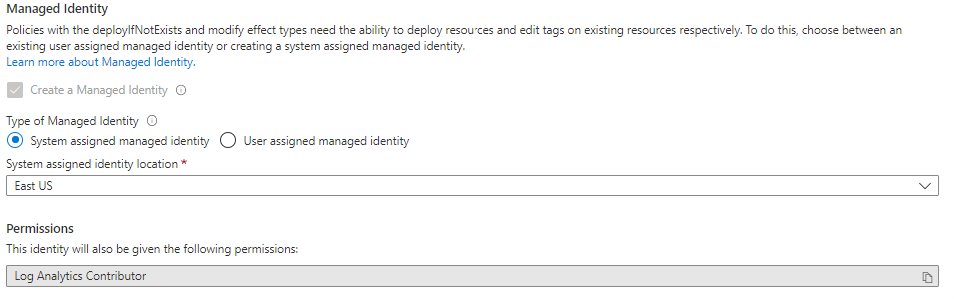
Each policy assignment can be associated with only one managed identity. This can be a system-assigned identity created by the policy service, or a user-assigned identity provided by you. The location of the managed identity does not affect its operational capability with Azure Policy, but it must exist. System-assigned identities are created in the region of the assignment scope, while user-assigned identities must reside in the same tenant as the assignment.
If you created the assignment through the portal, Azure Policy typically generates a system-assigned managed identity and grants it the roles defined in the policy definition automatically. However, if you used an SDK, PowerShell, or CLI, the identity must be manually granted the required roles. If you skipped this step, the remediation deployment will fail.
You can verify the identity type and principal ID in the policy assignment details. If you are using a user-assigned identity, ensure it is in the same tenant as the assignment.
Verify role replication and assignment
The managed identity needs the minimum Azure RBAC roles required to remediate the resources. These roles are defined in the policy definition under the roleDefinitionIds property. For built-in policies, these roles are prepopulated. For custom policies, you must ensure the roleDefinitionIds array contains the correct role IDs.
If the managed identity was created via the portal, roles are granted automatically when the assignment starts. If you are using an SDK or CLI, you must manually assign these roles. This is particularly important if the resource being remediated is outside the scope of the policy assignment, or if the template accesses properties on resources outside the scope.
The new managed identity must complete replication through Microsoft Entra ID before it can be granted the needed roles. If you recently created the identity or assigned roles, wait a few minutes for replication to complete before retrying the remediation task.
To grant roles manually using PowerShell, you can iterate through the roleDefinitionIds in the policy definition and assign them to the managed identity’s principal ID. The following example is illustrative and assumes $policyDef and $assignment are already defined.
# Example: Grant roles to managed identity at policy scope
# This code is illustrative and unrun. It assumes $policyDef and $assignment are defined.
$roleDefinitionIds = $policyDef.Properties.policyRule.then.details.roleDefinitionIds

if ($roleDefinitionIds.Count -gt 0)
{
    $roleDefinitionIds | ForEach-Object {
        # $roleDefId is already the full resource ID from the policy definition
        New-AzRoleAssignment -Scope $resourceGroup.ResourceId -ObjectId $assignment.Identity.PrincipalId -RoleDefinitionId $_
    }
}
If you are using the portal, you can also grant roles by navigating to Access control (IAM) on the resource or its parent container, and adding the appropriate role to the managed identity identified by the assignment ID.
Review the policy definition prerequisites
The policy definition must define the roles that deployIfNotExists or modify need to successfully deploy the content. If you are using a custom policy definition, ensure that the roleDefinitionIds property is correctly populated with full resource identifiers, not just role names.
Changing a policy definition does not automatically update the assignment or the associated managed identity. If you updated the roleDefinitionIds in the definition, you must manually grant the new permissions to the managed identity, even if you are using the portal.
Check for other common errors
If the identity and permissions appear correct, check for other common issues:
- Enforcement Mode: Ensure the assignment’s
enforcementModeis not set toDisabled. While remediation tasks can be started even whenenforcementModeisDoNotEnforce, the policy effect is not enforced during resource creation or update. If the task is failing due to a permission issue, check the Activity log for specific error codes. - Evaluation Triggers: A new policy or initiative assignment takes about five minutes to be applied. New or updated resources within scope become available in about 15 minutes. A standard compliance scan occurs every 24 hours. If the task was just created, wait for the evaluation to finish.
- Scope Exclusions: Ensure the resource is not excluded from the policy assignment scope or exempted.
Verify the remediation task
Once you have verified the identity, roles, and definition, you can check the status of the remediation task. If the task is still failing, review the error details in the portal or via the SDK. The error message should provide specific information about why the remediation failed, such as a missing role or a permission denied error.
If the issue persists, consider creating a support ticket under Authoring a policy to route the issue correctly. Provide the policy definition ID, assignment ID, and the error details from the remediation task.
References for Investigate a policy remediation task that did not run: Remediate non-compliant resources, Troubleshoot common errors, Details of the policy assignment structure.