
Use Advanced Hunting to test a Defender XDR hypothesis
You suspect a specific process signature is being used for lateral movement, but your automated alerts haven’t fired. The first step is to verify whether the activity exists in your data before writing a detection rule. Advanced Hunting in Microsoft Defender XDR provides the raw event data needed to test this hypothesis, allowing you to inspect events across your network to locate threat indicators and entities.
Start with a clear hypothesis
A hunting query without a specific question often returns noise. Define what you are looking for before opening the query editor. For example: “Are there any instances of process.exe running on workstations that are not signed by the vendor?”
This clarity determines which data sources you need. Advanced Hunting supports queries that check a broader data set coming from Microsoft Defender for Endpoint, Microsoft Defender for Office 365, Microsoft Defender for Cloud Apps, and Microsoft Defender for Identity. If your hypothesis involves only endpoint activity, you might not need to query email or cloud app logs.
Query the raw data
Advanced Hunting lets you explore up to 30 days of raw data. You can use guided mode if you are not yet familiar with Kusto Query Language (KQL) or prefer the convenience of a query builder. Use advanced mode if you are comfortable using KQL to create queries from scratch.
When writing your query, remember that Advanced Hunting data uses the UTC timezone. Queries should be created in UTC. Results are converted to the timezone set in Microsoft Defender XDR, but your query logic should assume UTC to avoid off-by-one errors in time ranges.
Here is an illustrative example of a query to test the hypothesis above. This code is unrun and provided for structure only.
// Illustrative example: Test hypothesis for unsigned process execution
let SuspectProcess = "process.exe";
DeviceProcessEvents
| where Timestamp > ago(30d)
| where ProcessName == SuspectProcess
| where isempty(Signer) or Signer == ""
| project Timestamp, DeviceName, AccountName, ProcessCommandLine, Signer
| order by Timestamp desc
Run this query in the Advanced Hunting interface. If it returns zero results, your hypothesis might be incorrect, or the data might not be ingested. If it returns results, you have evidence to proceed.
Validate with Microsoft Sentinel Hunts
Once you have identified potential indicators in Advanced Hunting, you can validate them using Microsoft Sentinel’s hunting capabilities. Microsoft Sentinel is generally available in the Microsoft Defender portal.
Microsoft Sentinel hunts allow you to create a hypothesis, search through data, validate it, and act when needed. You can use the results from your Advanced Hunting query to inform a Sentinel hunt. For instance, if you found suspicious RemoteIP addresses in Advanced Hunting, you can create a bookmark in Sentinel to track those entities.
In the Microsoft Sentinel Hunting page, go to the Queries tab. You can run built-in queries or custom ones. If you want to investigate the entities you found in Advanced Hunting, you can use the Bookmarks feature. Bookmarks allow you to preserve relevant queries, annotate findings, and extract entity identifiers.
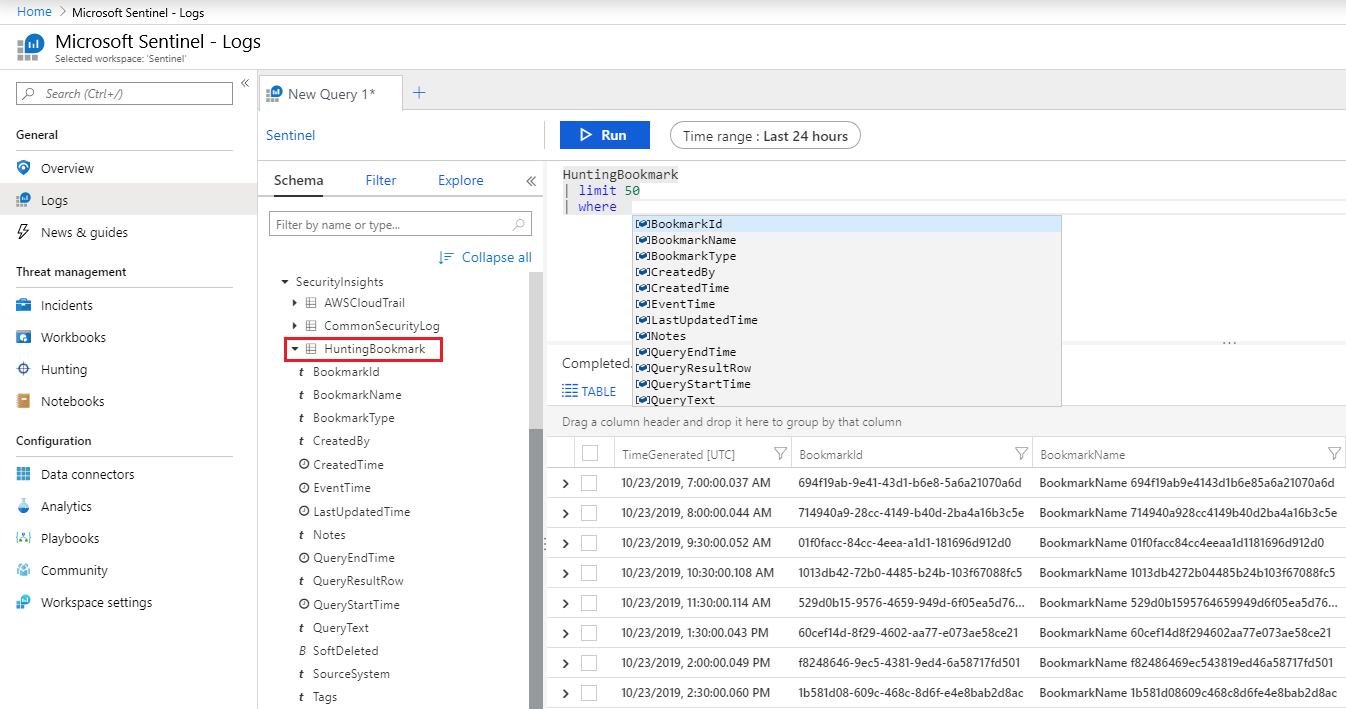
The bookmarks table in the Log Analytics workspace enables you to filter, summarize, and join bookmarked data with other data sources. This is useful for corroborating evidence across different telemetry sources.
Turn findings into detection
If your hypothesis is validated, the next step is to ensure it is detected in the future. Advanced hunting supports queries that check a broader data set, and you can use the same threat hunting queries to build custom detection rules.
In Advanced Hunting, you can create a custom detection rule based on your query. This rule will run automatically to check for suspected breach activity. Similarly, in Microsoft Sentinel, you can create new analytic rules based on your hunt findings.
Before creating a rule, consider the volume of results. If your query returns too many false positives, refine the criteria. If it returns too few, ensure you are not missing subtle indicators. Use the Livestream feature in Microsoft Sentinel to test newly created queries as events occur. This allows you to verify the query works as expected without the overhead of maintaining a custom alert rule immediately.
Verify the investigation
After creating the detection rule, verify that it works as intended. Run the query again against recent data to ensure it captures the expected events. Check the Bookmarks tab in Microsoft Sentinel to see if new findings are being tracked.
If the hypothesis is not validated, document the findings. Leave detailed notes in the comments of the hunt. This helps in tracking the overall impact of your hunting program.
By starting with a clear hypothesis and using both Advanced Hunting and Microsoft Sentinel, you can effectively test and validate threat indicators. This approach ensures you are not just reacting to alerts, but proactively hunting for threats based on evidence.
Check the Results filter in the Microsoft Sentinel Hunting page to see which queries returned results. Identify spikes in your data by sorting or filtering on Results delta. This helps in understanding the current state of your environment and whether your hypothesis is still relevant.
If you need to investigate deeper, use the UEBA entity pages in Microsoft Sentinel. You can run entity-specific playbooks on bookmarked entities. This provides a more comprehensive view of the threat and helps in making informed decisions.
Remember, hunting is an iterative process. Keep refining your queries and hypotheses based on new findings and evolving threat landscapes.
References for Use Advanced Hunting to test a Defender XDR hypothesis: Hunting capabilities in Microsoft Sentinel| Microsoft Docs, Overview - Advanced hunting, BehaviorEntities table in the advanced hunting schema.