
Turn a detection requirement into an analytics rule
You have a detection requirement. The first step is not writing a Kusto Query Language (KQL) query, but confirming that the data required to detect the threat is actually flowing into your Microsoft Sentinel workspace. Without the correct data connectors, even the most precise analytics rule will return no results.
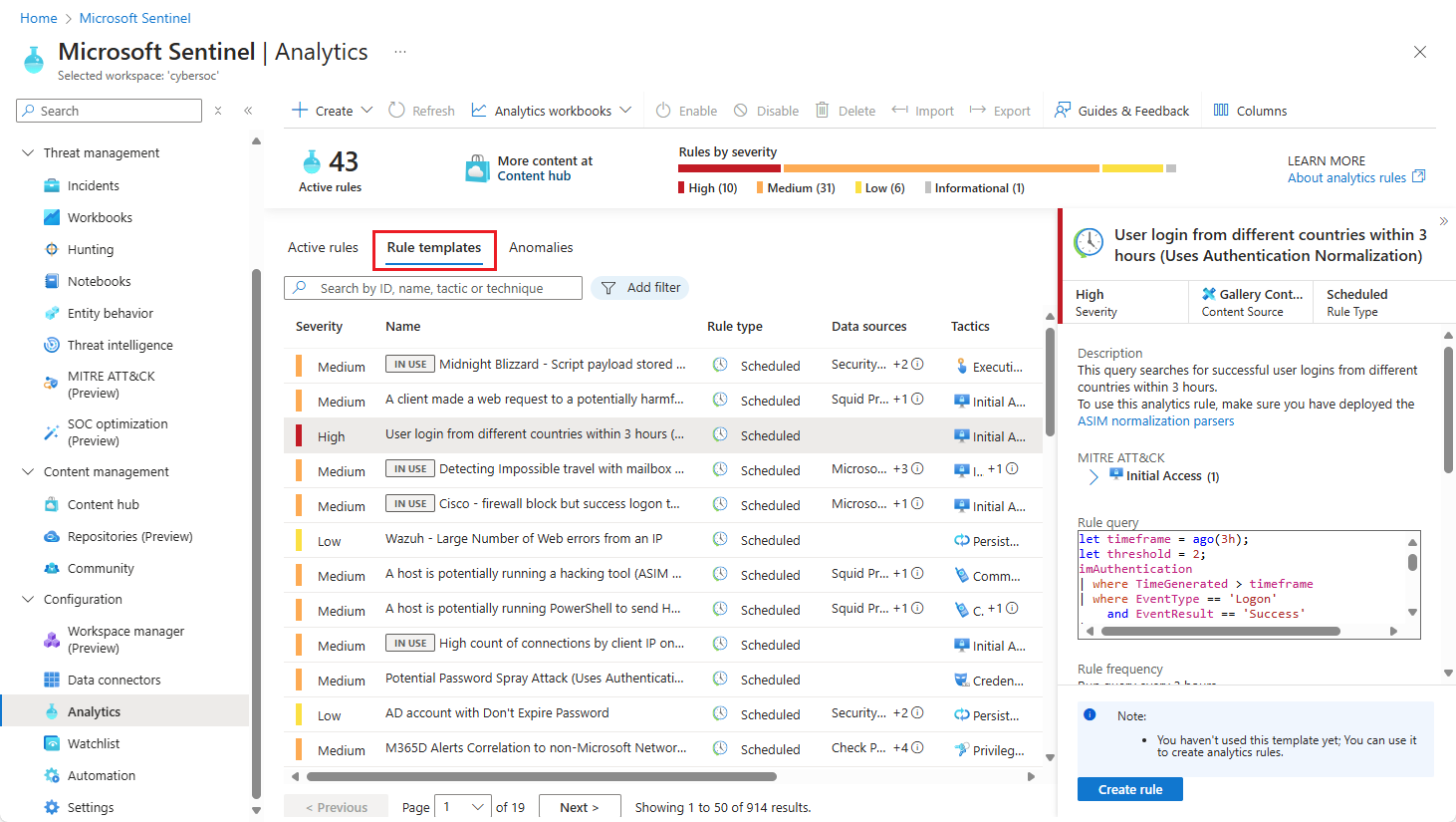
Microsoft Sentinel provides built-in templates to operationalise detection logic quickly. These templates are available in the Rule templates tab under the Analytics configuration section. When you select a template, the system automatically checks for the availability of required data sources. If a source is missing, the creation process may be blocked or warn you accordingly.
Confirm your data sources are active
Before creating any rule, you must ensure the relevant data connectors are installed and enabled. The documentation for creating scheduled analytics rules notes that each template lists required data sources, and these are automatically checked for availability when you open the template Create scheduled analytics rules in Microsoft Sentinel | Microsoft Docs. If a data source is not enabled, the Create rule button may be disabled or display a warning message.
For example, if your detection requirement involves matching external threat intelligence against your network traffic, you need specific connectors. The Microsoft Defender Threat Intelligence Analytics rule, which matches indicators against logs, requires one or more supported data connectors such as Common Event Format (CEF), DNS, Syslog, Office activity logs, or Azure activity logs Use matching analytics to detect threats. A premium Microsoft Defender Threat Intelligence (MDTI) license is not required for this rule, but the underlying data ingestion must be in place Use matching analytics to detect threats.
You can verify these connections in the Data connectors section of Microsoft Sentinel. If you are using a template, the rule creation wizard will highlight missing dependencies. If you are writing a custom rule, you must manually identify the Log Analytics table that receives your data (e.g., CommonSecurityLog for CEF, DnsEvents for DNS, Syslog for syslog events) Use matching analytics to detect threats.
Create a rule from a template
Templates are the fastest way to operationalise a detection requirement. They are pre-built rules available in the Rule templates tab under the Analytics configuration section Create scheduled analytics rules in Microsoft Sentinel | Microsoft Docs.
- Navigate to Microsoft Sentinel > Configuration > Analytics.
- Select the Rule templates tab.
- Use the Add filter option to select Rule type > Scheduled if you want to filter out near-real-time (NRT) rules, which have different performance characteristics and limited application at this time Create scheduled analytics rules in Microsoft Sentinel | Microsoft Docs.
- Search for a template relevant to your requirement. For instance, searching for “threat intelligence” will surface the Microsoft Defender Threat Intelligence Analytics template Use matching analytics to detect threats.
[!IMPORTANT] The Microsoft Defender Threat Intelligence Analytics rule is currently in PREVIEW. Preview features are subject to change and may have different support terms. See the Supplemental Terms of Use for Microsoft Azure Previews for additional legal terms that apply to Azure features that are in beta, preview, or otherwise not yet released into general availability.
- Select the template and click Create rule on the details pane Create scheduled analytics rules in Microsoft Sentinel | Microsoft Docs.
The rule creation wizard opens with details autofilled. You can customise the logic, severity, and other settings. For the Microsoft Defender Threat Intelligence Analytics rule, the matching logic is predefined to specific fields in the supported data sources (e.g., DestinationIP in CommonSecurityLog for IPv4 indicators) Use matching analytics to detect threats. You can still configure rule settings like severity and tactics during creation.
Once you review the settings, click Create. The new rule appears in the Active rules tab Create scheduled analytics rules in Microsoft Sentinel | Microsoft Docs.
Create a custom analytics rule from scratch
If no template meets your specific detection requirement, you can create a custom rule. This involves writing a KQL query that defines the detection logic.
- In the Analytics page, select the Custom detection tab.
- Click + New scheduled rule.
- Provide a Rule name and Display name.
- Set the Query field to your KQL statement. Ensure the query returns the
TimeGeneratedcolumn and any other relevant entities. - Configure the Event grouping settings. This determines how alerts are grouped into incidents. For example, you might group by a specific entity like
AccountorIP. - Set the Rule frequency and Lookback duration. The frequency is how often the rule runs (e.g., every 5 minutes). The lookback duration is the time window the query covers (e.g., the last 15 minutes).
- Define the Severity and Tactics (e.g., Initial Access, Execution) to align with the MITRE ATT&CK framework.
- Click Create rule.
Custom rules give you full control over the detection logic but require you to manage the query performance and data table dependencies yourself. Unlike templates, custom rules do not automatically check for data source availability, so you must ensure the tables referenced in your query are populated.
Verify the detection
Once the rule is created, it begins running at the specified frequency. To verify it is working:
- Wait for the first run cycle to complete.
- Navigate to the Incidents page in Microsoft Sentinel.
- Search for incidents generated by your new rule.
If no incidents appear, check the Analytics page for the rule’s status. You can view the Query results to see if the KQL query is returning data. If the query returns no results, the issue is likely with the data ingestion (missing connectors or incorrect field mappings) rather than the rule logic itself.
For the Microsoft Defender Threat Intelligence Analytics rule, matches are published to the ThreatIntelligenceIndicators table in Log Analytics, and the source is defined as Microsoft Defender Threat Intelligence Analytics Use matching analytics to detect threats. You can query this table to confirm that indicators are being matched and ingested correctly.
Next steps
With the rule active, you can refine the detection logic based on false positives or adjust the grouping settings to reduce alert fatigue. Consider enabling auto-remediation actions if the rule generates high-confidence alerts. Always review the rule’s performance and impact on your Log Analytics workspace costs, especially if the lookback duration or query complexity is high.
For further details on managing analytics rules, refer to the Create scheduled analytics rules in Microsoft Sentinel documentation Create scheduled analytics rules in Microsoft Sentinel | Microsoft Docs and the guide on Use matching analytics to detect threats Use matching analytics to detect threats.