
Roll out Conditional Access using report-only mode
A Conditional Access policy can look perfectly reasonable in the editor and still cause problems when people sign in. The assignments may be too broad, an application may behave differently from the others, or another policy may already impose a conflicting requirement.
Report-only mode gives us a way to inspect those effects before enforcing the new policy. During sign-in, Microsoft Entra ID evaluates a report-only policy and records the result without enforcing its controls. It is useful evidence for a rollout, provided we understand what the result actually means. Microsoft’s report-only documentation describes the evaluation and its limitations.
Define the pilot before opening the policy editor
For this example, the goal is to evaluate an MFA requirement for a small group using one selected cloud application. The group and application are illustrative; choose a representative combination in your tenant.
Confirm that affected users have the required Conditional Access licensing and an appropriate MFA registration route. Microsoft Entra ID P1 provides Conditional Access; risk-based policies involve additional licensing. Use a Conditional Access Administrator account for policy management, and identify your emergency access accounts before making changes. Check the Conditional Access overview for prerequisites.
A pilot group should include the sign-in patterns you need to understand: different supported devices, locations and application clients. Testing only your own browser session leaves too many assumptions unexamined.
Create the policy in report-only mode
- In the Microsoft Entra admin centre, open Protection → Conditional Access and create a policy.
- Give it a descriptive name, such as
CA-Pilot-SelectedApp-MFA. - Under Users or workload identities, include the pilot group. Explicitly exclude the organisation’s designated emergency access accounts.
- Under Target resources → Cloud apps, select the application in the pilot.
- Under Grant, choose Grant access and Require multifactor authentication.
- Set Enable policy to Report-only, check the assignments again, and create it.
These steps narrow Microsoft’s documented MFA policy procedure to a pilot. Keep the initial configuration simple enough that you can explain why each test sign-in should match.
Read the sign-in result, not just the policy list
Have the pilot users perform the relevant application sign-ins. Then open those events in the sign-in logs and inspect the Report-only policy details. Compare the user, application, client and conditions with your intended scope.
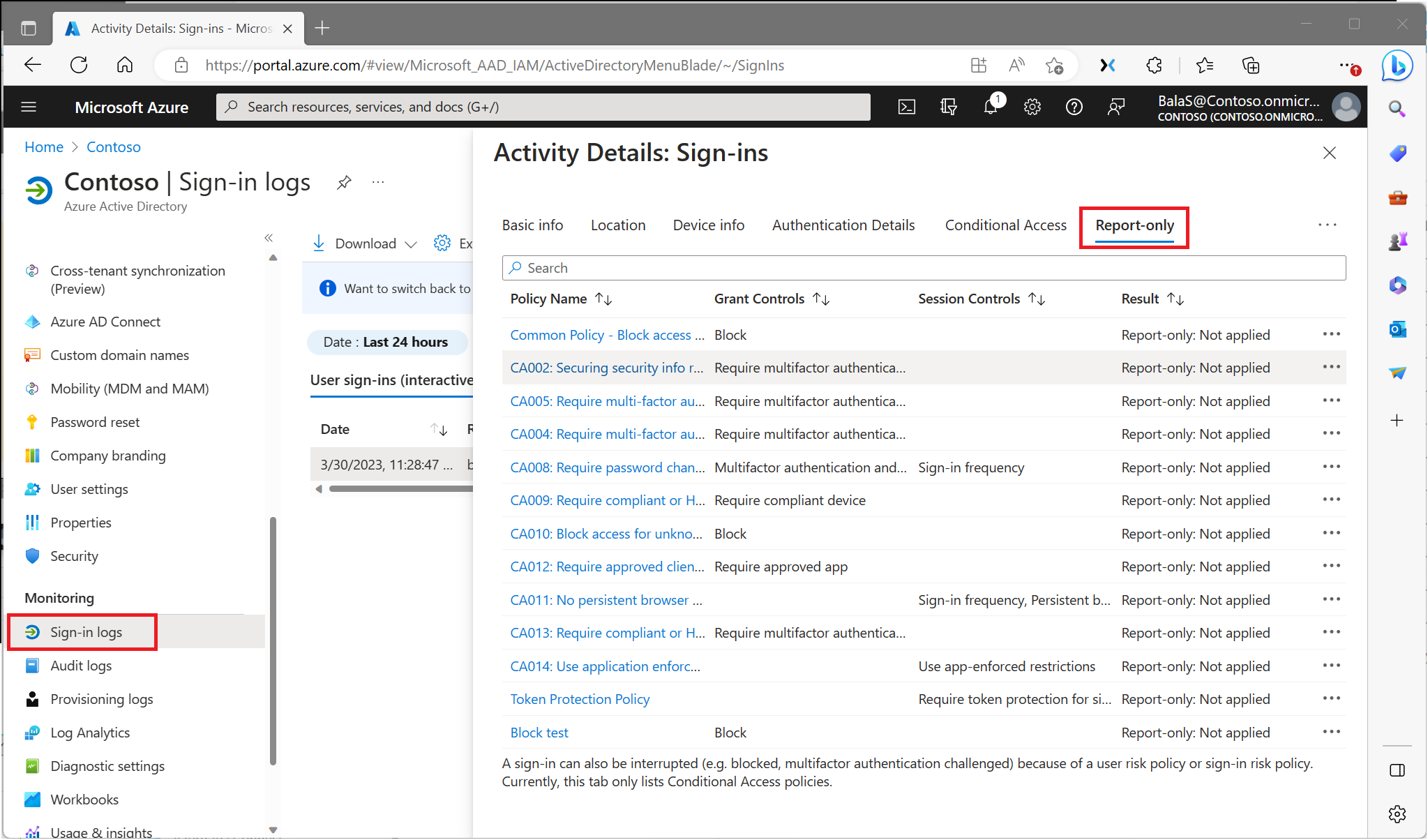
The four results answer different questions:
| Report-only result | Interpretation |
|---|---|
| Success | The sign-in matched and the required controls were already satisfied |
| Failure | The sign-in matched, but required non-interactive controls were not satisfied, or a block control would apply |
| User action required | The sign-in matched, but satisfying the controls would require an interaction such as an MFA challenge |
| Not applied | The sign-in did not match all the policy conditions |
For an MFA policy, User action required does not prove that the user cannot complete MFA. Report-only mode has not presented the challenge. Equally, Success does not demonstrate that the new policy challenged the user; an existing MFA claim may already satisfy it.
Check the combined effect before enforcement
Review other Conditional Access policies evaluated for the same sign-ins. A successful result for your new policy does not guarantee access if another applicable policy blocks the request. Use the What If tool to inspect assignment logic, and use actual sign-in records to understand observed activity.
There is also an exception to the idea that report-only is invisible. Microsoft’s documentation warns that report-only policies requiring compliant devices can trigger certificate-selection prompts on macOS, iOS and Android. If you add device-compliance controls later, account for that behaviour rather than assuming the MFA pilot’s behaviour covers every control.
Report-only mode is not supported for the User actions scope, so do not apply this rollout method to that scope without checking its supported testing approach.
Move to On only after the pilot covers representative activity, MFA readiness is confirmed, exclusions are reviewed and someone can respond if access fails. Expand in stages, inspect the new sign-in results and keep the recovery route available. The useful outcome is a policy whose effect you can explain before everyone depends on it.