
Map entities so incidents contain useful context
An alert without context is just a line in a log. To turn that alert into an investigable incident, you need Microsoft Sentinel to recognise the data elements as specific entities. Entity mapping is the mechanism that tells Sentinel which fields in your query results correspond to accounts, hosts, IP addresses, or other entities it can track and correlate.
This is not an optional cosmetic step. Without entity mapping, the incident remains a flat list of fields. With it, Sentinel can link the alert to the entity pages, correlate it with other alerts involving the same account or host, and provide the building blocks for investigation Map data fields to Microsoft Sentinel entities | Microsoft Docs.
Why entity mapping matters
Entities are classifications or labels for data elements in your alerts. Sentinel uses them to recognise data elements as a particular entity type, correlate data across alerts, and provide a rich foundation for investigation Entities in Microsoft Sentinel.
When Sentinel understands what kind of entity a data element represents, it knows the right questions to ask about it. It can compare insights about that item across your full range of data sources. This correlation is what turns a single alert into a story about a threat actor, a compromised host, or a malicious URL.
Prerequisites and permissions
Before you begin, ensure you have the necessary permissions. You need access to the Microsoft Sentinel workspace and the ability to edit analytics rules. The documentation notes that Reader, Contributor, or Owner roles at the subscription or resource group scope are typically required to view resources and manage Sentinel configurations Map data fields to Microsoft Sentinel entities | Microsoft Docs.
You also need to understand the data schema of the table your analytics rule queries. Entity mapping relies on field names that exist in your ingested data. If your data source does not provide standard fields (like AccountName or SourceIP), you may need to normalise the data in your KQL query before mapping it to entities.
Mapping entities in a scheduled analytics rule
Entity mapping is configured within the analytics rule creation wizard. You can add or change mappings in an existing rule or when creating a new one.
-
Navigate to the Analytics page in Microsoft Sentinel. You can access this via the Configuration section in the Azure portal or via the Microsoft Defender portal under Microsoft Sentinel > Configuration Map data fields to Microsoft Sentinel entities | Microsoft Docs.
-
Select an existing scheduled query rule and click Edit, or create a new rule by clicking Create > Scheduled query rule Map data fields to Microsoft Sentinel entities | Microsoft Docs.
-
In the Set rule logic tab, ensure your rule query is defined. The entity mapping section draws its available fields from the table defined in this query.
-
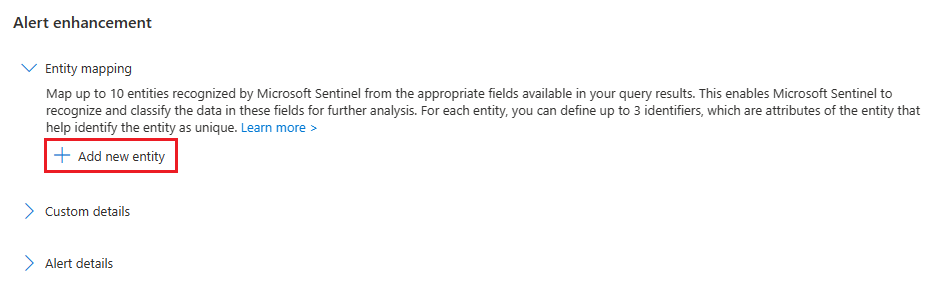
Expand the Entity mapping section under Alert enhancement. If it is collapsed, click to expand it Map data fields to Microsoft Sentinel entities | Microsoft Docs.
-
Click Add new entity. You can define up to ten entity mappings in a single analytics rule. You can also map multiple entities of the same type, such as a source IP and a destination IP Map data fields to Microsoft Sentinel entities | Microsoft Docs.
-
Select an Entity type from the drop-down list. Common types include Account, Host, IP, URL, and Azure resource. The full list of supported entities is available in the entity reference Microsoft Sentinel entity types reference | Microsoft Docs.
-
Select an Identifier for the entity. Identifiers are attributes that sufficiently identify the entity. Choose from the Identifier drop-down, then select the corresponding data field from the Value drop-down. The Value list is populated by the fields in your query result Map data fields to Microsoft Sentinel entities | Microsoft Docs.
You can define up to three identifiers for a given entity mapping. At least one required identifier must be selected. For best results, use strong identifiers whenever possible. Strong identifiers uniquely identify an entity without ambiguity, whereas weak identifiers may require combination with other identifiers to achieve uniqueness Entities in Microsoft Sentinel.
For example, for an Account entity, a strong identifier might be the
SidorAadUserId. For a Host,AzureIDorOMSAgentIDare strong identifiers. Using weak identifiers likeNamealone can lead to entity fragmentation if the same user or host appears with different domain contexts Entities in Microsoft Sentinel. -
Repeat steps 5-7 for additional entities. If you make a mistake, you can remove an entity mapping by clicking the trash can icon next to the entity drop-down Map data fields to Microsoft Sentinel entities | Microsoft Docs.
-
Click Review and create. Once the rule validation is successful, click Save Map data fields to Microsoft Sentinel entities | Microsoft Docs.
Limits and considerations
Be aware of the limits on entity identification. Up to 500 entities can be identified collectively in a single alert, divided equally across all entity mappings defined in the rule. For example, if two entity mappings are defined, each can identify up to 250 entities. If an alert contains items in excess of this limit, those excess items will not be recognised and extracted as entities Map data fields to Microsoft Sentinel entities | Microsoft Docs.
Additionally, the size limit for the entire entities area of an alert is 64 KB. Entities fields that grow larger than 64 KB will be truncated. As entities are identified, they are added to the alert one by one until the field size reaches 64 KB, and any entities yet unidentified are dropped Map data fields to Microsoft Sentinel entities | Microsoft Docs.
The new version of entity mapping is generally available. If you had previously defined entity mappings using the old version, they will be automatically converted to the new version. The feature-flag workaround to use the old version is no longer available Map data fields to Microsoft Sentinel entities | Microsoft Docs.
Verification
To verify your entity mapping is working, trigger the analytics rule with test data or wait for a real alert. Open the resulting incident and check the Entities tab. You should see the entities you mapped, along with their identifiers. If entities are missing or fragmented, review your identifier choices and ensure your query returns the necessary fields.
Entity mapping is a foundational step in making your alerts actionable. It transforms raw data into context-rich incidents that Sentinel can correlate and investigate effectively. By carefully selecting strong identifiers and understanding the limits, you ensure your security operations have the best possible foundation for threat hunting and response.