
Investigate a failed sign-in using Entra logs
A user reports they cannot sign in to Microsoft 365. The first thing to check is not the password, but the sign-in log. Microsoft Entra ID records every attempt, including failures, and provides structured data to pinpoint where the authentication flow broke. You can resolve many issues without opening a support ticket by following the log details and using the built-in diagnostics.
Gather the sign-in details
You need permission to view the activity logs. The Reports Reader role is the least privileged role required to access the sign-in logs in the Microsoft Entra admin center. Any user can also view their own sign-in history at https://mysignins.microsoft.com.
- Sign in to the Microsoft Entra admin center as a Reports Reader or higher.
- Navigate to Identity > Monitoring & health > Sign-in logs.
- Filter the view to isolate the problem. Select Failure from the Status menu to display only failed sign-ins. Narrow the results by entering the username or the specific application if the issue is isolated.
- Select the failed sign-in event to open the details window.
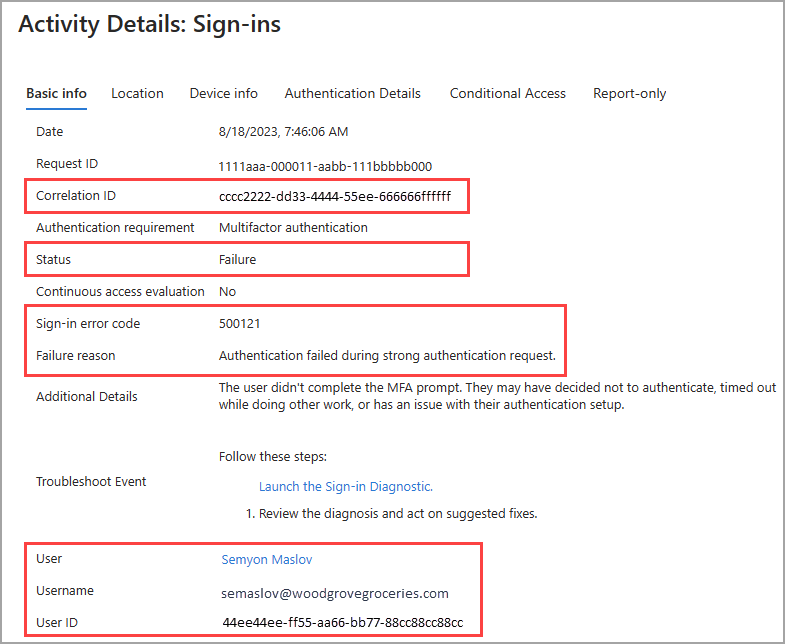
On the Basic info tab, note four key values: the Correlation ID, the Sign-in error code, the Failure reason, and the Additional Details. These identifiers link the sign-in attempt to its underlying authentication steps and Conditional Access evaluations.
Interpret the error code and failure reason
The Failure reason often provides the immediate next step. For example, if the reason is Authentication failed during the strong authentication request, the additional details might clarify that the user did not complete the MFA prompt. In that case, instruct the user to sign in again and complete the prompts. If the reason is Error validating credentials due to invalid username or password, the user likely entered incorrect credentials, or an application is caching an old password.
For more specific troubleshooting, use the Sign-in error code. You can enter this code into the Error code lookup tool or search the sign-ins error codes reference.
Common error codes include:
- 50058: The user is authenticated but not yet signed in. This appears when the user didn’t complete the sign-in process. The User field might display an Object ID instead of a username.
- 90025: An internal Microsoft Entra service hit its retry allowance. This is usually resolved automatically; if it persists, have the user sign in again.
- 500121: The user didn’t complete the MFA prompt. This often happens if MFA setup is incomplete.
- 70046: The session expired or a reauthentication check failed. This can occur if a Conditional Access policy requires reauthentication based on sign-in risk.
Check Conditional Access and Authentication details
If the error code is not immediately clear, look at the Conditional Access and Authentication Details tabs in the sign-in log.
The Conditional Access tab shows which policies were evaluated and their outcome. A status of Not Applied means the sign-in did not match the policy criteria. A status of Success means the policy was applied and granted access, but it does not guarantee the overall sign-in succeeded; it only confirms the policy was processed. A status of Failure indicates the sign-in satisfied the policy conditions but failed the grant controls, such as being blocked or requiring MFA that was not satisfied.
The Authentication Details tab lists the authentication policies applied, such as Conditional Access or Security Defaults, and the sequence of authentication methods used. This helps you distinguish between primary authentication failures (e.g., wrong password) and secondary authentication failures (e.g., MFA timeout). Note that the authentication details tab may initially show incomplete data until log aggregation is complete. If you are unsure, use the Request ID and Correlation ID for further analysis.
Use the Sign-in Diagnostics tool
For a deeper analysis, launch the Sign-in Diagnostics tool from the Basic info tab of the sign-in log. This tool analyzes the sign-in attempt and provides recommendations for resolving problems without needing to involve Microsoft support.
The diagnostics cover several common scenarios:
- Conditional Access: Identifies if a policy blocked the sign-in or if MFA was triggered. It can also detect if a policy is too strict or if there are configuration issues with users, groups, or apps.
- Multifactor Authentication: Distinguishes between MFA triggered by Conditional Access and other requirements, such as per-user MFA. It also identifies MFA proofup errors, which occur when a user does not complete the initial MFA setup.
- Legacy Authentication: Detects if the sign-in was blocked because the client attempted to use legacy protocols like POP, IMAP, or SMTP, which cannot enforce MFA.
- Pass Through Authentication (PTA): Helps isolate issues when PTA is used, identifying PTA-specific errors versus other problems.
- Seamless Single Sign-On: Examines the context of failures involving Kerberos and cloud authentication integration.
If the diagnostic does not provide a contextual analysis, it may show an Error code insight with detailed text about the scenario and remediation steps.
Verify the resolution
After applying the recommended fix, such as correcting credentials, completing MFA setup, or adjusting a Conditional Access policy, verify the resolution by having the user attempt to sign in again. Check the sign-in logs to confirm the new sign-in attempt shows a Success status. If the issue persists despite taking the recommended course of action, or if the error code is not recognized, open a support request with Microsoft Entra ID.
When opening a support request, include the Correlation ID and Sign-in error code from the failed sign-in log. These identifiers allow Microsoft support to quickly locate the specific event and trace the authentication flow.
Unresolved Constraints
- The sign-in log date and time are displayed in the admin center localized to the time zone of the person viewing the log, not the user who attempted the sign-in. This can cause confusion when correlating logs with user-reported times.
- The Authentication Details tab may initially show incomplete or inaccurate data until log information is fully aggregated. Known examples include a satisfied by claim in the token message being incorrectly displayed when events are initially logged.
- Conditional Access policies do not apply to Windows sign-in processes, such as Windows Hello for Business. These sign-ins will show as Not Applied in the Conditional Access tab, which is expected behavior.
- The Correlation ID is based on parameters passed by the client, so Microsoft Entra ID cannot guarantee its accuracy. It is useful for grouping sign-ins but should not be relied upon as a definitive unique identifier for all troubleshooting scenarios.
References for Investigate a failed sign-in using Entra logs: Common sign-in diagnostics AD scenarios, How to troubleshoot sign-in errors, Learn about the sign-in log activity details.