
Create and test emergency access accounts in Microsoft Entra ID
Emergency access accounts provide an administrative route when the normal one is unavailable. Their value comes from independence: a recovery account that relies on the same federation service, personal phone or policy dependency as the affected administrator can fail for the same reason.
Microsoft’s emergency access guidance recommends two or more cloud-only accounts. Creating them is one part of the process. The credentials must be retrievable, the authentication method must work, and their use must reach someone who can investigate.
Establish an independent administrative route
Use accounts created directly in Microsoft Entra ID with the tenant’s onmicrosoft.com domain. They should not be federated or synchronised from an on-premises directory.
Keep them separate from named administrators’ daily accounts. Their credentials and registered authentication devices must not disappear when one employee leaves or becomes unreachable. Document who is authorised to retrieve and use them and the circumstances that justify access.
In Privileged Identity Management, Microsoft’s guidance calls for permanent Global Administrator assignments for these accounts rather than assignments that require activation. The purpose is to avoid making emergency access depend on completing the same activation process that may already be unavailable.
This arrangement addresses particular administrative lockout scenarios. It does not make a cloud service available during every possible outage.
Create the accounts and confirm the assignment
Sign in to the Microsoft Entra admin centre with the required Global Administrator access. Under Identity, open Users, then All users, and select New user followed by Create user.
For each emergency account:
- Choose a cloud-only username in the tenant’s
onmicrosoft.comdomain. - Use an identifiable account name and a long, randomly generated initial password.
- Assign the Global Administrator role and complete the required creation fields.
- Verify the created account and its role assignment rather than relying on the submitted form alone.
The documented example shows the username, account name and role selection:
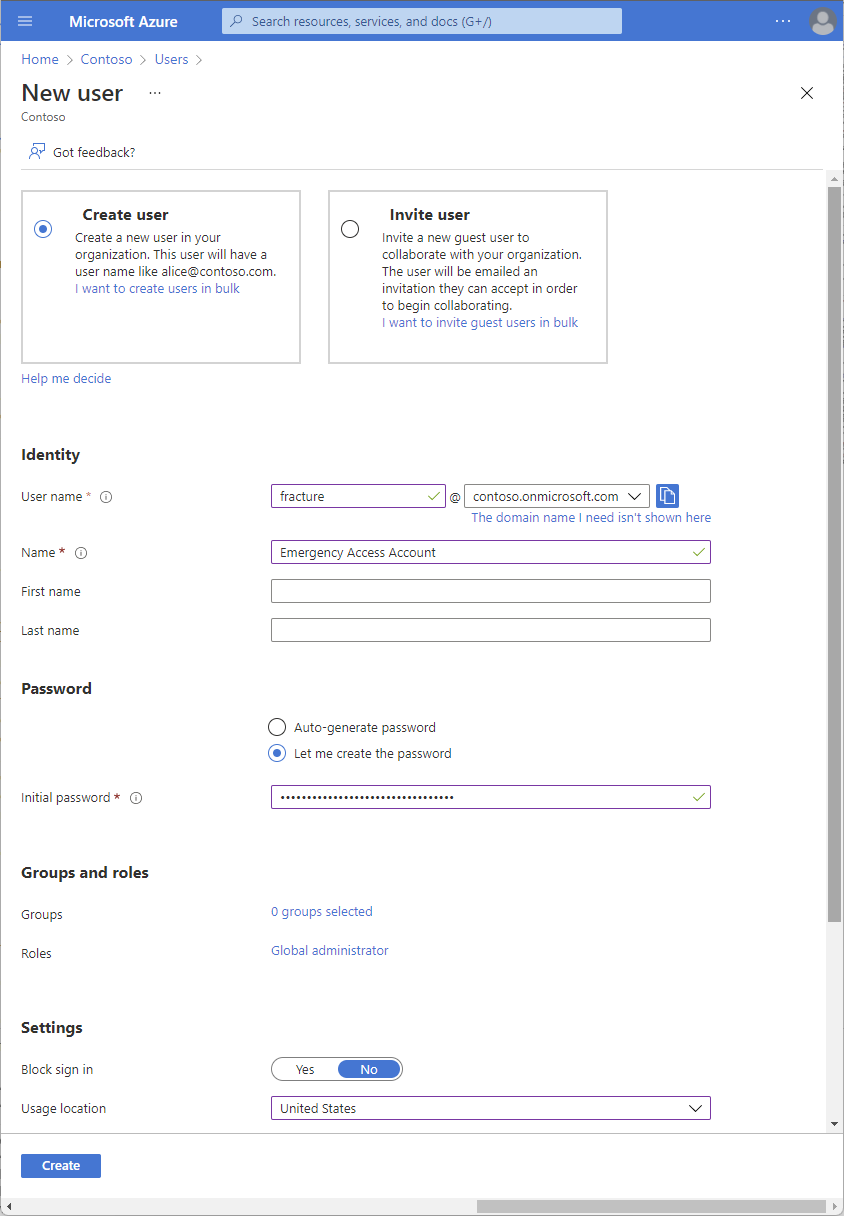
Keep credentials out of screenshots, tickets and ordinary handover notes. If passwords are part of the design, the Microsoft guidance specifies strong, non-expiring passwords, ideally randomly generated and at least 16 characters long.
Review authentication and policy dependencies
Use strong authentication with a different dependency from normal administrative access. Microsoft gives the example of using a FIDO2 security key for emergency accounts when ordinary administrators use Microsoft Authenticator.
Store the organisation-controlled key securely, with an agreed retrieval process. A key carried by one administrator recreates an individual dependency. Review credential expiry and automated cleanup so that infrequently used recovery credentials remain available.
The documented Conditional Access approach requires at least one emergency account to be excluded from all Conditional Access policies. Inspect the actual assignments and exclusions, including policies that will later move from report-only to enabled. Also review per-user MFA settings so they do not recreate the authentication dependency being avoided.
An exclusion is not a reason to leave the account with weak authentication or to stop monitoring it. Record why each exception exists and verify that the intended independent authentication route works. The admin portal MFA policy guidance includes emergency-account exclusions as part of its configuration.
Monitor sign-ins and audit activity
Send the tenant’s sign-in logs to the intended Log Analytics workspace, with the required permissions and logging configuration. Record each emergency account’s Object ID.
This illustrative KQL query follows the documented Object ID approach. Replace both placeholder strings with the real IDs before using it:
SigninLogs
| where UserId == "REPLACE_WITH_FIRST_OBJECT_ID"
    or UserId == "REPLACE_WITH_SECOND_OBJECT_ID"
| project TimeGenerated, UserId, UserPrincipalName, ResultType, IPAddress
The query has not been executed against a tenant for this article. It includes matching sign-in records without restricting the result to successful authentication.
Configure a log-search alert for a result count greater than zero, an appropriate evaluation window and a monitored action group. Confirm the response owner and severity. Sign-in log ingestion and alert evaluation take time; an alert is not a guarantee of instantaneous notification.
Review audit activity as well, including changes to the accounts and their privileged assignments. During a planned exercise, tell the monitoring team beforehand and verify that the expected notification actually arrives.
Test retrieval and recovery without removing normal controls
Keep an existing administrative route available while validating the emergency process. Do not disable normal administrators’ MFA or deliberately interrupt production federation simply to demonstrate a login.
Have an authorised operator follow the documented retrieval procedure, use the emergency authentication method and verify that the account can reach the required administrative functions. Confirm the permanent role assignment, effective policy treatment and monitoring result.
Record the time, operator, outcome and any dependency that caused delay. Follow the credential renewal and secure-storage process after use, then validate the updated credentials. A rotated password that never reaches the protected recovery record can create the next lockout.
Microsoft recommends checks at least every 90 days and after relevant staff or subscription changes. Include changes to authentication, policies and credential storage in the review process as well. The account is ready when an authorised operator can use the documented route and its activity is visible to the response team.