
Configure VM insights for a group of Azure servers
A monitoring extension showing as installed is only part of the job. For a group of Azure servers, we also need to know which data each machine collects, where it sends that data and whether it is arriving.
VM insights provides a useful starting point for guest performance monitoring. With Azure Monitor Agent, a VM insights data collection rule (DCR) defines the collection settings and Log Analytics workspace. You can reuse the intended rule across a group of machines, but each machine still needs to be associated with it. Putting VMs in the same resource group does not configure that association automatically.
For a small group, configure one representative VM through the portal, verify it, and then repeat the configuration for the remaining machines. Microsoft also documents policy and template-based deployment options for a larger rollout.
Decide what the group needs to collect
VM insights has two collection choices that are easy to confuse:
| Requirement | Collection choice | Agent consideration |
|---|---|---|
| Guest performance views | Guest performance | Azure Monitor Agent |
| Process and dependency map | Processes and dependencies, in addition to performance | Dependency agent as well as Azure Monitor Agent |
Guest performance is required for VM insights. Processes and dependencies are optional. If the question is initially about CPU, memory and disk behaviour, performance monitoring may be enough. If you need to investigate relationships between processes and machines, consider enabling Map for the relevant servers.
Check the supported operating systems and, for Map, Dependency agent support before onboarding the group. Do not assume that every Linux kernel or image supports the same collection features.
Create a short inventory before starting:
- The VM resource ID and operating system.
- The intended workspace and VM insights DCR.
- Whether Map is needed.
- The person responsible for checking the result.
Choose the workspace deliberately, including who can access it and how its data will be retained. Data ingestion and retention can incur charges. Start with the collection needed to answer a real operational question.
Prepare the first VM
You need a running Azure VM, a Log Analytics workspace and access to configure monitoring on the relevant resources. Have permissions checked for the VM extensions, collection rule and association, and the selected workspace; simply being able to read a performance chart is not sufficient to configure the rollout.
Review the Azure Monitor Agent prerequisites and network requirements. A server behind a restrictive firewall or a private monitoring configuration still needs a working route to its required monitoring endpoints. Use the documented Private Link configuration where network isolation is required.
Check whether the VM already has monitoring configured, including the legacy Log Analytics agent. Installing another agent without understanding the existing collection can produce duplicate data and additional cost.
Create or select the collection rule
In the Azure portal, open the first VM and select Insights, then Enable. Alternatively, use Monitor > Virtual Machines > Not monitored, select the machine’s enable option and continue through onboarding.
On Monitoring configuration, choose Azure Monitor agent. Select an existing VM insights DCR if it has the intended workspace and collection settings. Otherwise, select Create new.
For example, use a descriptive rule name such as dcr-vminsights-app-servers. Keep guest performance enabled. Select Enable processes and dependencies (Map) only if that is part of the agreed scope, then choose the intended subscription and Log Analytics workspace.
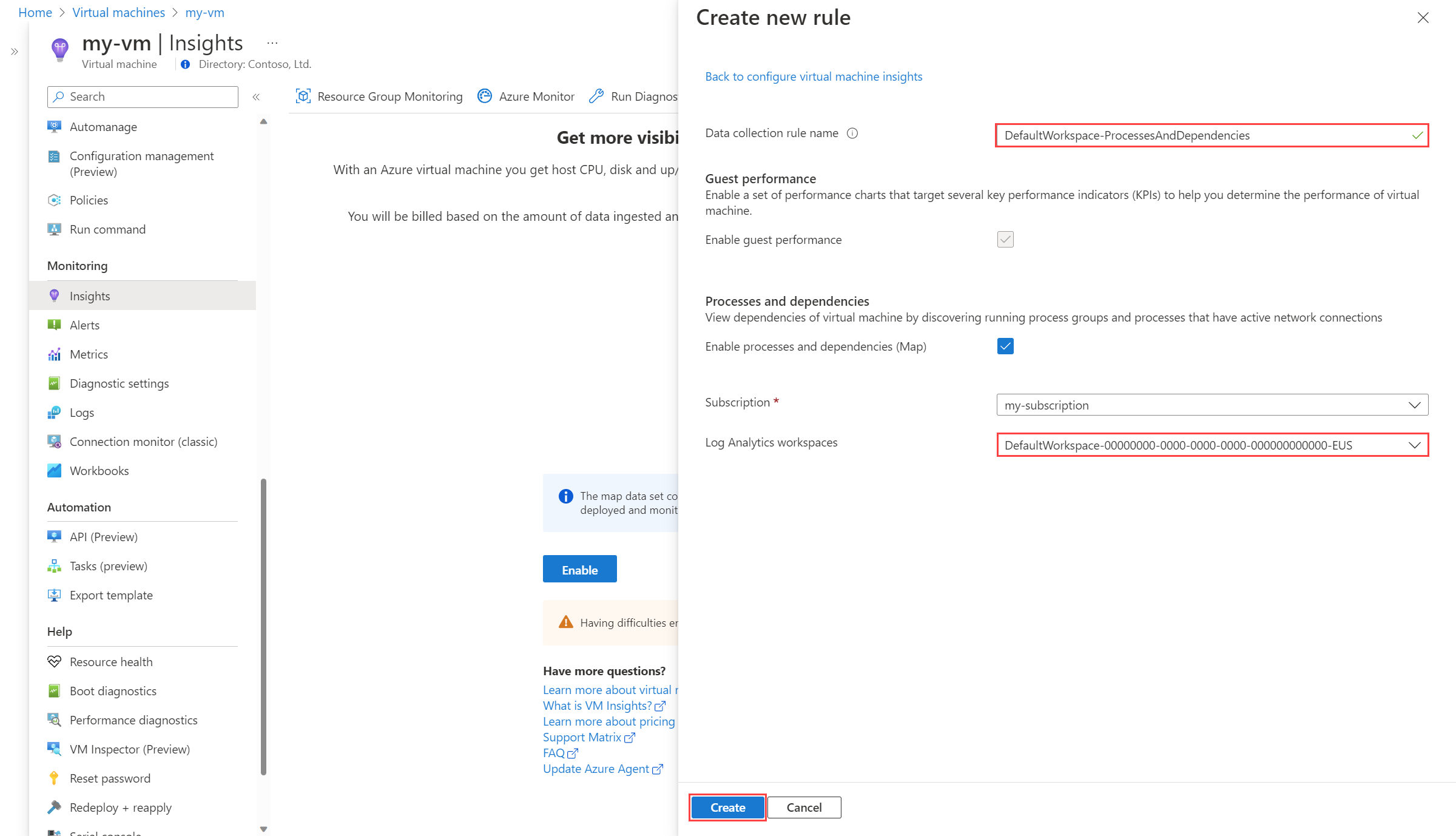
The example above has Map selected. For a performance-only rollout, leave that optional setting off. A newly created default VM insights rule starts with guest performance enabled and processes and dependencies disabled; check the selected rule rather than assuming its settings.
Select Create and then Configure. Allow several minutes for agent installation and initial data collection. This is the documented portal onboarding flow.
Use a rule created through the VM insights workflow. It includes the data stream the feature needs. Do not replace it with an ordinary custom performance DCR or edit its internal streams to add unrelated collection.
Verify before repeating the rollout
Open Insights > Performance on the VM. Select a time range which includes activity after onboarding. Look for recent guest data rather than relying on a successful deployment notification.
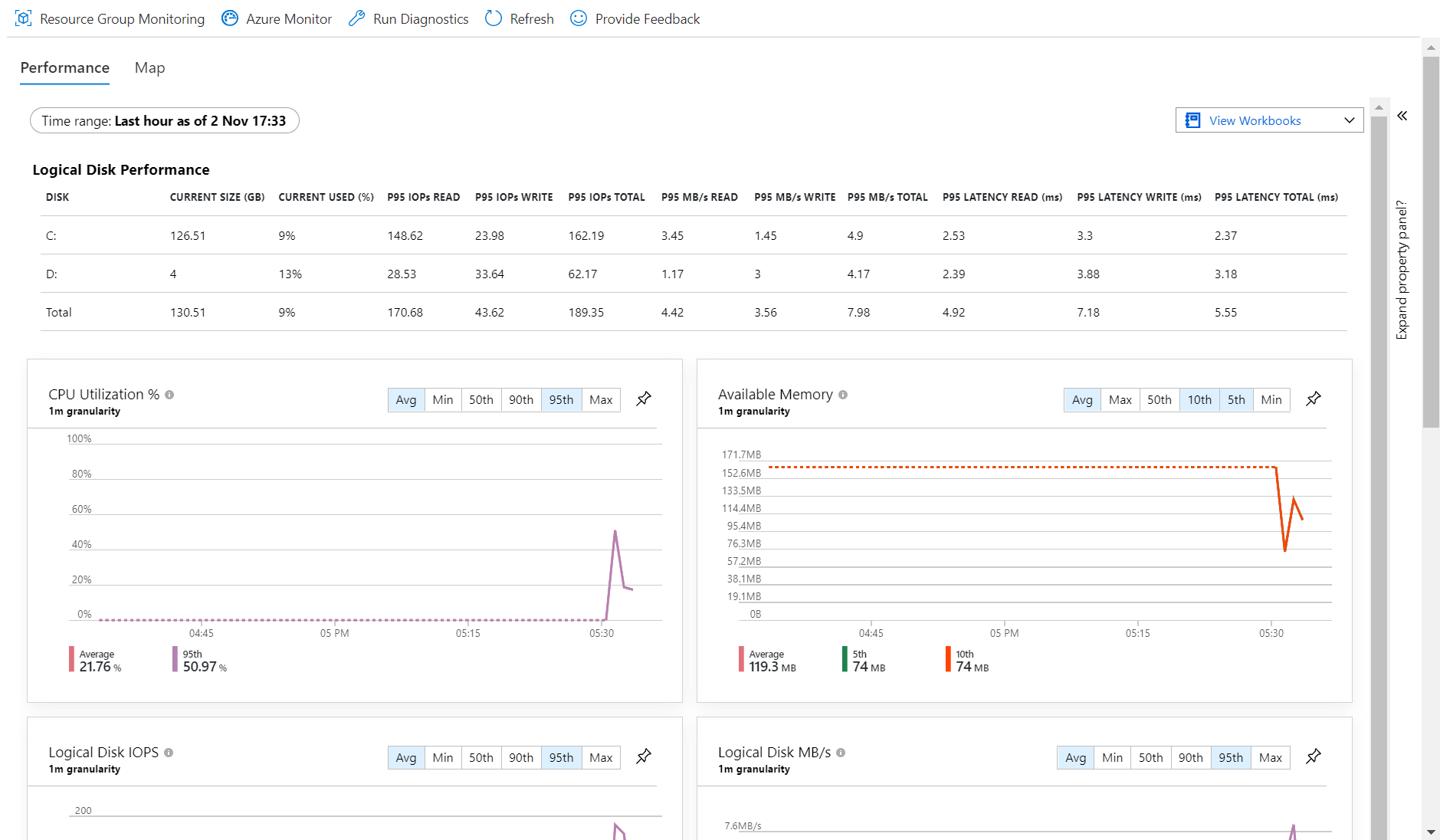
If you enabled Map, check that the Dependency agent is present and that the Map view populates. Performance data without a map can be a valid result for a performance-only configuration.
For a Map-enabled group, you can also inspect recent machine inventory in the chosen workspace. This example is adapted from Microsoft’s VM insights log-query reference:
VMComputer
| where TimeGenerated >= ago(24h)
| summarize arg_max(TimeGenerated, *) by _ResourceId
| project TimeGenerated, Computer, OperatingSystemFullName, _ResourceId
| order by Computer asc
Compare the returned resource IDs with the onboarding inventory. This query concerns Dependency agent inventory; an empty result is not evidence that performance-only monitoring has failed. It is also a recent inventory check, not an alert that establishes a server’s current health.
Repeat onboarding for the other VMs, selecting the intended rule each time. Record the result for each machine. A working first VM is a useful checkpoint, but it does not establish that the rest of the group is configured.
Close the collection gaps
VM insights does not collect Windows event logs or Syslog merely because performance monitoring is enabled. Configure separate DCRs for those requirements. Likewise, a useful performance view does not create the alerts and response process the operations team needs.
If a machine has no recent data, check its rule association and workspace first, then its extension status, agent connectivity and supported configuration. If both the legacy and new agents are present, verify which data each collects before removing anything.
Finish with a per-VM record of recent performance data, the expected Map result and the workspace receiving it. That gives you a concrete basis for the next rollout, and a way to find the server which was missed.