
Configure Hyper-V Replica for a defined recovery scenario
You are planning a disaster recovery scenario for a Windows Server 2025 environment and need to replicate a virtual machine (VM) to a secondary site. Hyper-V Replica is an integral part of the Hyper-V role and contributes to your disaster recovery strategy by replicating a VM from one Hyper-V host server to another to keep your workloads available Set up Hyper-V Replica. It creates a copy of a live VM to a replica offline VM.
Before you begin, you need to define the scope of your recovery. Hyper-V Replica maintains consistency in the state of the VM operating system after a failover, but not the state of applications running on the VM Set up Hyper-V Replica. If you need application-consistent recovery points, you must configure Volume Shadow Copy Service (VSS) snapshots, which are not available on extended (chained) replica sites Set up Hyper-V Replica.
Prerequisites and permissions
You need a single Hyper-V host or cluster to receive the replicated VM, and another cluster or single host that runs the VM you want to replicate Enable Hyper-V Replica on a single host. The host server can be standalone, clustered, or a mixture of both, with no Active Directory dependency between the servers Set up Hyper-V Replica.
You need a user account that is a member of the Hyper-V Administrators security group on each host. In an Active Directory domain, you can add users or groups to this group by using Group Policy Preferences. Alternatively, the account can be a local administrator on each host Replicate a virtual machine with Hyper-V Replica.
Decide on an authentication method:
- If your hosts are joined to the same or trusted Active Directory domains, you can use Kerberos (HTTP) authentication.
- If your hosts aren’t domain joined or are in untrusted domains, or you also want to use encryption, you must use certificate-based (HTTPS) authentication. You need to have a valid certificate installed on each host, both sending and receiving. The certificate must meet the following requirements:
- Not be expired
- Have both Client and Server Authentication Enhanced Key Usage (EKU) attributes and an associated private key.
- Terminate at a valid root certificate.
- The subject common name (CN) or subject alternative name (SAN) must match the fully qualified domain name (FQDN) of the host. If you’re sending a VM from a cluster, you also need a certificate for the Hyper-V Replica Broker role FQDN on each primary host Enable Hyper-V Replica on a single host.
Configure the replica host
You configure the receiving host, not the primary cluster or host Enable Hyper-V Replica on a single host. To ensure that you can fail a VM back to the original primary host or cluster after a failover event, configure both primary and replica hosts and clusters for replication Enable Hyper-V Replica on a single host.
- Open Hyper-V Manager on a device you use to manage the host you want to replicate to, or on the host itself Enable Hyper-V Replica on a single host.
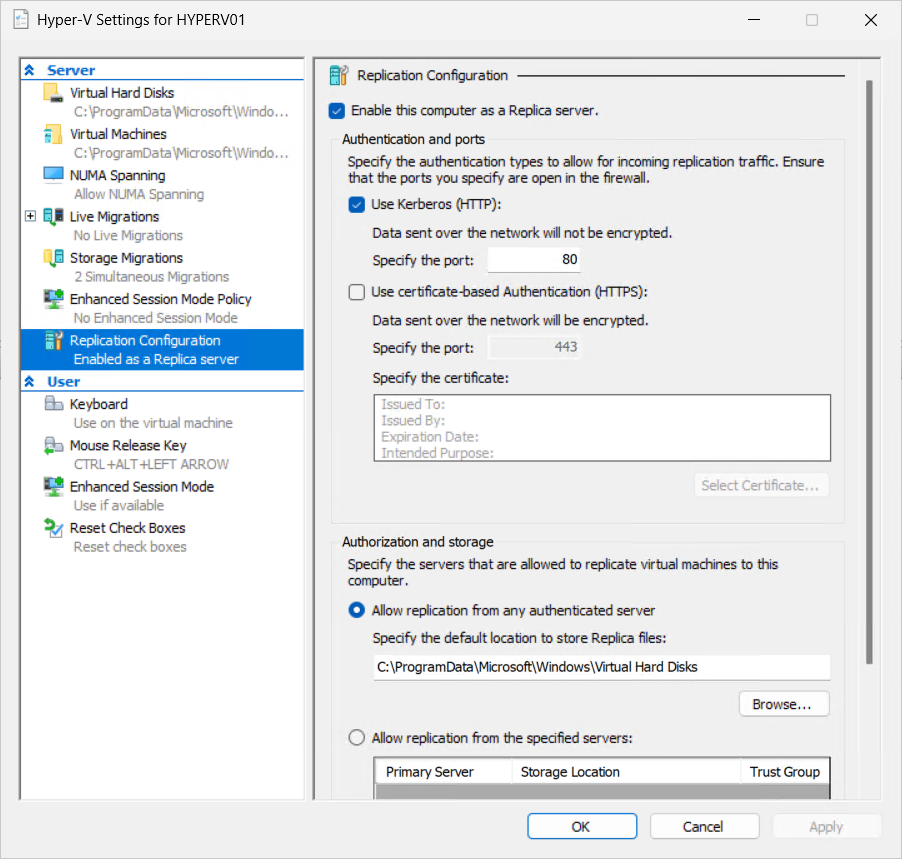
- In the left pane, select the host you want to configure as the replica server.
- In the right pane, under Actions, select Hyper-V Settings.
- Under the Server section, select Replication Configuration in the left pane Enable Hyper-V Replica on a single host.
- Check the box Enable this computer as a Replica server Enable Hyper-V Replica on a single host.
- For Authentication and ports, select Use Kerberos (HTTP) or Use certificate-based authentication (HTTPS) Enable Hyper-V Replica on a single host. If using HTTPS, select Select Certificate and choose a valid certificate that meets the requirements: not expired, with Client and Server Authentication Enhanced Key Usage (EKU) attributes, and a subject CN or SAN matching the host’s FQDN Enable Hyper-V Replica on a single host.
- For Authorization and storage, select Allow replication from any authenticated server or Allow replication from the specified servers Enable Hyper-V Replica on a single host. Specify where the replicated VHDs should be stored Enable Hyper-V Replica on a single host.
Enable Windows Firewall rules
To allow replication between the primary and secondary servers, traffic must get through the Windows Firewall Set up Hyper-V Replica. When you install the Hyper-V role, exceptions for HTTP (80) and HTTPS (443) are created but not enabled by default Enable Hyper-V Replica on a single host.
You need to enable the appropriate rules for all receiving hosts:
- Enable
Hyper-V Replica HTTP Listener (TCP-In)for Kerberos (HTTP) authentication Enable Hyper-V Replica on a single host. - Enable
Hyper-V Replica HTTPS Listener (TCP-In)for certificate-based (HTTPS) authentication Enable Hyper-V Replica on a single host.
You can enable these rules using Group Policy, the Windows Firewall with Advanced Security console, or PowerShell Enable Hyper-V Replica on a single host.
Enable VM replication
You need to enable replication for each VM you want to replicate Replicate a virtual machine with Hyper-V Replica. You can use Hyper-V Manager, Failover Cluster Manager, or PowerShell Replicate a virtual machine with Hyper-V Replica.
- Open Hyper-V Manager on a device you use to manage the primary cluster or a primary single host with the VM Replicate a virtual machine with Hyper-V Replica.
- In the resources pane, select the host that contains the VM you want to replicate Replicate a virtual machine with Hyper-V Replica.
- Right-click the VM you want to replicate, then select Enable Replication Replicate a virtual machine with Hyper-V Replica.
- For Specify Replica Server, enter either the NetBIOS or FQDN of the Replica server. If the Replica server is part of a failover cluster, enter the name of the Hyper-V Replica Broker Replicate a virtual machine with Hyper-V Replica.
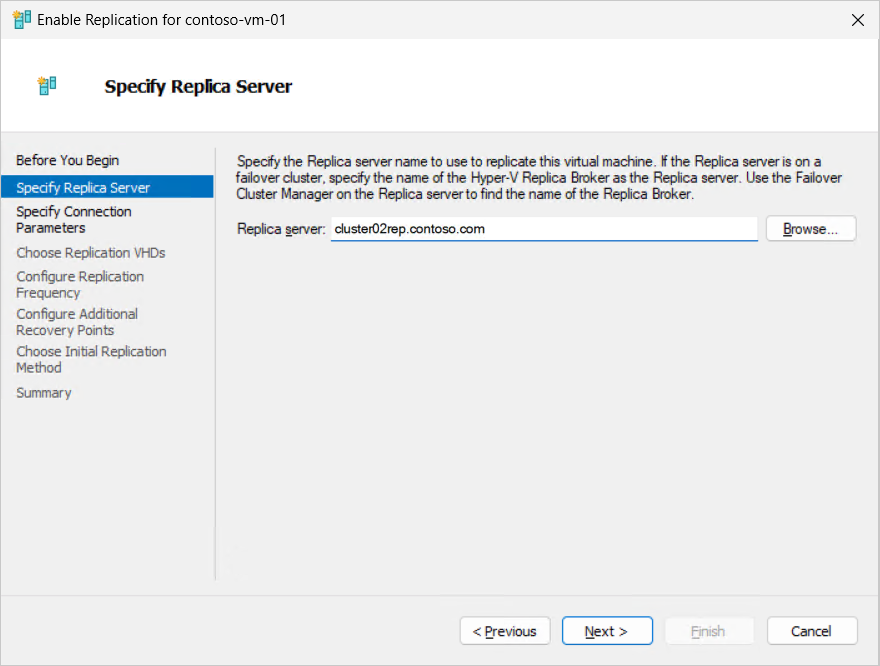
- Review the replica server settings. If using certificate-based authentication, select Select Certificate for the primary host Replicate a virtual machine with Hyper-V Replica.
- For Choose Replication VHDs, ensure the checkboxes for the VHDs you want to replicate are selected, and clear the checkboxes for any VHDs you want to exclude, such as page file disks Set up Hyper-V Replica.
- For Configure Replication Frequency, specify how often changes should be synchronized from the primary to replica clusters or hosts from 30 seconds, 5 minutes, or 15 minutes Replicate a virtual machine with Hyper-V Replica.
- For Configure Additional Recovery Points, select Maintain only the latest recovery point or Create additional hourly recovery points and the number of extra recovery points you want to create in hours Replicate a virtual machine with Hyper-V Replica. If you need application-consistent recovery points, check the box Volume Shadow Copy Service (VSS) snapshot frequency Replicate a virtual machine with Hyper-V Replica.
- For Choose Initial Replication, select the initial replication method Replicate a virtual machine with Hyper-V Replica. You can send the initial copy over the network, use external media, or use an existing virtual machine on the Replica server as the initial copy Replicate a virtual machine with Hyper-V Replica.
- Review the summary information, then select Finish Replicate a virtual machine with Hyper-V Replica.
Test replication configuration
After you enable and configure Hyper-V Replica and enable the appropriate Windows Firewall rules, test the configuration to ensure that the primary cluster or host can connect to the replica host as expected Enable Hyper-V Replica on a single host.
You can use the PowerShell cmdlet Test-VMReplicationConnection to test the connection Enable Hyper-V Replica on a single host. This cmdlet verifies network connectivity and authentication, not the replication health or data integrity Enable Hyper-V Replica on a single host. Be sure to replace placeholder <values> with your own values Enable Hyper-V Replica on a single host.
First, import the Hyper-V module:
Import-Module Hyper-V-
To test a connection to a replica cluster by using Kerberos authentication, run the following command:
Test-VMReplicationConnection -ReplicaServerName '<Replica host FQDN>' -ReplicaServerPort 80 -AuthenticationType Kerberos -
To test a connection to a replica cluster by using certificate-based authentication, run the following command. You need the thumbprint of a valid certificate for Hyper-V Replica on the primary host or cluster Enable Hyper-V Replica on a single host.
Test-VMReplicationConnection -ReplicaServerName '<Replica host FQDN>' -ReplicaServerPort 443 -AuthenticationType Certificate -CertificateThumbprint AA11BB22CC33DD44EE55FF66AA77BB88CC99DD00
For either of these example commands, here’s the output you should see if the test is successful:
The connection to the specified Replica server with the specified parameters was successful.Run a failover
After completing these deployment steps your replicated environment is up and running. Now you can run failovers as needed Set up Hyper-V Replica.
Test failover: If you want to run a test failover right-click the replica VM and select Replication > Test Failover Set up Hyper-V Replica. Pick the latest or other recovery point if configured. A new test VM is created and started on the secondary site. After you’ve finished testing, select Stop Test Failover on the replica VM to clean it up Set up Hyper-V Replica.
Planned failover: To run a planned failover, right-click the primary VM and select Replication > Planned Failover Set up Hyper-V Replica. Planned failover performs prerequisites checks to ensure zero data loss. It checks that the primary VM is shut down before beginning the failover. After the VM is failed over, it starts replicating the changes back to the primary site when it’s available Set up Hyper-V Replica. For this to work, the primary server should be configured to receive replication from the secondary server, or from the Hyper-V Replica Broker in the case of a primary cluster Set up Hyper-V Replica. If reverse replication is not configured on the primary host, planned failover may result in data loss for changes made after the last replication interval.
Unplanned failover: To run an unplanned failover, right-click on the replica VM and select Replication > Unplanned Failover from Hyper-V Manager or Failover Clustering Manager Set up Hyper-V Replica. You can recover from the latest recovery point or from previous recovery points if this option is enabled. After failover, check that everything is working as expected on the failed over VM, then click Complete on the replica VM Set up Hyper-V Replica.