
Configure blob soft delete and versioning
You have a storage account and you need to ensure that blobs survive accidental deletion or overwriting. The most direct way to achieve this is to enable blob soft delete and blob versioning. These two features work together: versioning preserves every state change, while soft delete ensures that the versions themselves are not permanently removed immediately upon deletion.
Blob soft delete maintains deleted blobs and their versions in the system for a specified retention period, allowing restoration within that window. Blob versioning automatically maintains previous versions of a blob when it is modified or deleted. Enabling both provides a robust recovery path for individual blob data, distinct from container-level or account-level protection.
Enable blob soft delete
Blob soft delete is enabled by default when you create a new storage account via the Azure portal. However, if you are using PowerShell, Azure CLI, or templates, or if you are configuring an existing account, you must enable it explicitly.
Using the Azure Portal
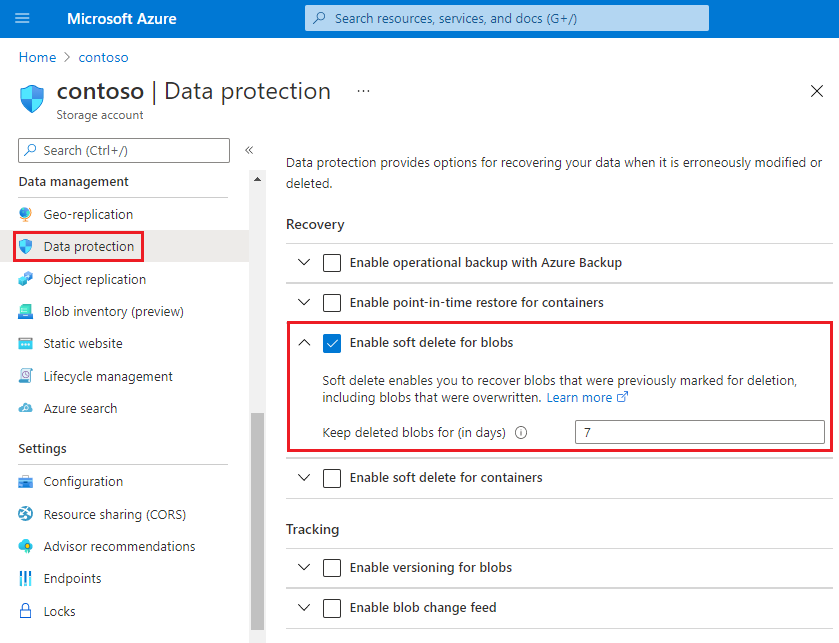
For an existing storage account, navigate to the account in the Azure portal. Under Data management, select Data protection. In the Recovery section, choose Turn on soft delete for blobs. Specify a retention period between 1 and 365 days. Microsoft recommends a minimum retention period of seven days. Save your changes.
Using PowerShell
Blob soft delete is not enabled by default when creating a new storage account with PowerShell. You must enable it after creation using the Enable-AzStorageBlobDeleteRetentionPolicy command.
Enable-AzStorageBlobDeleteRetentionPolicy -ResourceGroupName <resource-group> `
    -StorageAccountName <storage-account> `
    -RetentionDays 7
To verify the setting, use Get-AzStorageBlobServiceProperty:
$properties = Get-AzStorageBlobServiceProperty -ResourceGroupName <resource-group> `
    -StorageAccountName <storage-account>
$properties.DeleteRetentionPolicy.Enabled
$properties.DeleteRetentionPolicy.Days
Using Azure CLI
Use the az storage account blob-service-properties update command to enable soft delete on an existing account or during creation if not using the portal.
az storage account blob-service-properties update --account-name <storage-account> \
    --resource-group <resource-group> \
    --enable-delete-retention true \
    --delete-retention-days 7
Verify with:
az storage account blob-service-properties show --account-name <storage-account> \
    --resource-group <resource-group>
Using ARM Templates
To enable soft delete via an Azure Resource Manager template, set the deleteRetentionPolicy property in the Microsoft.Storage/storageAccounts/blobServices resource:
{
  "$schema": "https://schema.management.azure.com/schemas/2015-01-01/deploymentTemplate.json#",
  "contentVersion": "1.0.0.0",
  "parameters": {},
  "variables": {},
  "resources": [
    {
       "type": "Microsoft.Storage/storageAccounts/blobServices",
       "apiVersion": "2023-04-01",
       "name": "<account-name>/default",
       "properties": {
             "deleteRetentionPolicy": {
                "enabled": true,
                "days": 7
          }
       }
    }
  ]
}
Enable blob versioning
Blob versioning automatically maintains previous versions of a blob when it is modified or deleted. This is distinct from soft delete, which protects against deletion but does not preserve overwrites unless versioning is also enabled.
Using the Azure Portal
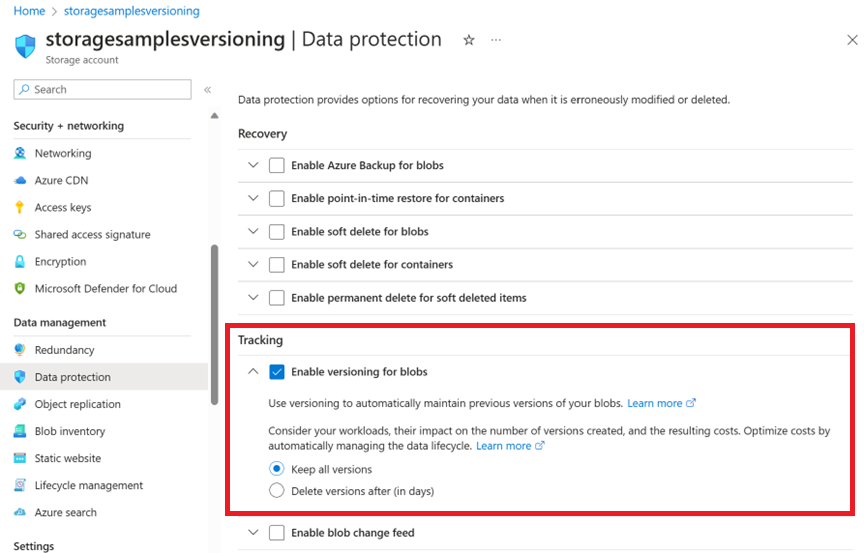
Navigate to your storage account in the Azure portal. Under Data management, choose Data protection. In the Tracking section, select Enable versioning for blobs. You can choose to keep all versions or delete them after a period of time using the Delete versions after option.
[!IMPORTANT] If you set the Delete versions after option, a rule is automatically added to the lifecycle management policy of the storage account. Once that rule is added, the Delete versions after option no longer appears in the Data protection configuration page. You can make that option reappear by removing the rule. If your lifecycle management policy contains other rules that delete versions, you must remove those rules as well.
Using PowerShell
Install the Az.Storage module version 2.3.0 or later. Then call Update-AzStorageBlobServiceProperty:
$rgName = "Exampleresourcegroup"
$accountName = "Examplestorageaccount"

Update-AzStorageBlobServiceProperty -ResourceGroupName $rgName `
    -StorageAccountName $accountName `
    -IsVersioningEnabled $true
Using Azure CLI
Install Azure CLI version 2.2.0 or later. Then call az storage account blob-service-properties update:
az storage account blob-service-properties update \
    --resource-group <resource_group> \
    --account-name <storage-account> \
    --enable-versioning true
Using ARM Templates
Set the IsVersioningEnabled property to true:
{
    "$schema": "https://schema.management.azure.com/schemas/2015-01-01/deploymentTemplate.json#",
    "contentVersion": "1.0.0.0",
    "parameters": {},
    "variables": {},
    "resources": [
        {
            "type": "Microsoft.Storage/storageAccounts/blobServices",
            "apiVersion": "2019-06-01",
            "name": "<accountName>/default",
            "properties": {
                "IsVersioningEnabled": true
            }
        }
    ]
}
Verification and Cost Considerations
After enabling these features, verify their status using the commands above. In the portal, you can list blob versions by selecting a blob and viewing the Versions tab. Toggle Show deleted versions to see soft-deleted versions if soft delete is enabled.
Be aware of the cost implications. Enabling blob versioning means every write or delete operation creates a new version, which may increase capacity costs. Data in soft-deleted blobs is billed at the same rate as active data until permanently deleted. Use lifecycle management policies to delete older versions or soft-deleted blobs to control costs.
These features protect individual blobs and their versions. They do not protect the storage account or containers from deletion. For comprehensive protection, consider combining these with container soft delete and Azure Resource Manager locks, as outlined in the data protection overview.
To confirm your configuration is active, perform a test write, delete, and restore operation in a non-production environment if possible. Check the version history and soft-deleted items to ensure they are retained according to your settings.
References for Configure blob soft delete and versioning: Enable soft delete for blobs, Enable and manage blob versioning, Data protection overview.