
Plan a storage recovery exercise with a verifiable outcome
A storage recovery exercise is only useful if you can verify that the data you expect to be available is actually available, and that your applications can reconnect without leaving file handles open. The first decision is whether to run a planned failover (testing with zero expected data loss) or an unplanned failover (simulating an outage where data loss is possible). You cannot run a meaningful exercise without understanding the implications of each on your redundancy configuration and your data.
Choose the failover type and verify prerequisites
Before initiating any failover, the storage account must be configured for geo-redundant storage (GRS, RA-GRS, GZRS, or RA-GZRS). If your account is using locally redundant storage (LRS) or zone-redundant storage (ZRS), you must change the redundancy setting first. This triggers an initial synchronization from the primary to the secondary region, which can take several minutes. You cannot initiate a failover until this synchronization is complete Initiate a storage account failover.
If you are using Azure Files, you must stop all application and client activity before starting a planned failover. Active read or write operations during the failover process can result in file shares entering an inconsistent state Initiate a storage account failover, Disaster Recovery and Failover for Azure Files. You should also verify that no open file handles exist. For example, you can use PowerShell to list active handles:
# Illustrative example: check for active file handles
# Requires a valid $ctx context object created from storage account keys
Get-AzStorageFileHandle -ShareName "myshare" -Root "" -Context $ctx
Shut down any clients that appear in the results before proceeding Disaster Recovery and Failover for Azure Files. If you are using Azure File Sync, note that the Storage Sync Service must also be failed over to the secondary region, as it requires the storage account and service to be in the same region. You will need to contact Microsoft Support to update the control plane after the data plane failover completes Disaster Recovery and Failover for Azure Files.
Check the Last Sync Time to estimate data loss
The Last Sync Time (LST) property indicates the most recent time at which data from the primary region was guaranteed to have been written to the secondary region Azure storage disaster recovery planning and failover, Disaster Recovery and Failover for Azure Files. All data written prior to this timestamp is available on the secondary. Data written after this time might not have been replicated and could be lost during an unplanned failover Azure storage disaster recovery planning and failover.
For a planned failover, the LST helps you confirm that the secondary is up to date. For an unplanned failover simulation, it helps you estimate the potential data loss window. You can query the LST using PowerShell or the Azure CLI:
# Illustrative example: get geo-replication stats including Last Sync Time
Get-AzStorageAccount `
    -Name "Exampleyourstorageaccountname" `
    -ResourceGroupName "Exampleyourresourcegroup" `
    -IncludeGeoReplicationStats `
    | Select-Object Name, PrimaryLocation, SecondaryLocation, LastGeoFailoverTime, FailoverInProgress `
    -ExpandProperty GeoReplicationStats `
    | Select-Object Name, PrimaryLocation, SecondaryLocation, LastSyncTime, IsSecondaryAvailable
If the LST is significantly behind the current time, you may need to wait for synchronization to catch up before running a planned failover exercise. Note that after a planned failover, the LST value might appear stale or be reported as NULL if there are no system snapshots in the new secondary region. This can happen if no user activity has triggered snapshot creation since the failover. You can trigger snapshot creation by mounting the share and reading a file or uploading a test file Azure storage disaster recovery planning and failover, Disaster Recovery and Failover for Azure Files.
Initiate the failover and monitor progress
You can initiate a failover using the Azure portal, PowerShell, or the Azure CLI. The process typically takes less than one hour Initiate a storage account failover.
In the Azure portal, navigate to your storage account, select Redundancy under Data management, and then select Prepare for Customer-Managed failover Initiate a storage account failover. Choose either Planned failover or Unplanned failover. For a planned failover, the portal displays the Last Sync Time. For an unplanned failover, it warns you about potential data loss and the need to reconfigure geo-redundancy afterwards Initiate a storage account failover.
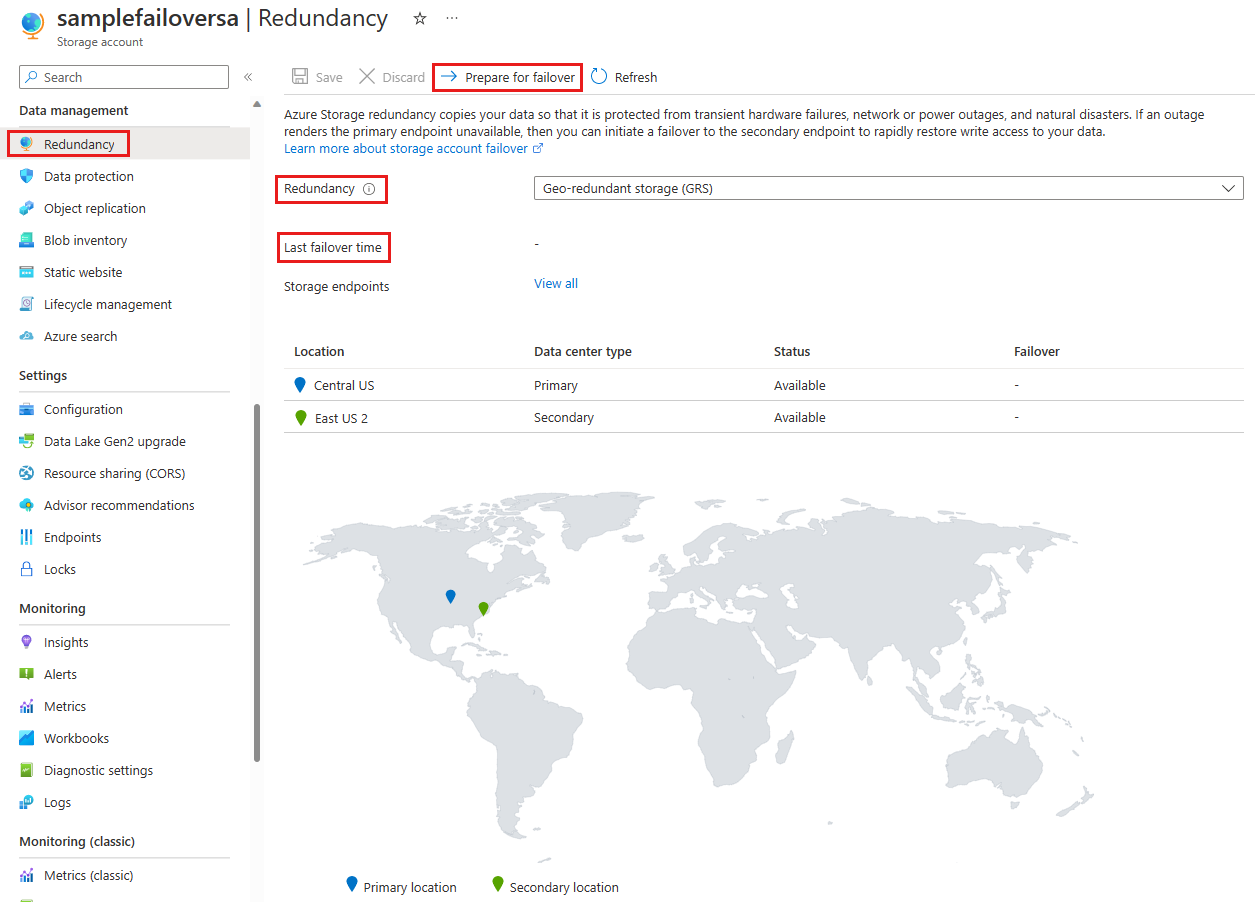
You can also use the Azure CLI or PowerShell:
# Illustrative example: initiate a planned failover via Azure CLI
az storage account failover \
    --resource-group "<your-resource-group>" \
    --name "<your-storage-account-name>" \
    --failover-type planned
Monitor the progress in the portal via Notifications, the Activity log, or the Redundancy page itself Initiate a storage account failover. The failover status will update as the process completes. Once complete, the secondary region becomes the new primary, and the original primary becomes the new secondary (for planned failovers) or is deleted (for unplanned failovers) Azure storage disaster recovery planning and failover.
Verify the outcome and plan the failback
After the failover, verify that your applications can connect to the new primary endpoint. The DNS entries are automatically updated, so your applications should start writing to the new primary region Azure storage disaster recovery planning and failover, Disaster Recovery and Failover for Azure Files. However, file handles and leases are not retained during failover, so clients must unmount and remount the file shares Disaster Recovery and Failover for Azure Files.
If you ran a planned failover, the storage account retains its geo-redundancy configuration. You can now fail back to the original primary region when it is available. To do this, you must first ensure that the data in the new primary (original secondary) has been replicated to the new secondary (original primary). Check the Last Sync Time again to estimate data loss before failing back Disaster Recovery and Failover for Azure Files.
If you ran an unplanned failover, the storage account is converted to locally redundant storage (LRS) in the new primary region. You must manually reconfigure geo-redundancy to resume replication to the new secondary region. This incurs additional time and cost Azure storage disaster recovery planning and failover, Initiate a storage account failover.
For Azure Files, remember that the Storage Sync Service control plane may still reflect the original region after the data plane failover. You need to contact Microsoft Support to update the control plane so that server traffic is routed correctly Disaster Recovery and Failover for Azure Files.
The exercise is complete when you have verified that the new primary is accessible, your applications have reconnected, and you have a clear plan for either failing back (planned) or re-establishing geo-redundancy (unplanned). Document the Last Sync Time before and after the exercise to refine your recovery point objective (RPO) estimates for future incidents Disaster Recovery and Failover for Azure Files.