
Choose a lifecycle policy around data access patterns
The first decision when configuring Azure Blob Storage lifecycle management is not the tool, but the access pattern of the data you are managing. A policy that moves data too aggressively can incur rehydration costs or latency; one that is too conservative leaves money on the table. The rule set must reflect how often the data is read, how long it must be retained, and whether previous versions or snapshots exist.
Lifecycle management policies are rule-based JSON documents that transition blob data between hot, cool, cold, and archive tiers, or expire data at the end of its lifecycle. They apply to block blobs and append blobs in general-purpose v2, premium block blob, and Blob Storage accounts. The policy runs continuously, but changes can take up to 24 hours to take effect, and execution time depends on the volume of blobs evaluated Optimize costs by automatically managing the data lifecycle.
Define the access pattern before writing rules
Data sets have unique lifecycles. Early in the lifecycle, data is often accessed. As it ages, access drops. Some data expires days or months after creation; other data is read and modified throughout its lifetime Optimize costs by automatically managing the data lifecycle.
Consider a scenario where data is frequently accessed during the early stages, but only occasionally after two weeks. Beyond the first month, the data set is rarely accessed. In this case, hot storage is best initially. Cool storage is appropriate for occasional access. Archive storage is the best tier option after the data ages over a month. By moving data to the appropriate tier based on age, you can design the least expensive solution Optimize costs by automatically managing the data lifecycle.
However, if a data set needs to be readable, do not set a policy to move blobs to the archive tier. Blobs in the archive tier cannot be read unless rehydrated, a process that may be time-consuming and expensive. If a data set needs to be read often, do not set a policy to move it to the cool or cold tiers, as this might result in higher transaction costs Optimize costs by automatically managing the data lifecycle.
Choose the right filter and action combination
A lifecycle policy is a collection of rules. Each rule has a filter set and an action set. The filter limits actions to a subset of blobs. The action applies the tier or delete operation Optimize costs by automatically managing the data lifecycle.
Filters include blobTypes, prefixMatch, and blobIndexMatch. If more than one filter is defined, a logical AND runs on all filters. Prefix strings do not support wildcard matching; characters like * and ? are treated as literals Optimize costs by automatically managing the data lifecycle.
Actions are applied when the run condition is met. Conditions are based on age: days since modification, days since creation, or days since last access. Current versions use last modified or last access time. Previous versions and snapshots use creation time Optimize costs by automatically managing the data lifecycle.
Tiering is not supported in premium block blob storage accounts. For all other accounts, tiering is allowed only on block blobs, not append or page blobs. Only the delete action is supported for append blobs Optimize costs by automatically managing the data lifecycle.
If you define more than one action on the same blob, lifecycle management applies the least expensive action. Delete is cheaper than tierToArchive, which is cheaper than tierToCool Optimize costs by automatically managing the data lifecycle.
Handle versions and snapshots carefully
A lifecycle management policy will not delete the current version of a blob until any previous versions or snapshots associated with that blob have been deleted. If blobs in your storage account have previous versions or snapshots, you must include them when specifying a delete action Optimize costs by automatically managing the data lifecycle.
For example, if you want to delete blobs after seven years, you should also delete previous versions and snapshots earlier to avoid blocking the current version deletion. A sample rule might delete previous versions 90 days after creation, tier the base blob to cool after 30 days, to archive after 90 days, and delete the base blob after 2,555 days Optimize costs by automatically managing the data lifecycle.
Enable last access time tracking if needed
You can enable last access time tracking to keep a record of when a blob is last read or written. This allows you to use the daysAfterLastAccessTimeGreaterThan condition. To minimize the effect on read access latency, only the first read of the last 24 hours updates the last access time. Subsequent reads in the same 24-hour period do not update it. If a blob is modified between reads, the last access time is the more recent value Configure a lifecycle management policy.
If last access time tracking is not enabled, daysAfterLastAccessTimeGreaterThan uses the date the lifecycle policy was enabled instead of the LastAccessTime property. This date is also used when the property is null Optimize costs by automatically managing the data lifecycle.
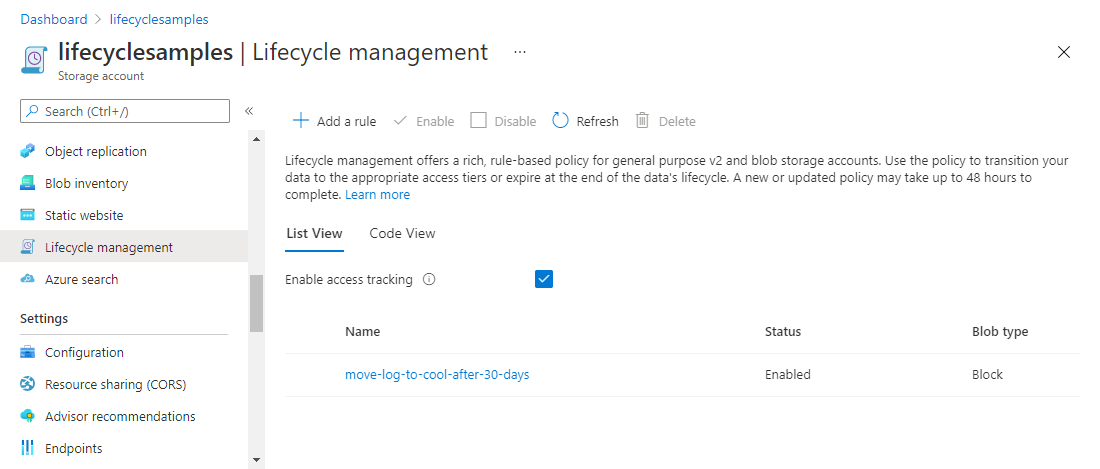
To enable last access time tracking in the Azure portal, navigate to your storage account, select Lifecycle management under Data management, and check the “Enable access tracking” checkbox Configure a lifecycle management policy.
Verify the policy execution
When you add or edit rules, it can take up to 24 hours for changes to go into effect. An active policy processes objects continuously. If you edit, delete, or disable a rule, execution terminates within 15 minutes and restarts within 24 hours Optimize costs by automatically managing the data lifecycle.
The LifecyclePolicyCompleted event is generated when actions are performed. It includes a summary for each action type, showing total objects, success count, and any errors. You can use this event to verify that the policy is running as expected Optimize costs by automatically managing the data lifecycle.
Example: A complete lifecycle policy
The following JSON defines a lifecycle policy that moves block blobs prefixed with sample-container/blob1 to cool storage after 30 days, to archive after 90 days, and deletes them after 2,555 days. It also deletes previous versions 90 days after creation Optimize costs by automatically managing the data lifecycle.
{
  "rules": [
    {
      "enabled": true,
      "name": "sample-rule",
      "type": "Lifecycle",
      "definition": {
        "actions": {
          "version": {
            "delete": {
              "daysAfterCreationGreaterThan": 90
            }
          },
          "baseBlob": {
            "tierToCool": {
              "daysAfterModificationGreaterThan": 30
            },
            "tierToArchive": {
              "daysAfterModificationGreaterThan": 90,
              "daysAfterLastTierChangeGreaterThan": 7
            },
            "delete": {
              "daysAfterModificationGreaterThan": 2555
            }
          }
        },
        "filters": {
          "blobTypes": [
            "blockBlob"
          ],
          "prefixMatch": [
            "sample-container/blob1"
          ]
        }
      }
    }
  ]
}
This code is an illustrative example. It assumes the storage account is a general-purpose v2 or Blob Storage account, not a premium block blob account, as tiering is not supported in premium accounts Optimize costs by automatically managing the data lifecycle. It also assumes the account uses LRS, GRS, or RA-GRS, as archive tier is not supported for ZRS, GZRS, or RA-GZRS accounts Optimize costs by automatically managing the data lifecycle.
To apply this policy, you can use the Azure portal, PowerShell, Azure CLI, or an Azure Resource Manager template. For PowerShell, you would use Add-AzStorageAccountManagementPolicyAction, New-AzStorageAccountManagementPolicyFilter, New-AzStorageAccountManagementPolicyRule, and Set-AzStorageAccountManagementPolicy Configure a lifecycle management policy. For Azure CLI, you would write the policy to a JSON file and use az storage account management-policy create Configure a lifecycle management policy.
After applying the policy, check the LifecyclePolicyCompleted event or the storage account metrics to verify that the actions are being performed as expected. If the policy is not running as expected, check the filter conditions and the blob properties to ensure they match the rule definitions Optimize costs by automatically managing the data lifecycle.