
Choose a detection exclusion or a rule change
You are seeing too many alerts from a Microsoft Sentinel analytics rule, and you need to reduce the noise without losing visibility into the actual threats. The first question to answer is not whether to tune the rule, but whether the noise comes from a known benign source or from a logic gap in the detection itself.
Microsoft Sentinel provides two distinct paths for this. You can exclude specific entities from the rule’s query, or you can change the rule’s logic. These are not interchangeable steps. Excluding an entity is a targeted filter for data you know is safe. Changing the logic is a structural adjustment when the detection criteria are too broad.
Understand the source of the false positives
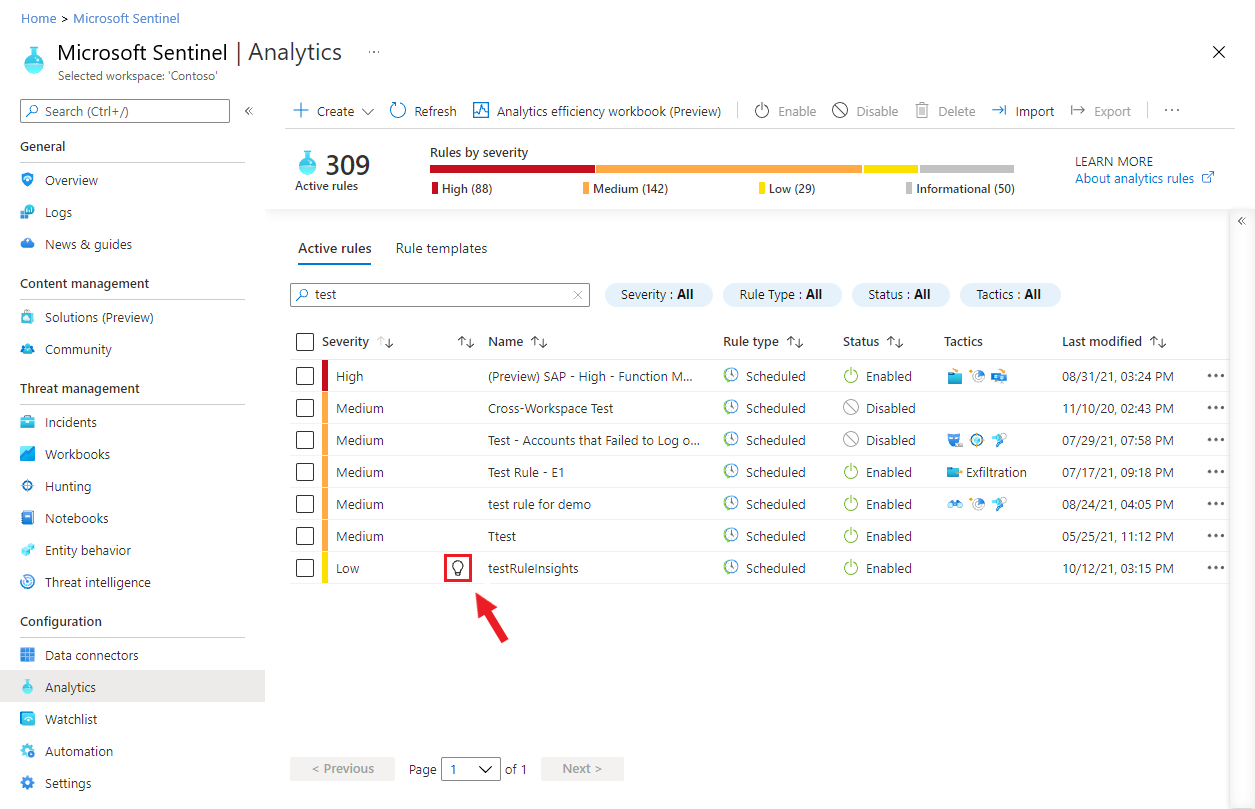
Before making any changes, confirm that the alerts are genuinely false positives. Microsoft Sentinel’s tuning insights use machine learning to analyse your incident history over a 14-day period Get fine-tuning recommendations for your analytics rules in Microsoft Sentinel. These insights show statistical information, such as the average number of alerts per incident and the classification of incidents as true or false positives Get fine-tuning recommendations for your analytics rules in Microsoft Sentinel.
Tuning recommendations for entity exclusions are generated based on incidents you have closed and classified as false positives. If no such classifications exist, these specific recommendations will not be available. You need to investigate a sample of the alerts and close them with the correct classification. The tuning engine relies on this historical data to deduce patterns Get fine-tuning recommendations for your analytics rules in Microsoft Sentinel.
You should also check the health of the rule. A rule that is failing to execute or is delayed may not be generating the alerts you expect, or may be generating them inconsistently. Use the SentinelHealth table to monitor execution status and identify any failures or delays Monitor the health and audit the integrity of your Microsoft Sentinel analytics rules. If the rule is failing, tuning it will not solve the problem; you need to fix the execution first.
Exclude entities when the noise is predictable
If your investigation shows that specific entities, such as a particular user account, IP address, or device, are consistently triggering alerts but are known to be benign, you should exclude them. This is the most precise way to reduce false positives without altering the detection logic for everyone else.
Microsoft Sentinel’s tuning insights can recommend entities to exclude based on your incident history Get fine-tuning recommendations for your analytics rules in Microsoft Sentinel. These recommendations appear in the Tuning insights pane when you edit the rule Get fine-tuning recommendations for your analytics rules in Microsoft Sentinel. The system identifies entities that are highly correlated with incidents you have closed as false positives Get fine-tuning recommendations for your analytics rules in Microsoft Sentinel.
To apply an exclusion, use the interface provided in the Tuning insights pane. Select the plus-sign next to each listed entity to exclude it from the query in future executions of this rule. This action modifies the rule’s logic automatically, preserving the rule’s structure and entity mappings.
This approach is safe because it does not require manual KQL editing, which can inadvertently break entity mapping or other rule properties. It is reversible and easy to audit. You can track these changes in the SentinelAudit table Monitor the health and audit the integrity of your Microsoft Sentinel analytics rules.
Change rule logic when the detection is too broad
If the false positives are not limited to specific entities but are spread across many users, devices, or locations, the issue is likely with the rule’s logic. The detection criteria are too broad, capturing benign activity that matches the pattern.
In this case, you need to adjust the rule’s logic. This might involve increasing the threshold for the number of events, narrowing the time window, or adding additional conditions to the query. For example, if a rule detects multiple failed logons but is triggering on a user who simply forgot their password, you might increase the threshold from 5 to 10, or add a condition that excludes logons from a specific subnet.
Changing the logic is a more significant change than excluding an entity. It affects the entire scope of the rule. You need to be careful not to reduce detection coverage for actual threats. Test the new logic using the Results simulation feature in the analytics rule wizard Get fine-tuning recommendations for your analytics rules in Microsoft Sentinel. This allows you to see how many alerts the rule would have generated with the new logic over a past period.
Monitor the impact
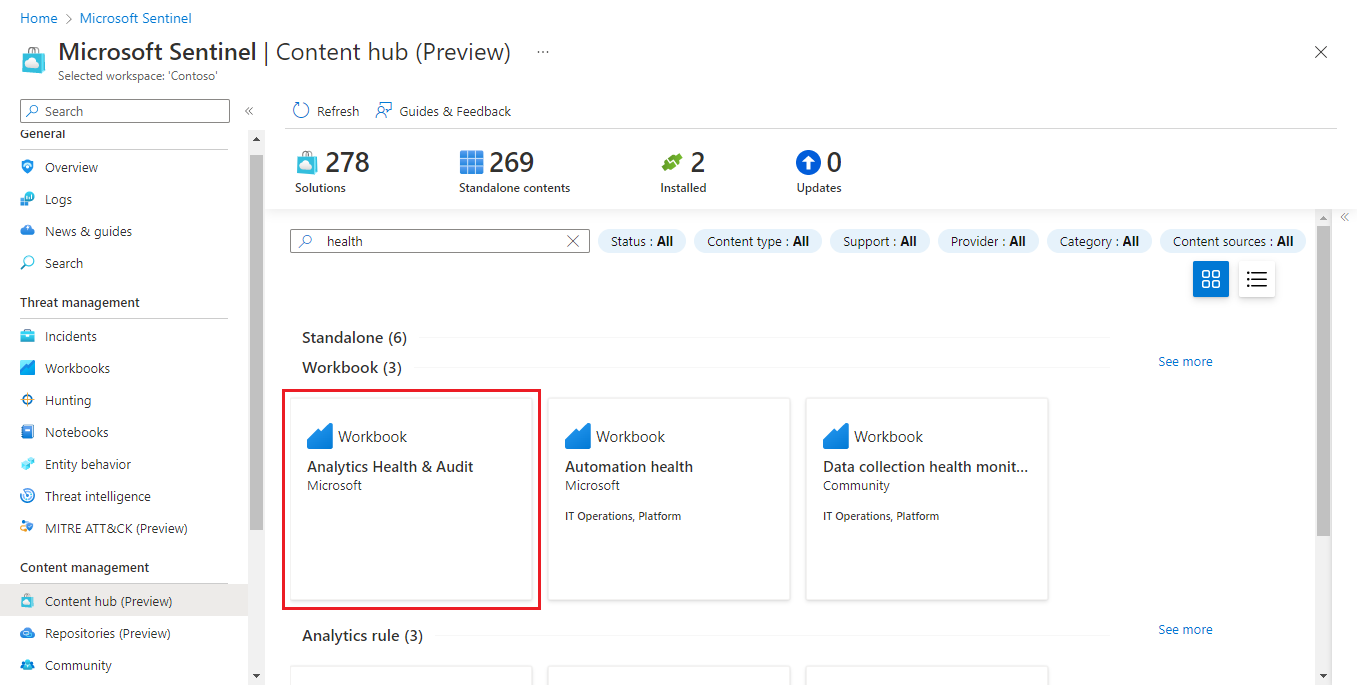
After making any change, monitor the rule’s performance. Use the SentinelHealth table to check if the rule is executing successfully and if the number of alerts has decreased as expected Monitor the health and audit the integrity of your Microsoft Sentinel analytics rules. You can also use the Analytics Health & Audit workbook to visualise the trends in rule runs and failures Monitor the health and audit the integrity of your Microsoft Sentinel analytics rules.
To install the workbook, go to the Microsoft Sentinel portal, select Content hub (Preview) from the Content management menu. In the Content hub, enter health in the search bar, and select Analytics Health & Audit from among the Workbook solutions under Standalone in the results. Select Install from the details pane, then select Save that appears in its place.
If the false positives persist, revisit the tuning insights. The machine learning models will continue to analyse your incident history and may provide new recommendations Get fine-tuning recommendations for your analytics rules in Microsoft Sentinel. Tuning is a continuous process, not a one-time fix.
Decision criteria
Use the following criteria to decide between exclusion and logic change:
| Scenario | Recommended Action |
|---|---|
| Specific, known benign entities (e.g., a scanner IP) | Exclude entities via Tuning insights |
| Broad, widespread false positives across many entities | Change rule logic |
| Rule is failing to execute | Fix rule health first |
| Incidents not yet classified | Classify incidents, then review tuning insights |
Start with entity exclusion if you have specific targets. It is the least invasive change. If that does not reduce the noise sufficiently, move to logic changes. Always verify the impact using simulation and health monitoring.