
Build an automation rule with a clear owner
Which incidents need an owner, and who should get them? Automation rules in Microsoft Sentinel can assign ownership automatically, but only if you define the scope and trigger precisely. A rule that is too broad creates noise; one that is too narrow misses the incidents that need attention.
Automation rules are a central way to manage response in Microsoft Sentinel. They let you define triggers, conditions, and actions that run when incidents or alerts are created or updated. The goal is to streamline your Security Orchestration, Automation and Response (SOAR) operations without relying on complex playbooks for every scenario Automate threat response in Microsoft Sentinel with automation rules | Microsoft Docs.
Design the rule before you create it
Before opening the portal, decide what you are trying to accomplish. Common use cases include triaging new incidents by changing their status from New to Active, assigning an owner, tagging incidents for classification, or suppressing noisy alerts Create and use Microsoft Sentinel automation rules to manage response.
You must also determine the trigger. Automation rules run when an incident is created or updated, or when an alert is created Create and use Microsoft Sentinel automation rules to manage response. For most use cases, incident-triggered automation is preferable because an incident is a container for alerts, entities, comments, and other artifacts. It allows you to track the evolving attack story Automate threat response in Microsoft Sentinel with automation rules | Microsoft Docs. Alert-triggered automation is mainly useful for responding to alerts generated by analytics rules that do not create incidents, or when incident creation is disabled in the analytics rule settings Automate threat response in Microsoft Sentinel with automation rules | Microsoft Docs.
Define the scope with conditions
The conditions determine exactly when the rule runs. You can use AND or OR operators to group conditions. AND requires all conditions to be met; OR requires at least one group to be true Create and use Microsoft Sentinel automation rules to manage response.
For incident-based rules, you can filter by properties such as the analytic rule name, severity, status, tags, or custom details. For example, you might want to assign an owner only when the analytic rule name contains a specific keyword Automate threat response in Microsoft Sentinel with automation rules | Microsoft Docs.
When working with tags, be aware of the difference between individual tag evaluation and collection evaluation. An individual tag condition is true if at least one tag satisfies it. A collection condition is true only if the entire set of tags satisfies it Automate threat response in Microsoft Sentinel with automation rules | Microsoft Docs. This distinction matters for negative conditions. If you have a rule that checks if a tag does not contain “2024”, an incident with tags “2024” and “2023” will fail the collection check but pass the individual check Automate threat response in Microsoft Sentinel with automation rules | Microsoft Docs.
Assign ownership and other actions
Once the conditions are set, you can define actions. Actions are executed in the order they are listed in the rule Automate threat response in Microsoft Sentinel with automation rules | Microsoft Docs. You can add tasks, change status, change severity, assign an owner, add tags, or run a playbook Automate threat response in Microsoft Sentinel with automation rules | Microsoft Docs.
To assign an owner, select the Assign owner action. You can specify a user or a group. This helps direct incidents to personnel best suited to deal with them Automate threat response in Microsoft Sentinel with automation rules | Microsoft Docs.
You can also add tasks to incidents. Tasks create a checklist for analysts to follow during triage, investigation, and remediation Create incident tasks in Microsoft Sentinel using automation rules. The order of tasks in an incident is determined by the order of the automation rules and the order of actions within each rule Create incident tasks in Microsoft Sentinel using automation rules.
Create the automation rule
- Navigate to Configuration > Automation in the Microsoft Sentinel blade Create and use Microsoft Sentinel automation rules to manage response.
- Select Create and then Automation rule Create and use Microsoft Sentinel automation rules to manage response.
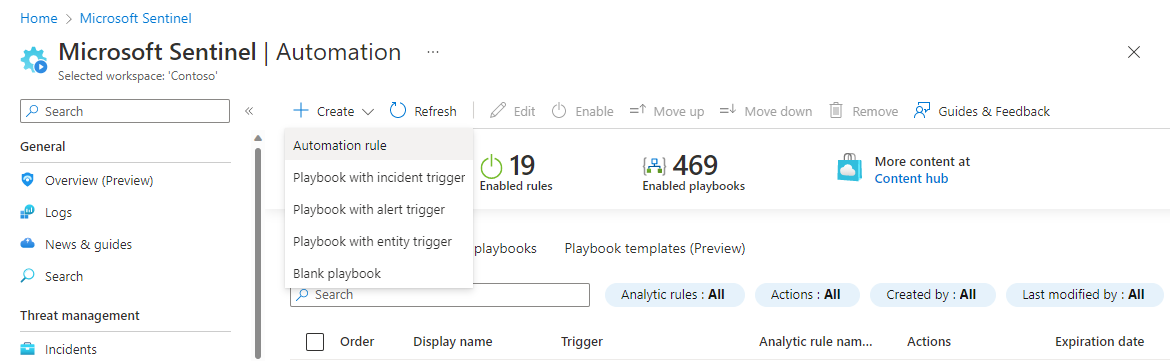
- Enter a name for the rule. Be descriptive so you can identify its purpose later Create incident tasks in Microsoft Sentinel using automation rules.
- Select the trigger: When incident is created, When incident is updated, or When alert is created Create and use Microsoft Sentinel automation rules to manage response.
- Define the conditions. For example, select Analytic rule name and choose Contains or Does not contain Create and use Microsoft Sentinel automation rules to manage response.
- Add actions. Select Assign owner and choose the user or group Automate threat response in Microsoft Sentinel with automation rules | Microsoft Docs. You can also add tasks or change status Create incident tasks in Microsoft Sentinel using automation rules.
- Set the order. Rules are executed in numerical order. Later rules evaluate the incident based on the state after previous rules have run Automate threat response in Microsoft Sentinel with automation rules | Microsoft Docs.
- Set an expiration date if the rule is temporary, such as for planned penetration testing Automate threat response in Microsoft Sentinel with automation rules | Microsoft Docs.
- Select Apply to save the rule Create incident tasks in Microsoft Sentinel using automation rules.
Verify the rule
After creating the rule, verify that it works as intended. You can filter the automation rules grid to see only rules with specific actions. For example, you can filter by Add task to see all rules that create tasks Create incident tasks in Microsoft Sentinel using automation rules.
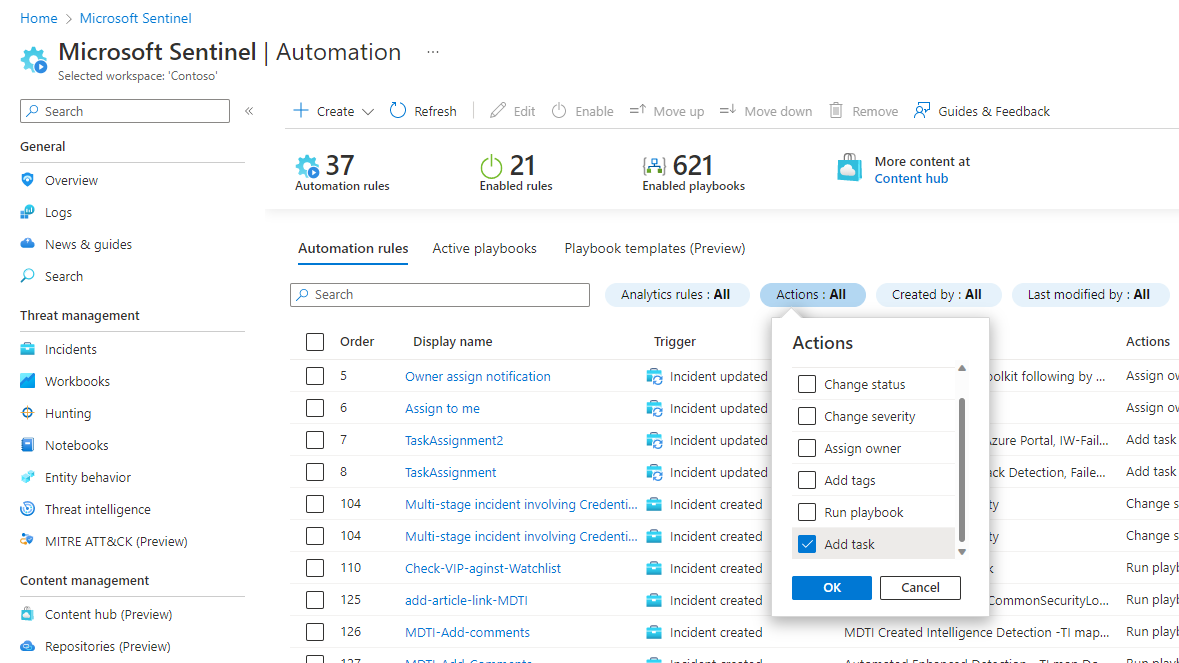
To test the rule, you can create a test incident that matches the conditions. Check that the owner is assigned, the status is updated, and any tasks are added in the correct order Create incident tasks in Microsoft Sentinel using automation rules.
If the rule does not run as expected, check the order of execution. Ensure that no earlier rule has changed the incident state in a way that prevents the condition from being met Automate threat response in Microsoft Sentinel with automation rules | Microsoft Docs. Also, verify that the conditions are case-insensitive and that the values match exactly Create and use Microsoft Sentinel automation rules to manage response.
Automation rules are a powerful tool for managing response in Microsoft Sentinel. By defining clear scope, triggers, and actions, you can streamline your SOC operations and ensure that incidents are handled consistently and efficiently Automate threat response in Microsoft Sentinel with automation rules | Microsoft Docs.