
Build a repeatable privileged-access review
Privileged access review is not a single button you press; it is a cycle of assigning, monitoring, and removing roles. If you are managing Microsoft Entra ID permissions manually, you are likely dealing with direct user assignments that are hard to audit and difficult to revoke. The practical way to make this repeatable is to move away from direct role assignments and use role-assignable groups, preferably managed through Privileged Identity Management (PIM).
The core decision here is whether to use static groups or dynamic, just-in-time access. For a repeatable review process, role-assignable groups provide a clear boundary. You assign the role to the group, not the individual. When the review cycle ends, you remove the user from the group, and the role assignment disappears with it. This is significantly cleaner than hunting down individual role assignments across the directory.
Prerequisites and permissions
Before you start, you need the right licence and permissions. Microsoft Entra ID P1 or P2 is required to create role-assignable groups Create a role-assignable group in Microsoft Entra ID. You also need the Privileged Role Administrator role to perform these actions Create a role-assignable group in Microsoft Entra ID. If you are using PIM, you will need P2 Remove Microsoft Entra role assignments.
It is important to note that the Privileged Role Administrator role is a control-plane permission for managing identities. It does not inherently grant data-plane access to resources like Exchange or SharePoint, but users can assign themselves other roles that do, subject to organizational policies Secure access practices for administrators in Microsoft Entra ID.
Step 1: Create a role-assignable group
The first step is to create a group that can hold role assignments. This is a setting you cannot change later, so plan carefully.
- Sign in to the Microsoft Entra admin center as a Privileged Role Administrator Create a role-assignable group in Microsoft Entra ID.
- Go to Entra ID > Groups > All groups.
- Select New group.
- Choose a group type (Security or Microsoft 365) and provide a name and description.
- Set Microsoft Entra roles can be assigned to the group to Yes Create a role-assignable group in Microsoft Entra ID.
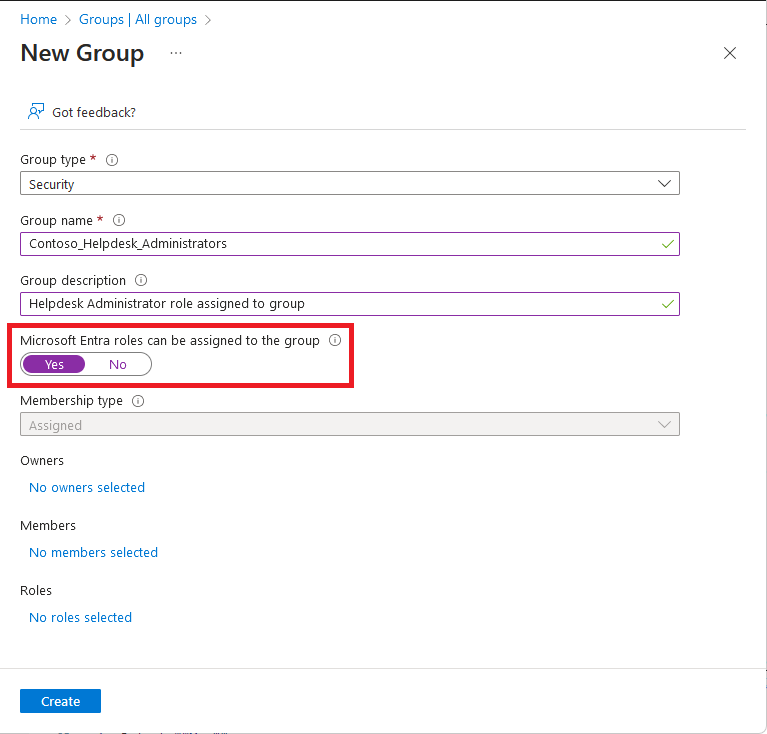
- Add the initial members and owners.
- Select Create.
You will see a confirmation message that this setting cannot be changed later. Select Yes to proceed Create a role-assignable group in Microsoft Entra ID.
If you prefer PowerShell, you can use the New-MgGroup command with the IsAssignableToRole parameter set to $true Create a role-assignable group in Microsoft Entra ID.
Step 2: Assign roles to the group
Now that the group exists, you can assign the necessary Microsoft Entra roles to it. You can do this during group creation or afterwards.
- In the Microsoft Entra admin center, go to Entra ID > Roles & admins.
- Select the role you want to assign (e.g., Global Administrator, Privileged Role Administrator).
- Select Add assignments.
- Choose the role-assignable group you just created.
- Select Assign.
This approach means that anyone who is a member of this group inherits the role. When you review access, you only need to check the group membership, not the individual role assignments.
Step 3: Use PIM for eligible assignments (Optional but recommended)
If you have Microsoft Entra ID P2, you can use Privileged Identity Management (PIM) to manage these assignments. PIM allows you to make roles “eligible” rather than “active”. This means users must request access, provide a justification, and potentially undergo multi-factor authentication before they can activate the role.
To remove an eligible assignment in PIM, you can use the Microsoft Entra admin center or PowerShell Remove Microsoft Entra role assignments. This adds a layer of auditability and control that static groups alone do not provide.
Step 4: Conduct the review and remove access
The review process is straightforward when you use role-assignable groups. At the end of the review period, you simply remove users who no longer need the role from the group.
- Go to the role-assignable group in the Microsoft Entra admin center.
- Select Members.
- Remove the users who no longer require the role.
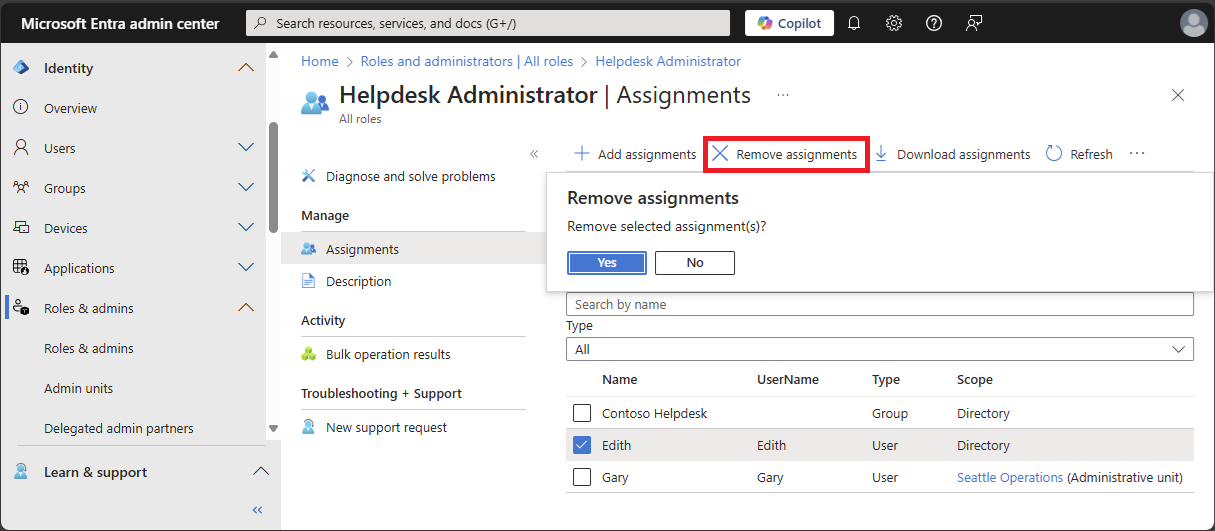
This action automatically removes the role assignment for those users Remove Microsoft Entra role assignments.
If you are using PIM, you can also remove eligible assignments directly through the PIM interface or PowerShell Remove Microsoft Entra role assignments.
Verification and cleanup
After removing users, verify that the role assignment has been revoked. You can do this by checking the Assignments page for the role in the Microsoft Entra admin center Remove Microsoft Entra role assignments.
If you used PowerShell, you can use the Remove-MgRoleManagementDirectoryRoleAssignment command to remove the assignment directly Remove Microsoft Entra role assignments.
It is important to note that removing a user from a group does not necessarily remove the group itself. You should keep the group for future assignments, but ensure it is empty or contains only the current approved members.
Common mistakes to avoid
- Direct assignments: Avoid assigning roles directly to users if you can use groups. Direct assignments are harder to audit and remove Remove Microsoft Entra role assignments.
- Ignoring PIM: If you have P2, use PIM. It provides better control and auditability Secure access practices for administrators in Microsoft Entra ID.
- Forgetting emergency access: Ensure you have at least two emergency access accounts that are not part of the regular review cycle Secure access practices for administrators in Microsoft Entra ID.
- Assuming group membership equals role assignment: Remember that the role is assigned to the group, not the user. Removing the user from the group removes the role Remove Microsoft Entra role assignments.
By using role-assignable groups and PIM, you create a repeatable and auditable process for managing privileged access. This approach reduces the risk of orphaned permissions and makes it easier to comply with security best practices Secure access practices for administrators in Microsoft Entra ID.