
Apply diagnostic settings consistently across Azure resources
You have a resource that needs to send logs to a central workspace, but the configuration feels like a manual chore every time you provision a new service. Diagnostic settings in Azure Monitor are the mechanism for this, but they are resource-specific, not subscription-wide. This means you must configure them individually for each resource type, or use automation to apply them at scale.
The core decision is not whether to enable them, but how to manage the configuration consistently across your estate. You need to understand the sources (logs and metrics), the destinations, and the limitations of the system before you start deploying.
Understand the sources and destinations
Diagnostic settings define where platform metrics and logs go. There are three main sources:
- Platform metrics: Sent automatically to Azure Monitor Metrics. You can also route them to other destinations using the
AllMetricscategory. - Resource logs: Detailed diagnostic information for the specific resource. These are not collected until you route them to a destination. You can select individual log categories or use category groups.
- Activity log: Information about resources from outside the resource (e.g., creation/deletion events). This is configured at the subscription level, not per resource.
For destinations, you can send data to:
- Log Analytics workspace: For querying and alerting. Metrics are converted to log form here.
- Azure Storage account: For archiving. Logs can be kept indefinitely here.
- Azure Event Hubs: For streaming to external systems like SIEMs.
- Azure Monitor partner solutions: For specialized third-party integrations.
A single diagnostic setting can define no more than one of each destination type. If you need to send data to two different Log Analytics workspaces, you must create multiple settings. Each resource can have up to five diagnostic settings.
Prerequisites and permissions
Before configuring diagnostic settings, ensure you have the necessary permissions. You need appropriate Azure role-based access control access to the resource to create or modify its diagnostic settings. If the destination (e.g., a Log Analytics workspace) is in a different subscription, you also need appropriate access to that destination.
For storage accounts, if virtual networks are enabled, you must enable Allow trusted Microsoft services to bypass the firewall so that the Azure Monitor diagnostic settings service can access the storage account. Similarly, for Event Hubs, you need Manage, Send, and Listen permissions on the shared access policy.
Configuration steps
You can configure diagnostic settings via the Azure portal, CLI, PowerShell, or ARM templates. The portal is suitable for single resources, while automation is better for consistency.
Using the Azure Portal
- Navigate to the resource you want to monitor.
- Select Diagnostic settings under Monitoring in the left-hand menu.
- Click Add diagnostic setting.
- Give the setting a name.
- Select the logs and metrics to route. You can choose individual categories or category groups. Category groups (
AllorAudit) dynamically collect logs based on predefined groupings. Note that using category groups prevents you from selecting individual log categories or applying retention settings to storage destinations. - Select your destinations (Log Analytics workspace, Storage account, Event Hubs, or Partner solutions).
- Click Save.
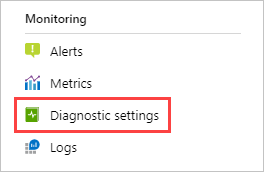
Using Azure Resource Manager (ARM) Templates
For consistent application across multiple resources, ARM templates are effective. The template must include a resource of type Microsoft.Insights/diagnosticSettings scoped to the specific resource.
Here is an illustrative example for an Azure Key Vault:
{
  "$schema": "https://schema.management.azure.com/schemas/2019-04-01/deploymentTemplate.json#",
  "contentVersion": "1.0.0.0",
  "parameters": {
    "vaultName": {
      "type": "string"
    },
    "workspaceId": {
      "type": "string"
    },
    "settingName": {
      "type": "string"
    }
  },
  "resources": [
    {
      "type": "Microsoft.KeyVault/vaults/providers/diagnosticSettings",
      "apiVersion": "2021-05-01-preview",
      "name": "[concat(parameters('vaultName'), '/Microsoft.Insights/', parameters('settingName'))]",
      "properties": {
        "workspaceId": "[parameters('workspaceId')]",
        "logs": [
          {
            "category": "AuditEvent",
            "enabled": true
          }
        ],
        "metrics": [
          {
            "category": "AllMetrics",
            "enabled": true
          }
        ]
      }
    }
  ]
}
Note that the apiVersion and resource type prefix (e.g., Microsoft.KeyVault/vaults/providers/) vary by resource type. Always check the specific resource documentation for the correct syntax.
Activity log configuration
The activity log is configured at the subscription level. You cannot use the CLI or PowerShell commands for resource-specific settings for this. Instead, use an ARM template deployed at the subscription scope.
{
  "$schema": "https://schema.management.azure.com/schemas/2018-05-01/subscriptionDeploymentTemplate.json#",
  "contentVersion": "1.0.0.0",
  "parameters": {
    "settingName": {
      "type": "string"
    },
    "workspaceId": {
      "type": "string"
    }
  },
  "resources": [
    {
      "type": "Microsoft.Insights/diagnosticSettings",
      "apiVersion": "2021-05-01-preview",
      "name": "[parameters('settingName')]",
      "properties": {
        "workspaceId": "[parameters('workspaceId')]",
        "logs": [
          {
            "category": "Administrative",
            "enabled": true
          },
          {
            "category": "Security",
            "enabled": true
          },
          {
            "category": "ServiceHealth",
            "enabled": true
          },
          {
            "category": "Alert",
            "enabled": true
          },
          {
            "category": "Recommendation",
            "enabled": true
          },
          {
            "category": "Policy",
            "enabled": true
          },
          {
            "category": "Autoscale",
            "enabled": true
          },
          {
            "category": "ResourceHealth",
            "enabled": true
          }
        ]
      }
    }
  ]
}
Deploy this using az deployment sub create or New-AzSubscriptionDeployment.
Verification and troubleshooting
After configuration, data should start flowing to your destinations within 90 minutes. If you do not see data within 24 hours, check the following:
- No logs generated: Ensure the resource is active and generating the logs you expect.
- Routing issues: Verify the destination exists and permissions are correct.
- Metric category errors: If you receive an error like “Metric category ‘xxxx’ isn’t supported”, update your deployment to use
AllMetrics. OnlyAllMetricsis supported for metrics via diagnostic settings, except for a few specific services. - Non-ASCII characters: Diagnostic settings do not support resource IDs with non-ASCII characters. If your resource name contains such characters, you may need to recreate the resource or move it to a new resource group.
For storage retention, note that the retention policy set in the diagnostic setting is deprecated. Use the Azure Storage Lifecycle Policy to manage log retention.
Cost considerations
Collecting data in a Log Analytics workspace incurs costs. Only collect the categories you require. Platform metrics are already collected in Metrics, so only route them to Log Analytics if you need them for complex log queries. Be aware that diagnostic settings do not allow granular filtering of resource logs; you must select entire categories or groups.
End your configuration by verifying that the expected logs appear in your Log Analytics workspace or that the storage account receives the data. This confirms the diagnostic setting is active and routing correctly.
References for Apply diagnostic settings consistently across Azure resources: Diagnostic settings in Azure Monitor, Create diagnostic settings in Azure Monitor, Resource Manager template samples for diagnostic settings.