
Use Windows Admin Center for a defined administration task
Este artigo ainda não foi traduzido — está a ver a versão em inglês.
You need to manage a Windows Server 2022 machine, but you do not want to install a heavy management console on every workstation. Windows Admin Center provides a browser-based gateway that lets you manage that server from any Windows 10 or 11 client, or from the server itself. The question is not whether the tool works, but how to connect it securely and verify that the session is actually using the correct security context.
Windows Admin Center is a locally deployed, browser-based management tool set. It runs through a gateway installed on a Windows Server or a domain-joined Windows 10 machine What is Windows Admin Center. The gateway manages servers by using Remote PowerShell and WMI over WinRM What is Windows Admin Center. This means the management traffic stays within your network infrastructure; it does not require the managed server to be connected to the Internet What is Windows Admin Center.
Install the gateway on a known host
Start with a host that is already in your environment. You can install Windows Admin Center on a Windows Server 2022 machine acting as a gateway, or on a Windows 10/11 client What is Windows Admin Center. For this example, we assume a Windows 10 client is used as the management station.
The installation package is an .msi file What is Windows Admin Center. Once installed, the gateway runs locally and listens on port 6516. You access it by navigating to https://localhost:6516/ in Microsoft Edge or Google Chrome Get started with Windows Admin Center.
Add the Windows Server 2022 node
The first step is to register the target server in the connection list. Open the All connections page and click + Add Get started with Windows Admin Center.
- Select Add one to add a single resource Get started with Windows Admin Center.
- Enter the name of the Windows Server 2022 machine Get started with Windows Admin Center.
- Windows Admin Center searches for the resource based on your input. If it is found, select the name. If not, you can still add it manually Get started with Windows Admin Center.
You can also bulk import connections from a .txt or .csv file, or search Active Directory if your management station is domain-joined and your account has read permissions Get started with Windows Admin Center. For a single server, the manual entry is usually sufficient.
Authenticate with the managed node
Adding the connection does not mean you can manage the server yet. You must authenticate. Windows Admin Center uses single sign-on (SSO) by default Get started with Windows Admin Center. If you are using a domain-joined Windows 10 client and the server is in the same domain, SSO should work immediately.
If you are not using SSO, or if you need to verify the security context, you can specify credentials explicitly. Under All connections, select the server and choose Manage as Get started with Windows Admin Center. Enter the credentials for an account that has local administrator rights on the target server Get started with Windows Admin Center.
[!IMPORTANT] You must be a member of the local administrator’s group to use Windows Admin Center on Windows 10 Get started with Windows Admin Center.
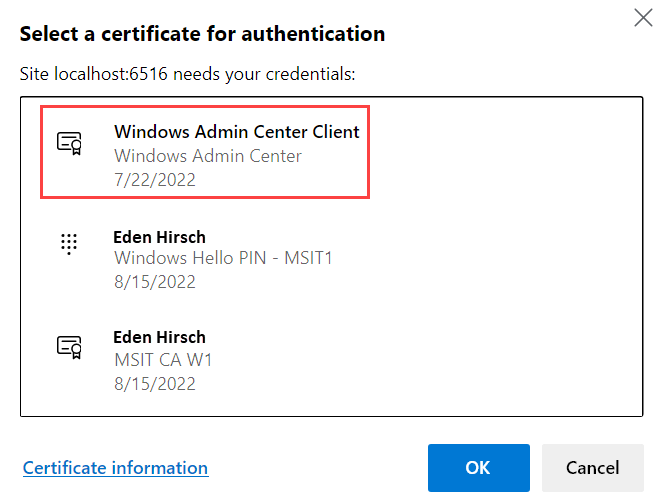
When you first open the gateway in the browser, you may be prompted to select a certificate for authentication. In modernized gateway builds, you will be asked to log in rather than select a certificate. If you are using an older build, select the certificate labeled Windows Admin Center Client and click OK Get started with Windows Admin Center. If you select any other certificate, you will receive an error stating that you are not authorized to view the page Get started with Windows Admin Center.
Verify the management session
Once connected, you can verify that the session is active and using the correct context. Windows Admin Center impersonates the provided user’s security context to access the machine Get started with Windows Admin Center. The account used for authentication is listed under the Managing As column on the All Connections page Get started with Windows Admin Center.
To confirm the management capabilities are working, open a tool within the server connection, such as the Overview page. You should see the server’s hardware and software information. If you need to see the underlying commands, click the PowerShell icon in the top application bar and select a command to view the corresponding PowerShell script Get started with Windows Admin Center.
Organise and filter connections
If you manage multiple servers, use tags to organise your connections. You can add tags when adding a connection, or edit them later from the All connections page Get started with Windows Admin Center. Select one or more connections, click Edit Tags, and add or remove tags as needed Get started with Windows Admin Center.
To filter the list, click the filter icon next to the search box Get started with Windows Admin Center. You can combine tags using Or, And, or Not logic to view specific subsets of your infrastructure Get started with Windows Admin Center.
Next steps
Windows Admin Center complements existing solutions like System Center and Azure management What is Windows Admin Center. It is not a replacement for those tools, but a focused interface for single-machine management tasks What is Windows Admin Center. If you need to manage clusters or hyper-converged infrastructure, Windows Admin Center provides specific wizards for deployment and management What is Windows Admin Center.
For persistent access across an organisation, you can publish the gateway to DNS and configure firewall rules to allow secure connections from anywhere What is Windows Admin Center. This requires additional configuration for delegation and access control Get started with Windows Admin Center.
Check the Settings page to review user and gateway configurations. User settings affect only your profile, while gateway settings affect all users Settings. Ensure that the gateway is up to date and that the correct identity provider is configured for your environment Settings.