
Understand checkpoints for a Linux application
Este artigo ainda não foi traduzido — está a ver a versão em inglês.
You are preparing to apply a software update or configuration change to a Linux virtual machine running on Windows Server 2025. The immediate question is not how to revert the VM, but which checkpoint type will preserve your application’s data integrity when you do. For a Linux application, the answer is almost always a production checkpoint. Using a standard checkpoint on a production workload risks data inconsistency, particularly with databases or file systems that replicate state.
Hyper-V on Windows Server 2025 supports two distinct checkpoint mechanisms. Standard checkpoints capture the exact state of the virtual machine, including memory, hardware configuration, and disk state. This is effectively a snapshot of the running system. Production checkpoints, by contrast, do not capture memory. Instead, they use guest-side backup technology to create a point-in-time image of the disk data. This distinction determines whether your application state is consistent when the VM is reverted.
Why standard checkpoints are risky for Linux applications
A standard checkpoint freezes the virtual machine’s memory and disk state at a single instant. If your Linux application is a database, a file server, or any service that maintains state across multiple nodes or files, this sudden freeze can leave the application in an inconsistent state. The documentation explicitly warns that standard checkpoints can cause data consistency issues with systems that replicate data between different nodes, such as Active Directory, and by extension, any application relying on similar distributed state mechanisms.
When you apply a standard checkpoint, the VM returns to the exact moment the checkpoint was taken. If the application was in the middle of writing a transaction or syncing data, that transaction is now orphaned or corrupted. The system appears to work, but the data on disk may not reflect the logical state the application expects. This is why standard checkpoints are intended for development and test scenarios where you need to recreate a specific, often fragile, state for troubleshooting.
Production checkpoints ensure data consistency
Production checkpoints are the default for new virtual machines on Windows Server 2016 and later, including Windows Server 2025. They are designed for production workloads. Instead of freezing memory, a production checkpoint triggers the guest operating system to prepare its data for backup. On Linux, this is achieved using the File System Freeze mechanisms provided by the Hyper-V integration services.
The process works as follows:
- You initiate the checkpoint.
- Hyper-V signals the Linux guest to freeze its file systems and flush pending writes.
- The guest creates a consistent snapshot of the disk data.
- The guest unfreezes the file systems and resumes normal operation.
- Hyper-V records the checkpoint metadata.
Because the guest OS is aware of the checkpoint, it can ensure that all pending I/O operations are completed and that the file system metadata is consistent. When you revert to this checkpoint, the VM boots up with a clean, consistent disk state. The application will not be in the middle of a transaction; it will be in a stable state as it was at the time of the freeze.
Configuring the Linux VM for production checkpoints
By default, new Linux virtual machines are configured to use production checkpoints. However, it is critical to verify this setting before performing any critical changes. If the VM was created on an older version of Windows Server or if the settings were manually changed, it might be using standard checkpoints.
To check and configure the checkpoint type, you can use Hyper-V Manager or PowerShell.
Using Hyper-V Manager
- Open Hyper-V Manager and locate your Linux virtual machine.
- Right-click the VM and select Settings.
- In the left pane, under Management, select Checkpoints.
- Ensure that Production checkpoints is selected.
- If you want to ensure that a checkpoint is never taken if the production mechanism fails, you can clear the checkbox that allows the host to fall back to a standard checkpoint. This is a safety measure to prevent accidental use of standard checkpoints on production workloads.
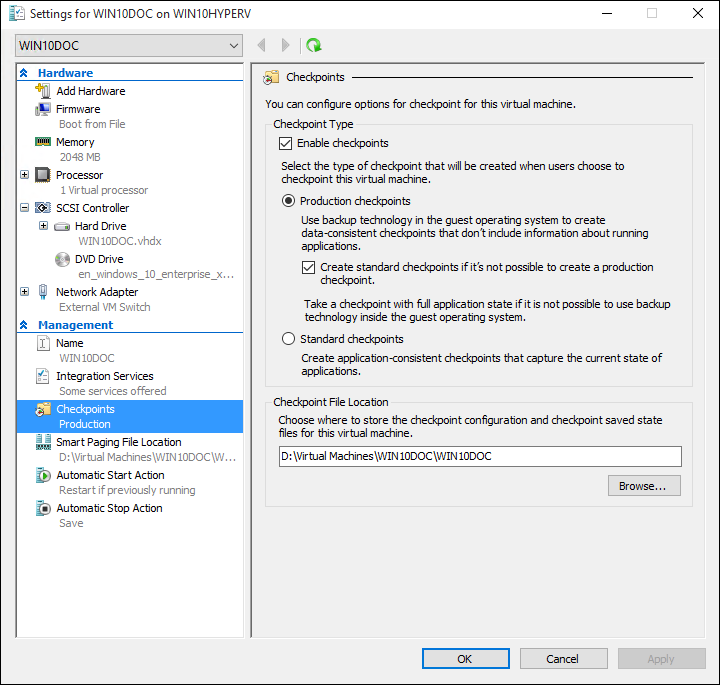
Using PowerShell
You can verify the current setting with:
Get-VM -Name ExampleVMName | Select-Object CheckpointTypeTo set it explicitly to production checkpoints, use:
Set-VM -Name ExampleVMName -CheckpointType ProductionIf you want to enforce production checkpoints only, preventing any fallback to standard checkpoints, use:
Set-VM -Name ExampleVMName -CheckpointType ProductionOnlyThe ProductionOnly setting is particularly useful for Linux applications where you want to guarantee that a checkpoint is never taken in an inconsistent state. If the Linux guest does not support production checkpoints, or if the integration services are not functioning correctly, the checkpoint operation will fail rather than creating a risky standard checkpoint. This ensures you are aware of the failure immediately, rather than having a silent fallback to a standard checkpoint that might compromise data integrity.
Verifying the checkpoint mechanism
To confirm that production checkpoints are working correctly, you can perform a simple test. Create a file in the Linux guest, save it, and then create a checkpoint. Make a change to the file, save it again, and then revert to the checkpoint. The file should return to its state at the time of the checkpoint, but the application state (e.g., open editors, running processes) will not be restored. This is expected behaviour for production checkpoints, as they do not capture memory.
If you find that the checkpoint fails or falls back to a standard checkpoint, check the following:
- Ensure that the Hyper-V integration services are installed and up to date in the Linux guest.
- Verify that the Linux kernel version supports the required file system freeze mechanisms.
- Check the Hyper-V event logs for errors related to checkpoint creation.
Applying and managing checkpoints
Once you have a production checkpoint, you can apply it to revert the VM to the previous state. In Hyper-V Manager, right-click the checkpoint and select Apply. You will be presented with two options:
- Create Checkpoint and Apply: Creates a new checkpoint of the current state before applying the older one. This is useful if you want to keep a record of the state before reverting.
- Apply: Applies the checkpoint directly. This action cannot be undone.
Using PowerShell, you can apply a checkpoint with:
Restore-VMCheckpoint -Name ExampleCheckpointName -VMName ExampleVMName -Confirm:$falseAfter applying a production checkpoint, the VM will typically be in an off state. You will need to start the VM and log in to verify that the application state is consistent. Unlike standard checkpoints, the application will not be in the exact same state (e.g., open files or running processes), but the data on disk will be consistent.
Cleanup and best practices
Checkpoints consume disk space. Each production checkpoint creates a delta file that stores changes made after the checkpoint was taken. Over time, these files can grow significantly. It is important to delete checkpoints that are no longer needed.
To delete a checkpoint, right-click it in Hyper-V Manager and select Delete. PowerShell provides:
Remove-VMCheckpoint -VMName ExampleVMName -Name ExampleCheckpointNameDeleting a checkpoint merges the delta file with the base virtual hard disk. This process can take some time, depending on the size of the changes. Do not manually delete the delta files, as this can corrupt the virtual machine.
For Linux applications, always use production checkpoints for any change that affects data consistency. Standard checkpoints should be reserved for development and testing scenarios where you need to capture the exact state of the running system, including memory and open processes. By configuring your Linux VMs to use production checkpoints by default, you ensure that your application data remains consistent and recoverable.
Verify the checkpoint type for each Linux VM in your environment. If any are set to standard, change them to production or production-only. This simple configuration step prevents data corruption and ensures that your backups are reliable.
References for Understand checkpoints for a Linux application: Using checkpoints, Choose between standard or production checkpoints in Hyper-V, Best Practices for running Linux on Hyper-V.