
Set useful boundaries for security exemptions
Este artigo ainda não foi traduzido — está a ver a versão em inglês.
When a security recommendation or alert persists, the instinct is often to silence it. But silencing a signal is not the same as managing the risk behind it. In Microsoft Defender for Cloud, there are two distinct mechanisms for handling unwanted findings: governance rules and suppression rules. They serve different purposes, apply to different data types, and require different permissions. Confusing them leads to either unmanaged technical debt or blind spots in your threat detection.
The core distinction is simple. Governance rules drive accountability for security posture recommendations by assigning owners and deadlines. Suppression rules automatically dismiss specific security alerts, typically to reduce noise from false positives. You use governance rules when you need to track remediation. You use suppression rules when you need to stop seeing a specific alert type.
Governance rules: Driving remediation
Governance rules are part of the Cloud Security Posture Management (CSPM) plan. They do not hide findings; they structure them. When a recommendation is generated, a governance rule can assign an owner and a due date, ensuring that someone is responsible for fixing the issue. This is critical for establishing Service Level Agreements (SLAs) around security hygiene.
How governance rules work
Governance rules apply to security recommendations derived from security standards, such as the Microsoft Cloud Security Benchmark (MCSB) or custom standards. They operate on a priority system. Rules with lower priority values (e.g., 1) are applied before rules with higher values (e.g., 1000). If multiple rules match a recommendation, the one with the highest priority (lowest number) determines the owner and due date.
You can define rules based on:
- Severity: Apply to all recommendations of a certain severity level.
- Specific recommendations: Target built-in or custom recommendations by name.
The rule can assign an owner by:
- Resource tag: Reading the owner from a specific tag on the resource, resource group, or subscription.
- Email address: Directly assigning an email address.
A key feature is the grace period. If enabled, recommendations covered by a governance rule do not impact your secure score until the due date has passed. This allows teams time to remediate without immediate penalty. Notifications are sent weekly to owners and their managers (if available in Entra ID) about open and overdue tasks.
Prerequisites and permissions
To create governance rules, you need the Defender CSPM plan enabled. You also require Contributor, Security Admin, or Owner permissions on the Azure subscriptions. The rules can be applied at the subscription level or at a management group level, with management group rules taking precedence.

Suppression rules: Managing alert noise
Suppression rules are part of the paid Defender plans (e.g., Defender for Servers, Defender for Storage). They target security alerts, not posture recommendations. When an alert is generated, a suppression rule can automatically dismiss it if it matches specific criteria. This is useful for known false positives or alerts that are too frequent to be actionable.
How suppression rules work
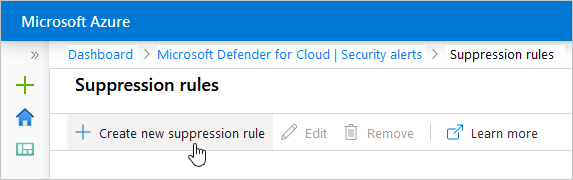
Suppression rules apply to subscriptions or management groups. For management groups, you must use Azure Policy. For subscriptions, you can use the Azure portal or the REST API.
When creating a suppression rule, you specify:
- Entities: The resources the rule applies to (single resource, multiple resources, or partial resource ID). If no entities are specified, the rule applies to all resources in the subscription.
- Name: A unique name for the rule.
- State: Enabled or disabled.
- Reason: A built-in reason (e.g., “False positive”) or “Other” with a custom comment.
- Expiration date: An optional end date for the rule.
A critical feature is the simulate button. Before saving, you can simulate the rule to see how many previously received alerts would have been dismissed. This helps verify that the rule is targeting the correct alerts and not suppressing something important.
Prerequisites and permissions
Suppression rules require a paid Defender plan. Permissions for creating or deleting rules are Security Admin or Owner. Security Reader and Reader roles can view rules. Note that suppression rules do not apply to alerts that were never triggered on the subscription or management group before the rule was created.
Decision criteria: Which one to use?
The choice between governance rules and suppression rules depends on the nature of the finding and the desired outcome.
| Feature | Governance Rules | Suppression Rules |
|---|---|---|
| Target | Security Recommendations (CSPM) | Security Alerts (Paid Plans) |
| Purpose | Assign ownership and deadlines | Dismiss unwanted/false positive alerts |
| Impact on Score | Can apply grace period (no score impact until overdue) | Does not affect secure score directly |
| Permissions | Contributor, Security Admin, Owner | Security Admin, Owner |
| Notification | Weekly emails to owners/managers | None (alert is dismissed) |
| Scope | Subscription or Management Group | Subscription (Portal/API) or Management Group (Azure Policy) |
Common pitfalls
-
Using suppression rules for posture issues: If a recommendation is about a misconfiguration (e.g., “Storage account should restrict network access”), suppressing the alert will not fix the issue. You need a governance rule to assign ownership and track remediation. Suppression rules only hide the alert; they do not address the underlying security posture.
-
Confusing permissions: Having Contributor role on a subscription does not automatically grant permission to create suppression rules. You need Security Admin or Owner roles for suppression rules, whereas governance rules allow Contributor. Ensure the correct permissions are assigned before attempting to create rules.
-
Assuming suppression rules fix the root cause: Suppressing an alert for a false positive is a valid action, but it should be reviewed periodically. If the alert was not a false positive, suppressing it creates a blind spot. Always use the simulate feature to verify the impact of suppression rules.
-
Ignoring priority in governance rules: If multiple governance rules apply to the same recommendation, only the one with the highest priority (lowest number) takes effect. Ensure your rules are ordered correctly to avoid unexpected owner assignments.
Verification
To verify that governance rules are working, check the Governance report in Defender for Cloud. This report shows the status of recommendations (completed, on time, overdue, unassigned) by rule and owner. It allows you to drill down into specific subscriptions and rules to ensure accountability is being tracked.
To verify suppression rules, check the Security Alerts page. Dismissed alerts should not appear in the active alerts list. Use the simulate feature before creating new rules to ensure they are targeting the correct alerts.
By distinguishing between governance rules for remediation and suppression rules for noise reduction, you can maintain a clear security posture without losing visibility into critical threats. Use governance rules to drive action and suppression rules to manage noise, but never confuse the two.
References for Set useful boundaries for security exemptions: Drive remediation of recommendations with governance rules, Suppressing false positives or other unwanted security alerts, Security policies in Microsoft Defender for Cloud.