
Separate storage bottlenecks from compute bottlenecks
Este artigo ainda não foi traduzido — está a ver a versão em inglês.
When an Azure Batch job runs slowly, the first instinct is often to blame the compute nodes. You see high CPU usage or long task durations and assume the virtual machines are underpowered. However, in many workloads, the bottleneck is not the processor but the network path to the storage account where input data resides. If you do not separate these two concerns, you will either over-provision compute or chase storage issues that are actually network or configuration problems.
The distinction matters because the remedies are different. A compute bottleneck might require a larger VM size or more nodes. A storage bottleneck might require moving the pool closer to the storage account, optimising blob access patterns, or adjusting network routing. Without specific telemetry, you are guessing.
Measure what actually takes time
Azure Batch provides metrics at the account and pool level, such as node state and task state. These tell you how many tasks are running or how many nodes are idle, but they do not tell you what the tasks are doing while they run. To understand the internal performance of a task, you need to instrument the application code.
Application Insights is the recommended tool for this level of detail. It allows you to send custom metrics from your Batch tasks back to a central monitoring resource. By explicitly measuring the time taken to download input data and the time taken to process that data, you can separate storage latency from compute processing time.
Instrument the task code
You need to add the Application Insights library to your Batch application. For a .NET application, this involves adding the Microsoft.ApplicationInsights.WindowsServer NuGet package and configuring the instrumentation key. The key is obtained from the Application Insights resource in the Azure portal.
Once the library is included, you can use the TelemetryClient to track custom metrics. The critical step is to wrap the storage access and the processing logic in separate timing blocks. This ensures that the metrics are distinct and can be analysed independently.
Consider a task that downloads a text file from Blob storage and counts the words. The code might look like this:
// Illustrative example: unrun code to demonstrate the measurement logic
public void ProcessBlob(string blobUri, string storageAccountKey)
{
    var storageCred = new StorageCredentials(storageAccountKey);
    var blob = new CloudBlockBlob(new Uri(blobUri), storageCred);

    // Measure storage access time using Stopwatch for accuracy
    var downloadSw = System.Diagnostics.Stopwatch.StartNew();
    using (var memoryStream = new MemoryStream())
    {
        blob.DownloadToStream(memoryStream);
        downloadSw.Stop();
        insightsClient.TrackMetric("BlobDownloadSeconds", downloadSw.Elapsed.TotalSeconds);
    }

    // Measure compute processing time
    var processSw = System.Diagnostics.Stopwatch.StartNew();
    memoryStream.Position = 0;
    var words = new StreamReader(memoryStream).ReadToEnd().Split(' ');
    var wordCount = words.Length;
    processSw.Stop();
    insightsClient.TrackMetric("ProcessSeconds", processSw.Elapsed.TotalSeconds);

    insightsClient.TrackEvent("TaskCompleted", new Dictionary<string, string> { { "WordCount", wordCount.ToString() } });
}
This code explicitly tracks two metrics: BlobDownloadSeconds and ProcessSeconds. By separating them, you can later query the data to see which one is dominating the total task duration. Using Stopwatch is preferred over DateTime.Now for high-resolution elapsed time measurement, as it is not affected by system clock adjustments.
Deploy the telemetry binaries
For the telemetry to work on the Batch compute nodes, the Application Insights binaries must be present on the machine. The sample approach demonstrates staging these files to each node before the task runs. You can do this by adding the files to the FilesToStage collection of the CloudTask. This ensures that every node receives the necessary components.
You also need to configure a telemetry initializer to override the default role name and instance name. By default, Application Insights uses the VM role and instance name, which is not useful for Batch. Instead, you should use the Batch pool ID and node ID. This allows you to group the metrics by node and identify if a specific node is consistently slow.
The telemetry initializer code looks like this:
// Illustrative example: unrun code for telemetry initialisation
public class AzureBatchNodeTelemetryInitializer : ITelemetryInitializer
{
    public void Initialize(ITelemetry telemetry)
    {
        if (string.IsNullOrEmpty(telemetry.Context.Cloud.RoleName))
        {
            telemetry.Context.Cloud.RoleName = Environment.GetEnvironmentVariable("AZ_BATCH_POOL_ID");
        }
        if (string.IsNullOrEmpty(telemetry.Context.Cloud.RoleInstance))
        {
            telemetry.Context.Cloud.RoleInstance = Environment.GetEnvironmentVariable("AZ_BATCH_NODE_ID");
        }
    }
}
This initializer must be registered in the ApplicationInsights.config file for .NET Framework applications as shown in the sample. For .NET Core or .NET 5+ applications, telemetry initializers are typically registered in code via TelemetryConfiguration.Active.TelemetryInitializers.Add() or dependency injection.
Analyse the results
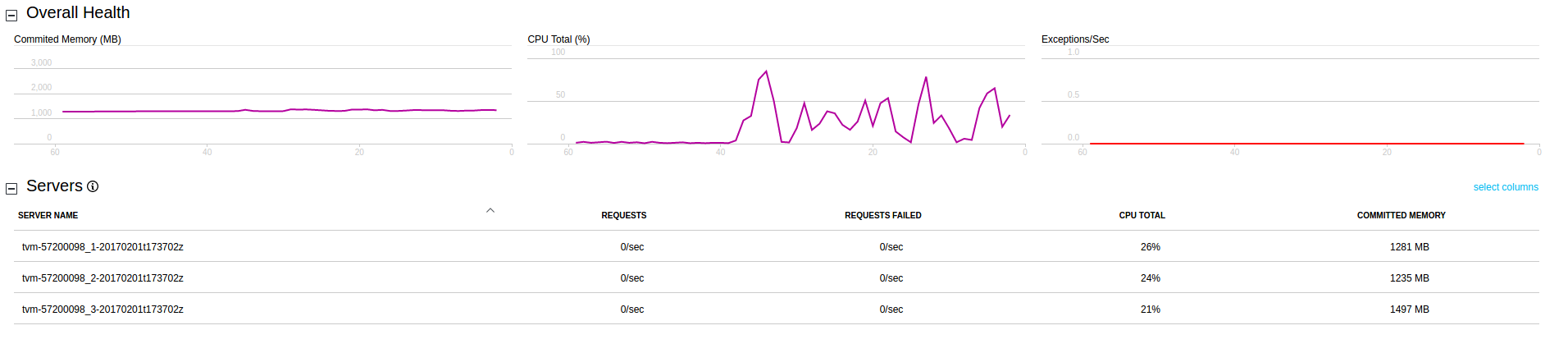
Once the job is running, you can view the data in the Application Insights resource. The Metrics Explorer is the most useful tool for this. You can create a chart that groups the BlobDownloadSeconds metric by NodeId. This will show you if certain nodes are consistently slower at downloading data than others. If the download times are high and variable, the issue is likely storage or network related. If the download times are low but the ProcessSeconds are high, the issue is compute related.
You can also use the Live Stream feature to see real-time data. This is useful for verifying that the telemetry is flowing correctly and that the metrics are being recorded as expected.
Verify the separation
To confirm that you have successfully separated the bottlenecks, run a small test job with a known workload. Use a small file size to minimise storage latency and a complex calculation to maximise compute time. Then, reverse the scenario: use a large file size and a simple calculation. Compare the metrics from both runs. If the BlobDownloadSeconds metric scales with file size and the ProcessSeconds metric scales with calculation complexity, you have successfully separated the concerns.
This approach gives you a clear picture of where the time is being spent. It prevents you from making changes that do not address the root cause. If the storage is the bottleneck, you can focus on optimising data access. If the compute is the bottleneck, you can focus on optimising the algorithm or scaling the pool.
References for Separate storage bottlenecks from compute bottlenecks: Monitor Batch with Azure Application Insights, Monitor Azure Batch.