
Separate local administration from domain-wide privileges
Este artigo ainda não foi traduzido — está a ver a versão em inglês.
You have a Windows Server 2025 member server joined to an Active Directory domain. The local Administrator account is disabled by default on modern Windows versions, which reduces the risk of credential theft. However, if you manage legacy systems, or if the account has been manually enabled for specific tasks, it remains a high-value target for lateral movement.
The goal is to ensure that even if the local Administrator account is compromised, it cannot be used to access other computers, run services, or execute batch jobs. This is achieved by configuring specific user rights assignments via Group Policy. This approach isolates the privilege to the local machine, preserving the account’s utility for local disaster recovery while breaking the chain of network-based attacks.
Why restrict the local Administrator account?
The principle of least privilege applies to built-in accounts just as it does to user accounts. If an attacker compromises a domain-joined server, they often look for credentials that can be used elsewhere. The local Administrator account is a prime target because it exists on every machine with the same name.
If that account is enabled and has no restrictions, an attacker can use it to access other servers in the domain. By denying specific user rights to the local Administrator account via Group Policy, you ensure that even if the account is compromised, its utility is limited to the local machine. This breaks the chain of lateral movement.
The controls you need to apply
You need to configure four user rights assignments in a Group Policy Object (GPO). These rights deny the local Administrator account the ability to:
- Access the computer from the network.
- Log on as a batch job.
- Log on as a service.
- Log on through Remote Desktop Services.
It is critical that you apply these settings to the local Administrator account, not the domain Administrator account. The way you specify the account in the GPO determines which one is affected.
Step-by-step configuration
You need administrative privileges to create and link Group Policy Objects. You also need access to a domain controller to run Group Policy Management.
1. Create the GPO
- Open Group Policy Management on a domain controller or a machine with the Remote Server Administration Tools installed.
- Navigate to your domain and expand Group Policy Objects.
- Right-click Group Policy Objects and select New.
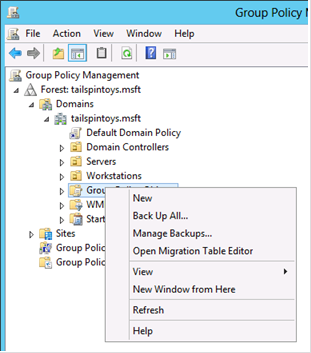
- Name the GPO something descriptive, such as
Restrict Local Administrator Accounts. - Right-click the new GPO and select Edit.
2. Configure the User Rights Assignments
In the Group Policy Management Editor, navigate to:
Computer Configuration\Policies\Windows Settings\Security Settings\Local Policies\User Rights Assignment
You will configure four policies. For each, select Define these policy settings and add the account Administrator.
Deny access to this computer from the network
-
Double-click Deny access to this computer from the network.
-
Click Add User or Group.
-
Type Administrator and click Check Names.
-
Click OK.
Important: If you type
DOMAIN\Administrator, you are restricting the domain Administrator account. By typing justAdministrator, you restrict the local account on each computer to which this GPO applies.
Deny log on as a batch job
- Double-click Deny log on as a batch job.
- Add Administrator as above.
Deny log on as a service
- Double-click Deny log on as a service.
- Add Administrator as above.
Deny log on through Remote Desktop Services
- Double-click Deny log on through Remote Desktop Services.
- Add Administrator as above.
3. Link the GPO
-
Close the Group Policy Management Editor.
-
In Group Policy Management, right-click the Organizational Unit (OU) that contains your member servers and workstations.
-
Select Link an existing GPO.
-
Select
Restrict Local Administrator Accountsand click OK.Repeat this for any other OUs containing member systems.
Verification
You should verify that the GPO is applied and that the restrictions are effective. Do this from a machine that is not affected by the GPO, such as a jump server or a management workstation.
Test network access
-
Log on locally to a machine not affected by the GPO.
-
Open an elevated Command Prompt.
-
Run:
net use \\ServerName\c$ /user:ServerName\AdministratorReplace
ServerNamewith the name of a member server affected by the GPO.You should receive a logon failure error. This confirms that the local Administrator account cannot be used to access the server over the network.
Test Remote Desktop
-
Open Remote Desktop Connection.
-
Enter the name of the affected server.
-
When prompted for credentials, enter the local Administrator account name and password.
You should receive a logon failure error. This confirms that the local Administrator account cannot log on via RDP.
Test service logon
-
On an affected server, open Services.
-
Locate the Print Spooler service.
-
Right-click and select Properties.
-
Go to the Log On tab.
-
Select This account and browse to the local Administrator account.
-
Enter the password and click OK.
-
Try to start the service.
The service should fail to start, confirming that the local Administrator account cannot log on as a service.
Reverting changes
If you need to revert these changes, simply remove the GPO link or edit the GPO to remove the Administrator account from the deny lists. Remember to test thoroughly before applying changes to production.
Next steps
Once you have verified the restrictions, consider auditing your environment for other overly privileged accounts. The local Administrator account is just one piece of the puzzle. Look for domain accounts with excessive privileges and ensure that service accounts are using least-privilege principles.
For more information on securing built-in Administrator accounts in Active Directory, refer to the Implementing Least-Privilege Administrative Models guide.
References for Separate local administration from domain-wide privileges: Implementing Least-Privilege Administrative Models, Appendix H - Securing Local Administrator Accounts and Groups, Active Directory Security Groups.