
Review infrastructure security findings during a pull request
Este artigo ainda não foi traduzido — está a ver a versão em inglês.
You are reviewing a pull request that modifies a Bicep or Terraform file. You want to see security findings for that infrastructure-as-code (IaC) change immediately, rather than waiting for a post-merge scan. Microsoft Defender for Cloud provides pull request annotations to surface these IaC misconfigurations directly in the source control system.
This feature is part of Defender for Cloud’s DevOps security capabilities. It allows security operators and developers to address vulnerabilities before they enter the production stage. The annotations are added to the differences introduced during the pull request, not the entire file. This keeps the feedback focused on the actual change.
Prerequisites and Scope
Before enabling annotations, you must confirm the platform and licensing. Pull request annotations in GitHub require you to be a GitHub Advanced Security customer. Azure DevOps does not require this specific add-on but requires write access (owner or contributor) to the Azure subscription.
You must connect your repositories to Defender for Cloud first. For GitHub, this involves configuring the Microsoft Security DevOps GitHub action. For Azure DevOps, you install the Microsoft Security DevOps extension. Without this connection, Defender for Cloud cannot scan your code.
Note that currently, only Infrastructure-as-Code misconfigurations are supported. This includes ARM, Bicep, Terraform, CloudFormation, Dockerfiles, and Helm Charts. Code scanning alerts from other sources, such as generic application logic vulnerabilities, are not annotated in this specific workflow unless they are part of the IaC scan results.
Enabling Annotations in GitHub
The process in GitHub relies on modifying a workflow file. You need to ensure the workflow triggers on pull requests targeting the main branch.
-
Navigate to your repository in GitHub.
-
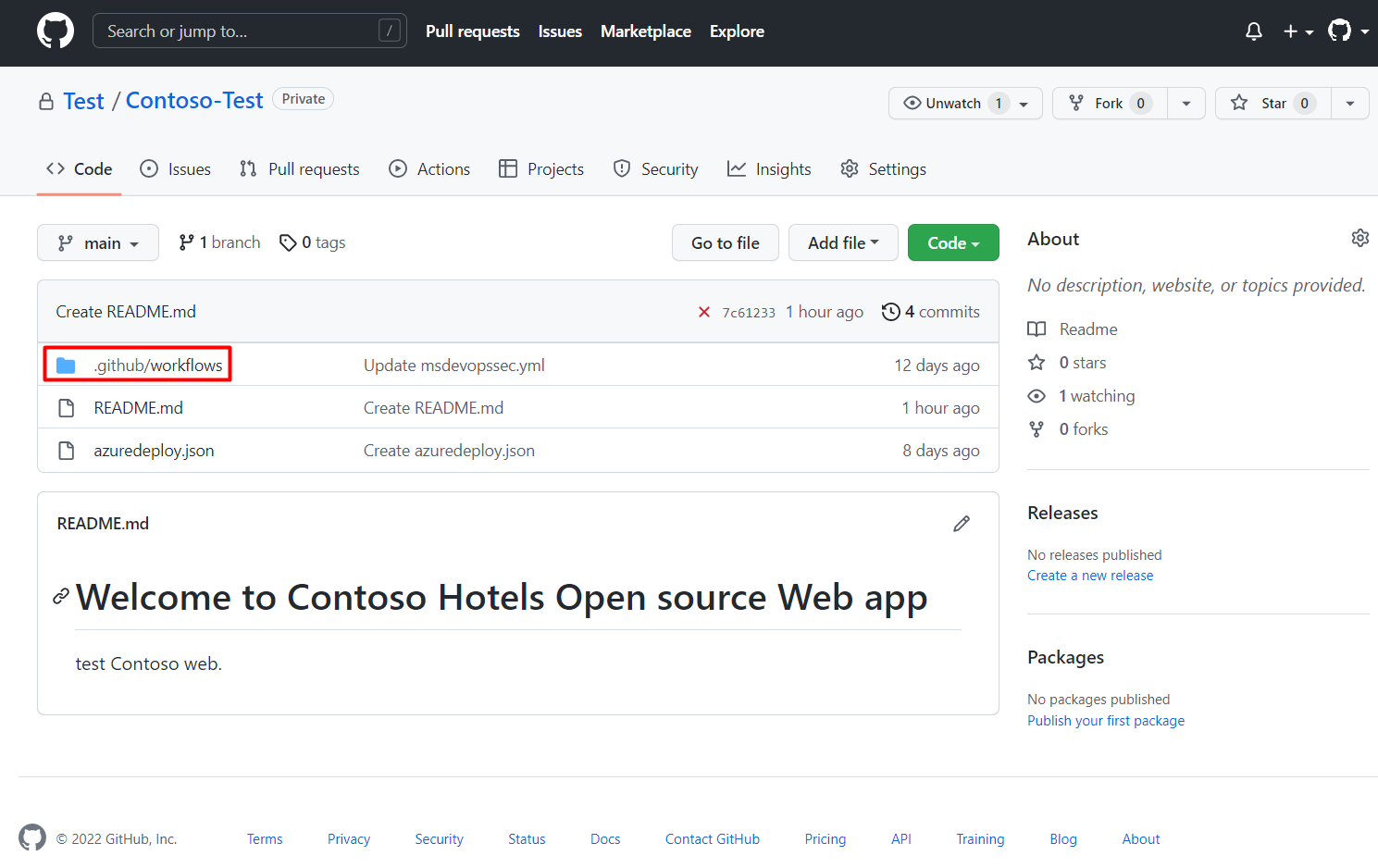
Go to .github/workflows.
-
Select msdevopssec.yml, which was created during the onboarding prerequisites.
-
Select edit.
-
Locate and update the trigger section to include the pull request trigger:
# Triggers the workflow on push or pull request events but only for the main branch
pull_request:
  branches: ["main"]
You can specify other branches if you want the scan to run on feature branches as well. If you want to include all branches, remove the lines with the branch list.
-
Select Start commit and then Commit changes.
Any issues discovered by the scanner will be viewable in the Files changed section of your pull request. The annotations appear as comments on the specific lines of code that triggered the finding.
Enabling Annotations in Azure DevOps
Azure DevOps requires two steps: enabling Build Validation and then enabling the annotations in Defender for Cloud.
First, ensure your main branch has Build Validation enabled for the CI Build. Navigate to Project settings > Repositories, select your repository, go to Policies, and locate the Build Validation section. Ensure the toggle is set to On.
Once Build Validation is active, you can enable the annotations:
- Sign in to the Azure portal and navigate to Defender for Cloud > DevOps security.
- Select all relevant repositories to enable pull request annotations on.
- Select Manage resources.
- Toggle pull request annotations to On.
- (Optional) Select a category from the drop-down menu. Currently, only IaC is supported.
- (Optional) Select a severity level (High, Medium, Low) to filter which findings are annotated.
- Select Save.
All annotations on your pull requests will be displayed based on your configurations. You can also enable this programmatically using the Update Azure DevOps Resource API exposed by the Microsoft Security Resource Provider.
Triaging the Findings
When a pull request is created, the annotations appear in the Conversation tab and the Files changed tab. You can view the full details of an alert by clicking the annotation.
For IaC findings, the annotation typically includes a description of the misconfiguration and guidance on how to fix it. Unlike CodeQL code scanning alerts, IaC annotations do not support data flow path visualization. You cannot click Show paths to trace data sources to sinks. Instead, focus on the remediation guidance provided in the annotation text.
You can comment on the alerts, dismiss them, or fix them directly. If you commit changes to the pull request that resolve the issue, the annotation is removed. Dismissing or fixing an IaC annotation is local to the pull request context. These actions do not persist across branches or affect repository-level alert states.
Verification
To verify the setup, create a pull request that introduces a known IaC misconfiguration, such as a storage account with public access enabled when it should be private. Check the Files changed tab. You should see an annotation highlighting the line with the misconfiguration. If you do not see the annotation, check the workflow run logs in GitHub or the build pipeline logs in Azure DevOps to ensure the scanner ran successfully.
This approach shifts security left by integrating it into the developer workflow. It does not replace comprehensive security testing but provides immediate feedback on infrastructure changes. Ensure you review the findings carefully before merging, as some misconfigurations may be intentional for specific development scenarios.
References for Review infrastructure security findings during a pull request: Enable pull request annotations in GitHub or in Azure DevOps, Triaging code scanning alerts in pull requests, Managing code scanning alerts for your repository.