
Review CPU compatibility before moving a VM
Este artigo ainda não foi traduzido — está a ver a versão em inglês.
You are planning to live migrate a virtual machine between Hyper-V hosts or clusters, but you need to ensure the processor compatibility settings allow it. The first thing to check is not just the migration capability, but the specific processor feature sets available on the source and destination hardware. If the guest operating system or applications are using instructions that the target host does not support, the migration will fail or the application will crash. Processor compatibility mode exists to prevent this by limiting the features presented to the VM. There are two distinct modes available in Windows Server 2025 and later, each with different implications for performance and migration scope.
Understand the two modes of compatibility
Standard processor compatibility mode uses a fixed, minimal set of processor features. This ensures the widest possible compatibility but hides newer instruction sets, which can impact performance for workloads that rely on hardware optimizations like encryption or vector calculations. Dynamic processor compatibility mode was introduced in Windows Server 2025. It calculates the common denominator of CPU features supported by all nodes in a cluster. This allows VMs to use the maximum number of processor instruction sets present across the cluster, improving performance while still ensuring compatibility for live migration within that cluster. This mode is only available for VMs with configuration version 10.0 or later running on a Hyper-V host running Windows Server 2025 or Azure Local version 21H2.
It is important to note that processor compatibility mode does not allow migration between hosts with different processor manufacturers. You cannot live migrate a running VM from an Intel host to an AMD host, or vice versa. For such moves, the VM must be shut down and restarted on the new host.
Prerequisites and configuration
Before configuring processor compatibility, ensure you meet the following prerequisites:
- Administrative access to the Hyper-V host or cluster.
- The VM must be powered off. Processor compatibility mode cannot be enabled or disabled while the VM is running.
- For dynamic processor compatibility mode, the VM must use configuration version 10.0 or later.
To configure the setting, you can use Hyper-V Manager, PowerShell, or Windows Admin Center.
Using PowerShell
PowerShell provides precise control over the compatibility mode. To enable standard processor compatibility mode, run:
Set-VMProcessor -VMName ExampleVMName -CompatibilityForMigrationEnabled $trueTo enable dynamic processor compatibility mode on a supported cluster, run:
Set-VMProcessor -VMName ExampleVMName -CompatibilityForMigrationEnabled $true -CompatibilityForMigrationMode CommonClusterFeatureSetTo disable processor compatibility mode, run:
Set-VMProcessor -VMName ExampleVMName -CompatibilityForMigrationEnabled $falseUsing Windows Admin Center
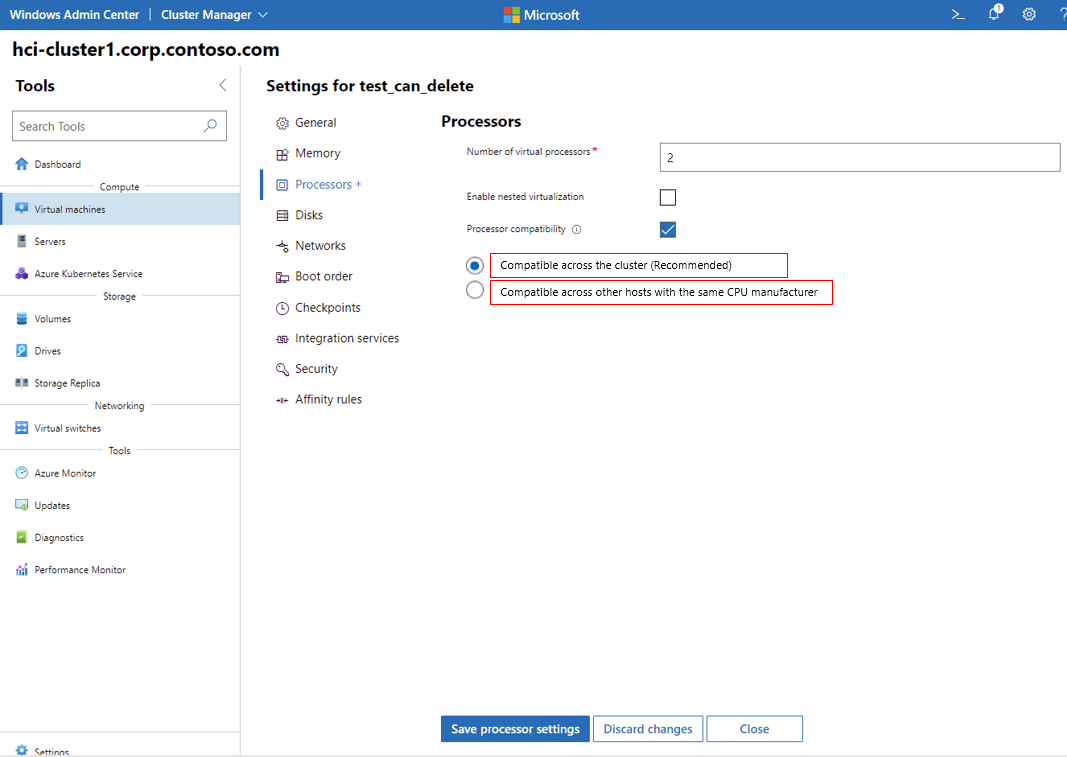
In Windows Admin Center, connect to your cluster, select the VM, shut it down, and navigate to Settings > Processors. You can choose between Compatible across the cluster (Recommended) for dynamic mode or Compatible across other hosts with the same CPU manufacturer for standard mode.
Verify processor features
After configuring processor compatibility, you should verify that the VM has the expected set of features available. This is particularly important if you are troubleshooting migration failures or performance issues.
On a Windows VM, you can use the Sysinternals Coreinfo tool. Run the following command in PowerShell:
./Coreinfo.exe -fThe output will list processor features, with an asterisk (*) indicating availability. When processor compatibility mode is enabled, you will see that some features are unavailable (indicated by a dash -) compared to the host output.
For Linux VMs, you can check the processor flags using:
lscpu | grep FlagsA reduced list of flags compared to the host indicates that processor compatibility mode is active and limiting the available features.
Migration scenarios between clusters
When live migrating VMs between separate clusters, the processor compatibility settings determine the outcome:
- New to same processors: The VM capabilities are transferred. Processor compatibility mode is not required but leaving it enabled causes no issues.
- Older to newer processors: The VM capabilities are transferred. Upon restart, the VM receives the latest calculated capability of the destination cluster.
- Newer to older processors: You must set the VM to use the
MinimumFeatureSetfor migration. This ensures the VM can move to hosts with older processors. After migration, restart the VM to receive the destination cluster’s capabilities.
Microsoft recommends enabling processor compatibility mode only during the migration process and disabling it afterwards to allow the VM to take full advantage of the host’s processor capabilities. If you have a cluster with different processor generations, you need to leave processor compatibility mode enabled for live migration to work.
Next steps
Before executing the live migration, confirm the processor compatibility mode and configuration version. Use dynamic mode for clusters with mixed generations to balance performance and mobility, and standard mode for broader cross-host compatibility. Verify the feature set using Coreinfo or lscpu to ensure the VM is configured as expected. If migration fails, check that the source and destination hosts share the same processor manufacturer and that the VM is not using features unavailable on the target host.
References for Review CPU compatibility before moving a VM: Configure processor compatibility in Hyper-V virtual machines, Dynamic Processor compatibility mode, Processor compatibility for Hyper-V virtual machines.