
Investigate agentless vulnerability findings before remediation
Este artigo ainda não foi traduzido — está a ver a versão em inglês.
You have a recommendation in Microsoft Defender for Cloud stating that container images or virtual machines have unresolved vulnerabilities. The instinct is to patch immediately, but agentless scanning introduces specific timing and scope constraints that can make a finding appear urgent when it is actually stale, or urgent when it is not. Before you start rebuilding images or applying OS updates, you need to understand what the scanner actually saw, when it saw it, and whether the vulnerability is actively exploitable in your environment.
Agentless vulnerability assessment in Defender for Cloud uses the Microsoft Defender Vulnerability Management engine to assess software without requiring an agent on the workload. This capability extends to both Azure Container Registry (ACR) images and virtual machines across Azure, AWS, and GCP. However, the data you see in the portal is not always real-time. It is the result of a scheduled discovery and scanning cycle. Misinterpreting the freshness of this data is a common reason for unnecessary remediation effort or, conversely, for missing a window where a fix is still easy to apply.
Check the scan trigger and inventory freshness
The first thing to verify is whether the vulnerability report reflects the current state of the workload. Agentless scanning does not run continuously on every second; it is triggered by specific events and periodic rescans.
For container images in Azure Container Registry, the scan is triggered when an image is pushed or imported. It is also triggered when an image is pulled from a registry, though this rescan happens within a 24-hour window. Once an image is in the catalog, it is rescanned once a day if it was pushed in the last 90 days, pulled in the last 30 days, or is currently running on a monitored Kubernetes cluster. If you are looking at a finding for an image that was pushed 100 days ago and has not been pulled or restarted, the scan might be stale if no new vulnerabilities have been published since the last daily rescan. Conversely, if you just pushed a new image, the scan should complete within minutes, though rare cases can take up to an hour.
For virtual machines, agentless scanning is enabled by default when you enable Defender for Servers P2 or Defender Cloud Security Posture Management, provided no other integrated vulnerability assessment solutions are already active. If you have Microsoft Defender Vulnerability Management (MDVM) or a Bring Your Own License (BYOL) solution enabled, agentless scanning is not automatically turned on. You must enable it manually if you want to use it for machines without agents. The scanner discovers machines and pulls an inventory. If you are investigating a finding for a VM, check the last scan time in the recommendation details. If the scan is older than expected, consider whether a recent change to the VM, such as a software update or configuration change, might not yet be reflected in the agentless inventory.
Agentless scanning relies on the Microsoft Defender for Cloud Servers Scanner Resource Provider to access the VM. If the VM is excluded via tags, it will not be scanned. You can configure exclusions based on pre-existing environment tags to prevent specific machines from being scanned.
Distinguish between registry and runtime findings
Defender for Cloud provides two distinct recommendations for container vulnerabilities: one for images in the registry and one for containers running in Azure. It is crucial to understand which one you are addressing.
The recommendation “Container images in Azure registry should have vulnerability findings resolved” applies to images stored in ACR. The recommendation “Containers running in Azure should have vulnerability findings resolved” applies to workloads currently running on AKS clusters. The scan engine is the same, but the context differs. A vulnerability might be present in the registry image but not yet deployed to any running container. In that case, remediating the registry image prevents the vulnerability from entering production. If the image is already running, you need to address the runtime recommendation, which may involve rolling out a new image version.
When you open the recommendation, resources are grouped into tabs: healthy, unhealthy, and not applicable. The “not applicable” tab includes resources for which the recommendation cannot give a definitive answer. This can happen if the scanner cannot access the registry or if the image is not in a supported registry. Ensure that you are looking at the correct tab and that the resources listed are actually part of your workload estate.
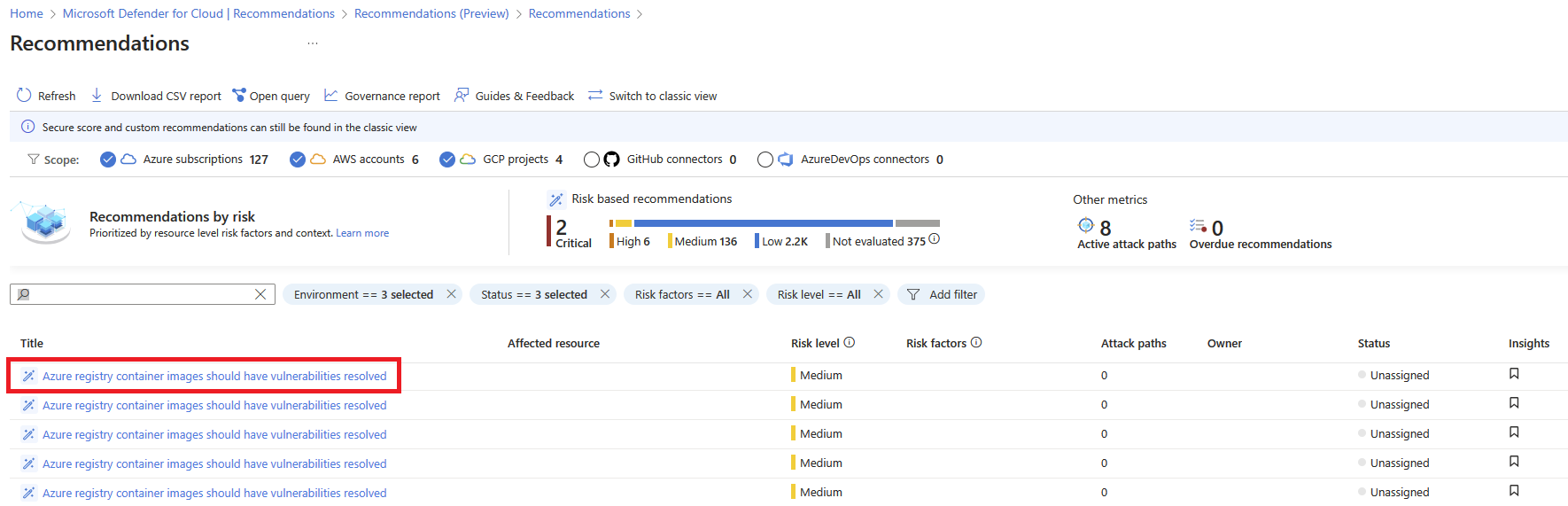
The recommendation details page opens with additional information. This information includes the list of registries with vulnerable images and the remediation steps. Select the affected registry to drill down into the specific repositories and images. This hierarchical view helps you understand the scope of the vulnerability and prioritize your remediation efforts.
Assess exploitability and risk context
Not all vulnerabilities are equal. Defender for Cloud provides exploitability information by searching vulnerability reports against exploitability databases. This helps you determine the actual risk associated with each finding. A high-severity vulnerability with no known exploits and no relevant attack paths in your environment may be lower priority than a medium-severity vulnerability that is actively being exploited in the wild and is present in an attack path.
If you are using Defender CSPM, you should first review and remediate vulnerabilities exposed via attack paths, as they pose the greatest risk to your security posture. Attack paths show how multiple vulnerabilities or misconfigurations can be chained together to compromise a critical asset. A vulnerability that is part of an attack path is more urgent than one that is isolated.
You can also query vulnerability information via the Azure Resource Graph. This allows you to filter findings by subscription, resource group, or specific tags. For example, you might want to focus on vulnerabilities in production workloads only. The Resource Graph query can help you prioritize remediation efforts based on business impact rather than just severity scores.
Verify remediation scope and exclusions
Before you start remediating, ensure that the finding is not a false positive or an expected exception. You can create exemption rules for a management group, resource group, or subscription. Exemptions are useful for vulnerabilities that are accepted risks or for which a compensating control is in place. You can also disable specific vulnerabilities on images if they are not relevant to your workload.
For VMs, you can exclude machines from scanning based on tags. If a VM is tagged with an exclusion tag, it will be skipped during continuous discovery. This is useful for legacy systems that are not supported by the agentless scanner or for development environments where scanning is not required. However, be careful not to exclude production workloads by mistake.
If you have enabled agentless scanning for CMK encrypted disks, ensure that the necessary permissions are granted to the Microsoft Defender for Cloud Servers Scanner Resource Provider. For Key Vaults using non-RBAC permissions, the provider needs Key Get, Key Wrap, and Key Unwrap permissions. For Key Vaults using RBAC permissions, the provider needs the Key Vault Crypto Service Encryption User role. Without these permissions, the scanner cannot access the encrypted disks, and vulnerabilities on those disks will not be reported.
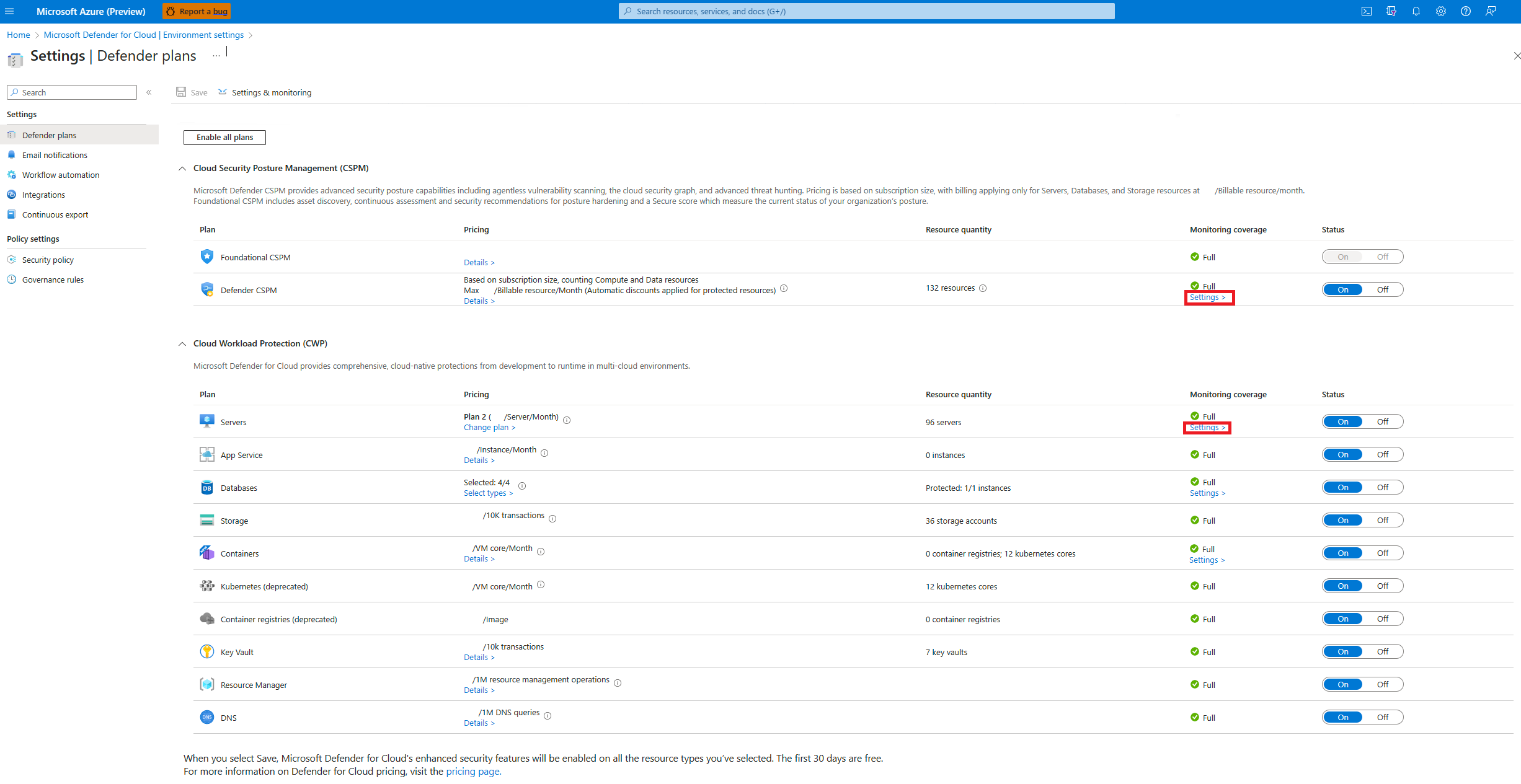
To manage agentless scanning settings, open Environment settings and select the relevant subscription. For either the Defender Cloud Security Posture Management or Defender for Servers P2 plan, select Settings. The agentless scanning settings are shared by both plans. When you enable agentless scanning on either plan, the setting is enabled for both plans. This ensures consistent coverage across your workload types.
End your investigation by confirming that the remediation action aligns with your security posture goals. If the vulnerability is part of an attack path, ensure that the remediation breaks the path. If it is not, prioritize based on severity and exploitability. Regularly review your exemption rules and exclusions to ensure they are still valid.
References for Investigate agentless vulnerability findings before remediation: Vulnerability assessments for Azure with Microsoft Defender Vulnerability Management, Enable agentless scanning for VMs, How-to view and remediate vulnerability assessment findings for registry images.