Este artigo ainda não foi traduzido — está a ver a versão em inglês.
Replication is configured on a per virtual machine basis. Virtual machines running on Primary site Hyper-V servers (or Hyper-V Failover Clusters) are configured to replicate to Replica servers (or Replica Failover Clusters) at remote sites.
In Hyper-V Manager, in the Details pane, Click on a virtual machine
With a virtual machine selected, Right-click and choose **Enable Replication. **This starts the Enable Replication wizard
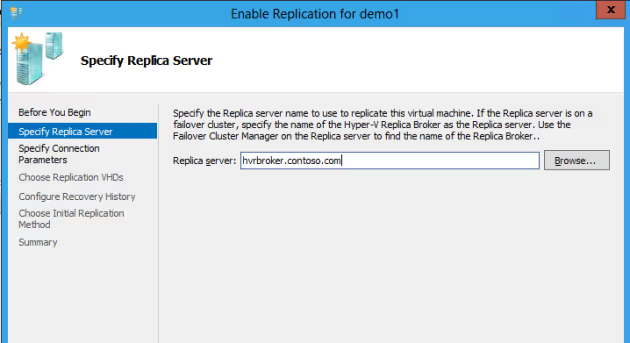
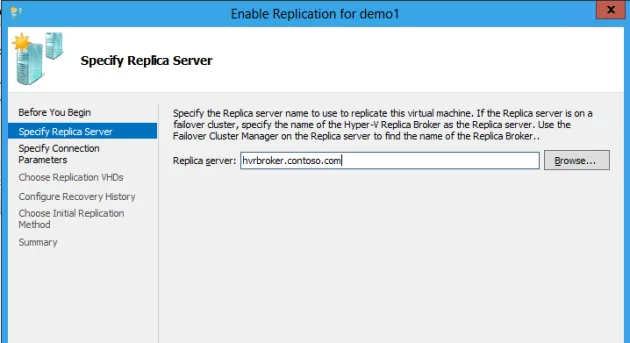
In the Specify Replica Server screen, enter either the NetBIOS or the Fully-Qualified Domain Name (FQDN) for the Replica Server in the Replica Server box. (Note: If the Replica server is a Failover Cluster, ensure the connection point for the Hyper-V Replica Broker is used). Click Next
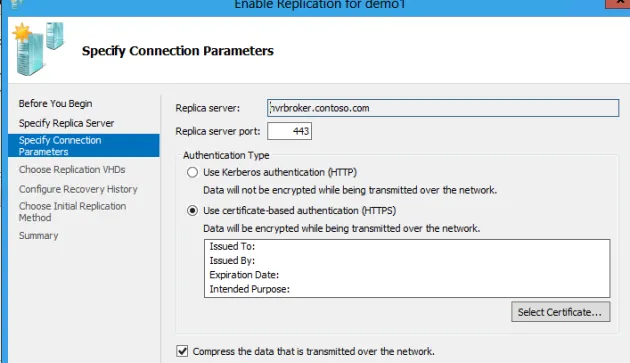
If Remote WMI is enabled, then Hyper-V Replica automatically fills the port and authentication settings
In the Choose Replication VHDs screen, deselect** **the disk(s) you do not want to replicate for the virtual machine and then click Next
Replication changes are sent to a Replica server every 5 minutes. In the Configure Recovery History screen, make selections for the number and types of recovery points to be sent to the Replica server. If Only the latest point for recovery is chosen, then there will be only the parent VHD that is sent during Initial Replication and all changes are merged into that VHD. If Additional recovery points is chosen, set the number of desired additional recovery points (Standard Replicas) that will be saved on the Replica server. The final selection in this screen, Replicate incremental VSS copy every