
Connect a Windows server to Azure Arc
Este artigo ainda não foi traduzido — está a ver a versão em inglês.
A server can remain in your own datacentre and still have a resource representation in Azure. Azure Arc-enabled servers makes that possible through the Azure Connected Machine agent. It brings the machine into Azure’s management scope; it does not move the operating system or its applications into an Azure virtual machine.
For a first connection, use one supported server with a known owner and a clear purpose. This example follows the graphical Azure Arc Setup wizard on Windows Server 2022. Microsoft introduced that feature with the 10 October 2023 cumulative update, so check the installed updates before looking for the icon. The historical onboarding procedure describes this route.
Prepare the Azure side and the server together
Choose the destination subscription and resource group before installing anything. Record who owns the server and which team will manage its Azure representation. Otherwise, a successful connection can leave an unfamiliar machine in a resource group that nobody is watching.
Check the Connected Machine agent prerequisites, including operating-system support, local installation rights, required resource providers and network access. Installing the agent requires administrative rights on the server. Creating the Azure resource also requires suitable Azure permissions; those are separate requirements.
The Azure Connected Machine Onboarding role is designed for onboarding at the intended scope. If the necessary resource providers have not been registered, have an administrator with the appropriate subscription permissions handle that prerequisite. Assigning an onboarding role to a resource group does not automatically grant subscription-wide provider-registration rights.
Review the required outbound endpoints with the network team. A proxy, firewall or private connectivity design can change the preparation needed. Resolve that first rather than treating a failed download or authentication window as an installation problem.
Finally, decide what you intend to enable after onboarding. Update management, monitoring and policy work involve their own configuration and may involve additional charges. A connected resource is the starting point for those decisions.
Connect through Azure Arc Setup
On the updated Windows Server 2022 machine, open the Azure Arc icon in the system tray and select Launch Azure Arc Setup. The wizard can also be opened through Server Manager or the Start menu.
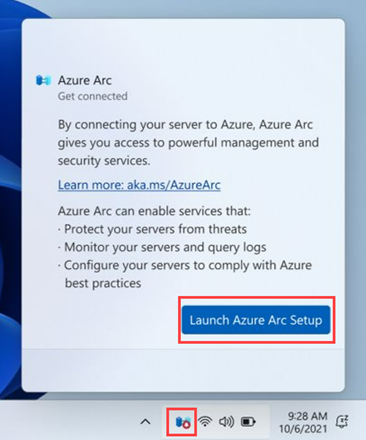
The wizard checks the installation prerequisites and handles fetching and installing the Connected Machine agent. When that stage finishes, select Configure and continue to the configuration steps.
Choose the appropriate Azure cloud and select Sign in to Azure. Use the account authorised to onboard this machine. Where an interactive browser is unavailable, the documented setup supports authentication using a device code on a separate device.
Enter the destination resource details, including the subscription and resource group. Compare them with your preparation record before continuing. Similar subscription names are easy to confuse, especially when the account has access to more than one environment.
When configuration completes, select Finish. Keep any failure details if the connection does not complete; repeatedly reinstalling the agent before investigating the failed stage can make the original problem harder to understand.
Verify the result in both places
In Server Manager, open Local Server and inspect Azure Arc Management. A successfully onboarded machine should show Enabled.
Next, use View Machine in Azure from the system-tray window. Confirm that the resource is in the intended subscription and resource group, and that its identity matches the machine you connected. This catches a different class of mistake from simply checking whether the wizard completed.
| Check | What it establishes |
|---|---|
| Server Manager shows Enabled | The local onboarding state matches the expected result |
| The Azure resource is in the intended scope | The connection used the correct subscription and resource group |
| The resource identifies the expected server | The team can relate the Azure representation to its actual machine |
| Ownership and next steps are recorded | Someone can maintain the connection and configure the intended services |
These checks establish the initial connection. They do not prove that a monitoring workspace, policy assignment or update schedule has also been configured.
Keep setup and offboarding separate
If this was a lab, plan the agent and Azure-resource cleanup using the Connected Machine agent’s management guidance. Removing the Azure Arc Setup Windows feature does not uninstall the Connected Machine agent; Microsoft’s onboarding documentation calls out that distinction.
For a server staying in service, give the operations team its Azure resource location, ownership details and the next management task. That is a useful handover from a working onboarding exercise.