
Choose retention settings around investigation needs
Este artigo ainda não foi traduzido — está a ver a versão em inglês.
You need to keep security logs for a specific period, but you also need to keep the cost predictable. The answer lies in separating what you query daily from what you store for compliance or deep-dive investigations. Microsoft Sentinel and Azure Monitor handle this through two distinct retention periods: interactive retention and long-term retention. Getting the balance right prevents you from paying premium prices for old data while ensuring you don’t lose the evidence needed for a thorough investigation.
Understand the two retention periods
A Log Analytics workspace has a default interactive retention period, typically 90 days. This is the window during which data is fully indexed and available for fast, interactive querying. Once data exceeds this interactive period, it is no longer immediately accessible for standard queries. However, it does not disappear. If you have configured long-term retention, the data transitions to a low-cost, minimal-access state known as archive.
The total retention period is the sum of the interactive and long-term retention periods. For example, if you set interactive retention to 90 days and total retention to 3 years, the data remains in the workspace for 3 years. For the first 90 days, it is interactive. For the remaining 2.5 years (915 days), it is in long-term retention.
This distinction is critical for investigation workflows. If you are investigating a recent incident, you query the interactive data. If you need to compare current activity with events from six months ago, you must query the long-term retention data, which may have different performance characteristics and access methods. You cannot assume that enabling long-term retention makes old data instantly queryable in the same way as recent data.
Set retention for specific tables
You do not need to apply the same retention policy to every table. Security-critical tables, such as SecurityEvent or SigninLogs, might require longer total retention for compliance, while high-volume telemetry tables might only need a short interactive period to manage costs.
To configure retention for a specific table, you need the Log Analytics Contributor role at the subscription, resource group, or table scope. This role allows you to modify retention policies but does not grant permission to delete resources or manage other aspects of the workspace.
-
Sign in to the Azure portal and navigate to your Log Analytics workspace.
-
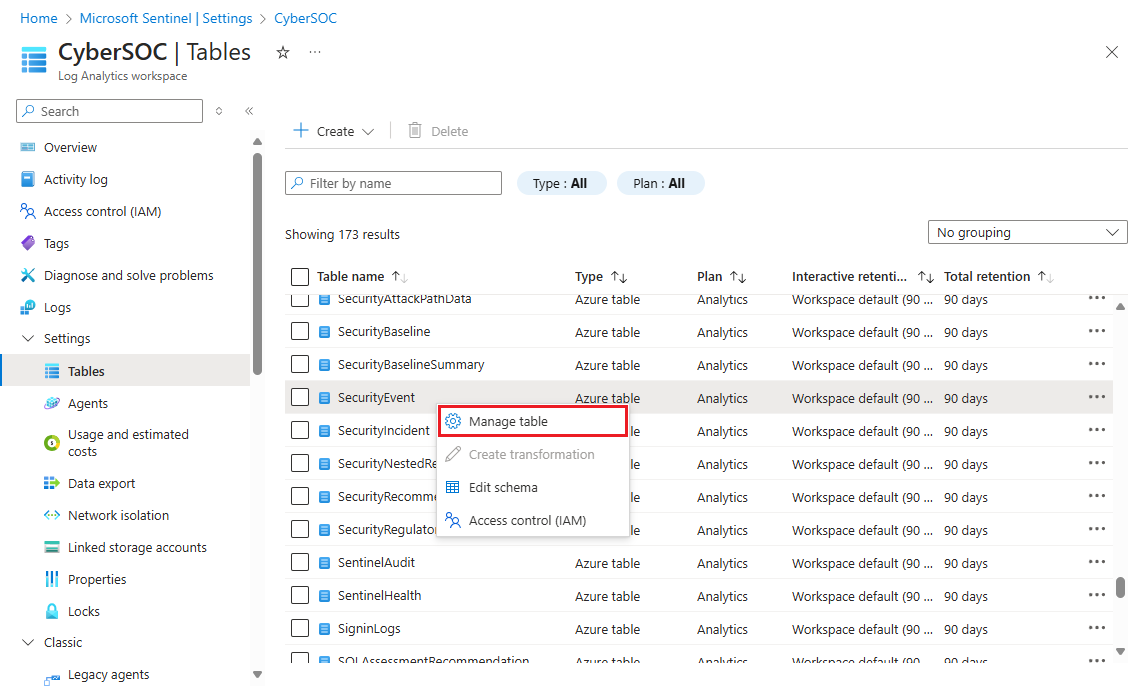
Under Settings, select Tables.
-
Locate the table you wish to configure, such as
SecurityEvent, and open the context menu by selecting the three dots (…). -
Select Manage table.
-
In the Data retention settings section, enter your desired values:
- Interactive retention: The number of days the data remains fully queryable. For example, 180 days.
- Total retention period: The total number of days the data is kept in the workspace. For example, 3 years (1095 days).
The interface calculates the long-term retention period automatically. In the example above, with 180 days interactive and 3 years total, the long-term retention period is 915 days. Select Save to apply the changes.
Monitor costs and data volume
Changing retention policies directly impacts your costs. Longer interactive retention increases the volume of data available for fast querying, which typically incurs higher costs. Long-term retention is cheaper, but it still contributes to your overall storage costs.
To monitor your spending, use Cost Management in the Azure portal. You can filter costs by service name to isolate Microsoft Sentinel, Log Analytics, and Azure Monitor charges. This helps you identify which workspaces or tables are driving costs.
You can also run Kusto queries to understand your data ingestion volume. For example, to see daily ingestion by solution:
// Illustrative example: Do not run without verifying your schema
Usage
| where StartTime >= startofday(ago(31d)) and EndTime < startofday(now())
| where IsBillable == true
| summarize BillableDataGB = sum(Quantity) / 1000. by bin(StartTime, 1d), Solution
| extend Solution = iif(Solution == "SecurityInsights", "AzureSentinel", Solution)
| render columnchart
If you need to prevent unexpected spikes in ingestion, you can set a daily volume cap in the Log Analytics workspace. This acts as a safety net, limiting the daily ingestion and helping you avoid unplanned charges. However, be aware that exceeding the cap may result in data loss for that day, so use it judiciously.
Verify your configuration
After setting retention policies, verify that they are applied correctly. Return to the Tables page in your Log Analytics workspace and check the Interactive retention and Total retention columns for your modified tables. Ensure that the values match your intended configuration.
It is also worth reviewing the initial recommendations in Microsoft Defender for Cloud. While these recommendations focus on security posture, they can provide insights into whether your data retention settings align with your security and compliance requirements. Remember that a quiet dashboard immediately after configuration does not prove that your data is being retained correctly; it only shows that no immediate issues were detected.
By carefully balancing interactive and long-term retention, you can ensure that your security data is available when you need it for investigations, without incurring unnecessary costs for data that is rarely accessed. Start with a clear scope, define your retention needs, and monitor your costs regularly to maintain a sustainable security operations environment.
References for Choose retention settings around investigation needs: Configure data retention for logs in Microsoft Sentinel or Azure Monitor, Configure interactive and long-term data retention in Microsoft Sentinel, Manage and monitor costs for Microsoft Sentinel.