
Use managed identity for a supported workflow connection
You have a workflow or an API gateway that needs to talk to another Azure service. The old way is to store a username and password, or a service principal secret, in a connection string or a policy. That creates a rotation problem and a leak risk. The modern way is to use a managed identity. Azure handles the token acquisition and expiration, so you only need to ensure the identity has the right permissions on the target resource.
This works for Azure Logic Apps and Azure API Management. Both services can use a system-assigned identity, which is tied to the lifecycle of the resource, or a user-assigned identity, which is a standalone resource that can be shared. The choice depends on whether you need to share credentials across multiple services or keep them strictly bound to one instance.
Understand the identity types
A system-assigned managed identity is created automatically when you enable the feature on a resource. It is deleted when the resource is deleted. You cannot have more than one system-assigned identity per resource. This is the simplest option for most single-service scenarios.
A user-assigned managed identity is a separate Azure resource. You create it independently and then assign it to one or more services. This is useful if you need to share the same identity across multiple Logic Apps or API Management instances, or if you want to manage the identity’s lifecycle separately from the application. For API Management, you can assign up to 10 user-assigned identities to a single instance Use managed identities in Azure API Management | Microsoft Docs.
Enable the identity in the resource
The steps differ slightly between Logic Apps and API Management, and between Consumption and Standard environments.
For Azure Logic Apps
In the Azure portal, open your Logic App resource. Navigate to Identity under Settings.
For a Consumption Logic App, the system-assigned identity is disabled by default. You must switch it to On and save Authenticate access and connections with managed identities.
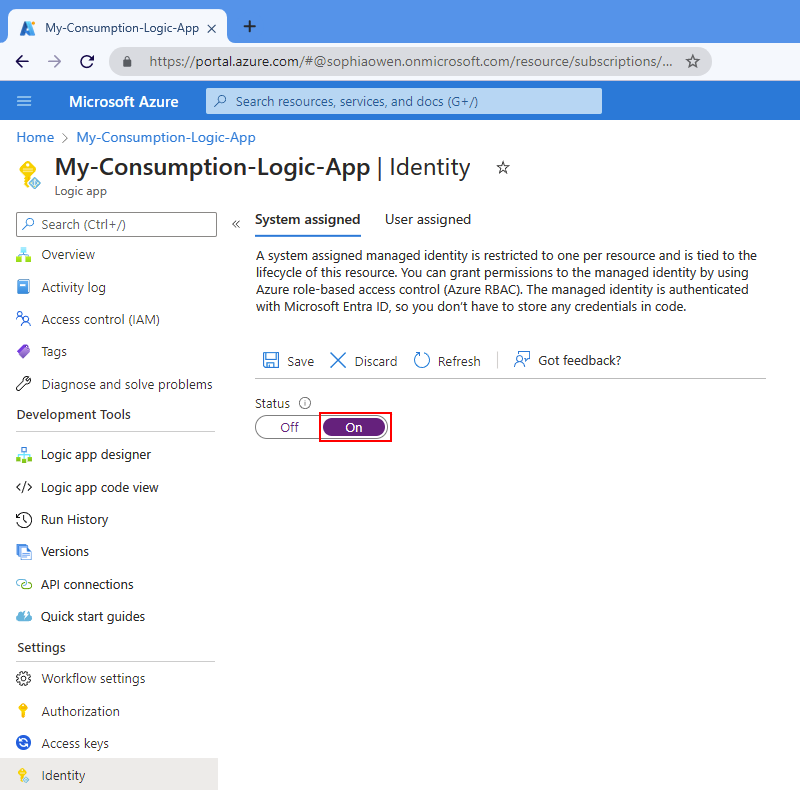
For a Standard Logic App, the system-assigned identity is enabled by default, but you can verify or re-enable it in the same blade Authenticate access and connections with managed identities.
If you need a user-assigned identity, you must first create it in the Managed Identities blade in the portal. Then, return to your Logic App’s Identity page, select User assigned, and click Add. Choose the identity you created Authenticate access and connections with managed identities. Note that a Consumption Logic App can use either a system-assigned or a user-assigned identity, but not both simultaneously. A Standard Logic App can use both at the same time Authenticate access and connections with managed identities.
For Azure API Management
Open your API Management service instance. Go to Managed identities under Security. Switch the System assigned status to On and save Use managed identities in Azure API Management | Microsoft Docs.
To add a user-assigned identity, select the User assigned tab and click Add. Search for the identity you created earlier and select it Use managed identities in Azure API Management | Microsoft Docs.
You can also enable these identities using ARM templates. For a Logic App, add the identity property to the resource definition Authenticate access and connections with managed identities. For API Management, the structure is similar Use managed identities in Azure API Management | Microsoft Docs.
{
    "type": "Microsoft.ApiManagement/service",
    "name": "my-apim-service",
    "identity": {
        "type": "SystemAssigned"
    }
}
Grant access to the target resource
Enabling the identity is only half the work. The identity itself has no permissions. You must grant it access to the resource it needs to reach. This is done using Azure RBAC or service-specific access policies.
For example, if your Logic App needs to read secrets from Azure Key Vault, you must assign the Key Vault Secrets User role to the managed identity on the Key Vault resource Use managed identities in Azure API Management | Microsoft Docs. If your API Management instance needs to access a backend API, you might use the authentication-managed-identity policy, which requires the backend to trust the API Management identity Use managed identities in Azure API Management | Microsoft Docs.
The target resource and the managed identity must be in the same Azure subscription Authenticate access and connections with managed identities. You also need Microsoft Entra administrator permissions to assign roles to the identity Authenticate access and connections with managed identities.
Use the identity in your workflow or policy
Once the identity is enabled and has permissions, you can use it in your Logic App actions or API Management policies.
In Logic Apps, when you add a connector that supports managed identities, you will see an option to select Managed Identity as the authentication type. Select it, and the connector will use the identity you enabled Authenticate access and connections with managed identities. Not all connectors support this. You need to check the list of supported connectors for your specific Logic App type Authenticate access and connections with managed identities.
In API Management, you use the authentication-managed-identity policy in your inbound or outbound rules. This policy automatically obtains a token for the managed identity and adds it to the request header Use managed identities in Azure API Management | Microsoft Docs.
Verify the connection
Run your workflow or send a test request to your API. If the identity is correctly configured and has the necessary permissions, the request should succeed without any credential errors. If it fails, check the following:
- Is the identity enabled? Check the Identity blade in the resource.
- Does the identity have permissions? Check the RBAC assignments or access policies on the target resource.
- Is the connector/policy configured correctly? Ensure you selected Managed Identity in the Logic App connector or included the policy in API Management.
Managed identities remove the burden of secret management from your workflows and gateways. By following these steps, you can secure your Azure integrations without storing sensitive credentials in your code or configuration.