
Use Azure Bastion to administer a private VM
You have a Linux virtual machine in a private subnet with no public IP address, and you need to administer it securely. The most direct way to do this without maintaining a jump box or exposing ports to the internet is to use Azure Bastion. This guide walks you through connecting to that VM using SSH, ensuring you have the correct permissions, SKU tier, and authentication method configured.
Azure Bastion is a fully managed Platform-as-a-Service (PaaS) that provides secure RDP and SSH connectivity to virtual machines directly over TLS from the Azure portal or via the native client. It operates on port 443, which typically traverses corporate firewalls more easily than traditional RDP or SSH ports. Crucially, the target VM does not need a public IP address, an agent, or special client software installed to receive the connection.
Choose the right SKU for your needs
Before attempting a connection, you must verify the SKU of the Azure Bastion host provisioned in your virtual network. The features available to you depend entirely on this tier. A common mistake is assuming that a Basic SKU bastion host can reach VMs in peered virtual networks; it cannot.
For SSH connections to Linux VMs, the Basic SKU is sufficient only if the VM resides in the same virtual network as the Bastion host and you are comfortable with default settings. The Basic SKU does not allow you to configure custom ports or use the native SSH client; it relies on the HTML5 web client within the portal with default SSH port 22. If you need to specify a custom inbound port on the VM, use the native client, or connect to peered virtual networks, you will need the Standard SKU or higher.
| Feature | Basic SKU | Standard SKU |
|---|---|---|
| Connect to VMs in same VNet | Yes | Yes |
| Connect to VMs in peered VNet | No | Yes |
| Custom inbound port | No | Yes |
| Native SSH/RDP client support | No | Yes |
| Host scaling | No | Yes |
If your current Bastion host is on the Basic SKU and you require Standard features, you can upgrade the SKU. Note that you cannot downgrade a SKU after deployment. For most production scenarios requiring flexibility, the Standard SKU is the recommended starting point.
Verify prerequisites and permissions
Azure Bastion connects to the target VM using its private IP address. Therefore, the VM must reside in the same virtual network as the Bastion host, or in a virtual network that is peered with the Bastion host’s network (Standard SKU or higher). Ensure that the network security group (NSG) associated with the VM’s subnet or network interface allows inbound traffic on the SSH port (default 22, or your custom port) from the Azure Bastion service. You do not need to apply NSG rules to the Bastion subnet itself.
You also need specific permissions to initiate the connection. To connect via the portal, your identity must have the Reader role on:
- The target virtual machine.
- The network interface (NIC) of the target VM.
- The Azure Bastion host resource.
- The virtual network containing the target VM (if peered).
These roles allow you to read the necessary metadata to establish the connection. They do not grant permission to modify the VM or the Bastion host configuration.
Connect via the Azure Portal
The simplest way to connect is through the Azure portal using the HTML5 web client. This method requires no local software installation.
-
Navigate to the Overview page of your Linux virtual machine in the Azure portal.
-
Select Connect from the top menu, then choose Bastion from the dropdown list.
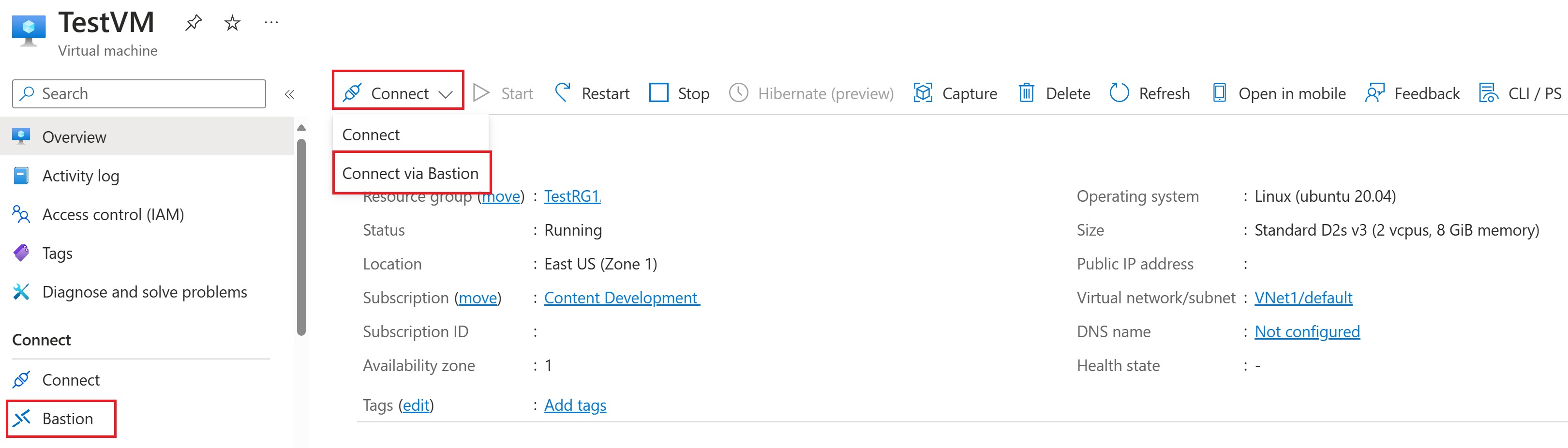
-
On the Bastion page, you will see the connection settings. If you are using the Basic SKU, these settings are fixed to SSH and port 22. If you are using Standard or higher, you can verify or change the protocol and port.
-
Enter the Username and Password for the Linux VM, or select SSH Private Key from Local File if you prefer key-based authentication. If using a private key, you can also select it from Azure Key Vault if you have the appropriate access policies.
-
Select Connect. The session will open in a new browser tab or within the portal, depending on your settings.
Connect using the Native SSH Client
For a more integrated experience, especially if you are already managing SSH keys locally, you can use the native SSH client provided by Azure Bastion. This requires the Standard SKU or higher.
- Ensure you have the Azure Bastion native client installed on your local machine. This is accessed via the Azure Portal or Azure CLI, as per the source documentation.
- In the Azure portal, navigate to the VM’s Connect page and select Bastion.
- Select the Native Client tab.
- Configure the connection settings: select SSH as the protocol and specify the port if it is not 22.
- Choose your authentication method. For SSH private key authentication, you can select a key from your local file system or from Azure Key Vault.
- The portal will provide a command line snippet or a direct connection button, depending on your browser and client configuration. Follow the prompts to authenticate.
Verify the connection
Once connected, verify that you have administrative access. Run a simple command such as whoami to confirm your user identity, and sudo ls /root to test elevated privileges if required. Check the network configuration on the VM using ip addr to confirm it is using the expected private IP address.
If the connection fails, check the following:
- SKU Limitations: Ensure you are not trying to use a custom port or native client with the Basic SKU.
- Permissions: Verify your Reader roles on the VM, NIC, and Bastion host.
- NSG Rules: Confirm that the NSG allows inbound traffic on the SSH port from the Azure Bastion service.
- VM State: Ensure the VM is running and the SSH service is active.
Azure Bastion provides a secure, managed way to access private VMs without the overhead of maintaining jump servers. By selecting the appropriate SKU and configuring permissions correctly, you can establish reliable SSH connections directly from your browser or local client.
References for Use Azure Bastion to administer a private VM: About Azure Bastion, Connect to a Linux VM using RDP, Connect to a Linux VM using SSH.