
Trace a request through application and platform logs
You have a request that is failing or behaving unexpectedly. The first thing to check is not the code, but the path the request takes through the platform and the application. Azure App Service and Azure Functions provide different logging mechanisms depending on whether you are looking at the platform infrastructure or the application logic. To trace a request effectively, you need to distinguish between platform-level HTTP logs, application-level execution logs, and the correlation data that ties them together.
The most reliable way to see the full picture in near real time is to use Application Insights Live Metrics. This method works across multiple instances and plan types, including Consumption plans for Functions where built-in streaming is limited. If you are debugging a single instance locally or in a development environment, the built-in log stream provides a closer view of the raw output, but it has significant limitations in production scale.
Choose the right streaming method
When a request arrives, it first hits the App Service or Functions host. The host generates HTTP logs (web server logging) and your application generates execution logs. To trace the request, you need to see both.
Application Insights Live Metrics is the recommended approach for production troubleshooting. It aggregates data from all instances and provides sampled telemetry that includes requests, dependencies, and logs. This is particularly important for Azure Functions running on a Consumption plan, where the built-in log stream does not support multiple instances and is not supported for Linux-based Consumption plans. If you are using App Service, Live Metrics also avoids the limitation of the built-in stream, which only shows logs from a single instance.
The built-in log stream is useful for quick checks during development or when you need to see every single log line without sampling. However, it is restricted to a single instance and does not provide the aggregated correlation view that links the HTTP request to the application code execution. For a complete trace, you should enable Application Insights integration.
Enable Application Insights for correlation
To trace a request from the HTTP layer down to the application code, you need correlation. Application Insights provides this by default when enabled on your App Service or Functions app. The integration connects the web request telemetry with the application telemetry.
In the Azure portal, open your App Service or Function app. Navigate to Application Insights and select Enable. Choose an existing Application Insights resource or create a new one. This action restarts the app and begins sending telemetry. Once enabled, the app is connected to the Application Insights instance, which serves as the central hub for your logs and metrics.
For automated deployments, you can configure this using app settings. The key setting is APPLICATIONINSIGHTS_CONNECTION_STRING, which points to your Application Insights resource. The ApplicationInsightsAgent_EXTENSION_VERSION setting selects the correct agent line for your stack (e.g., ~3 for Linux App Service or Node.js). Without this connection, you lose the ability to correlate requests across different services and instances.
View the trace in Live Metrics
With Application Insights enabled, you can view the trace in near real time using Live Metrics Stream. This tool shows sampled telemetry as it arrives, allowing you to filter by server instance and see the flow of a specific request.
- Open your App Service or Function app in the Azure portal.
- Select the Overview tab. Under Configured features, click the link to your Application Insights resource.
- In the Application Insights blade, select Live Metrics Stream.
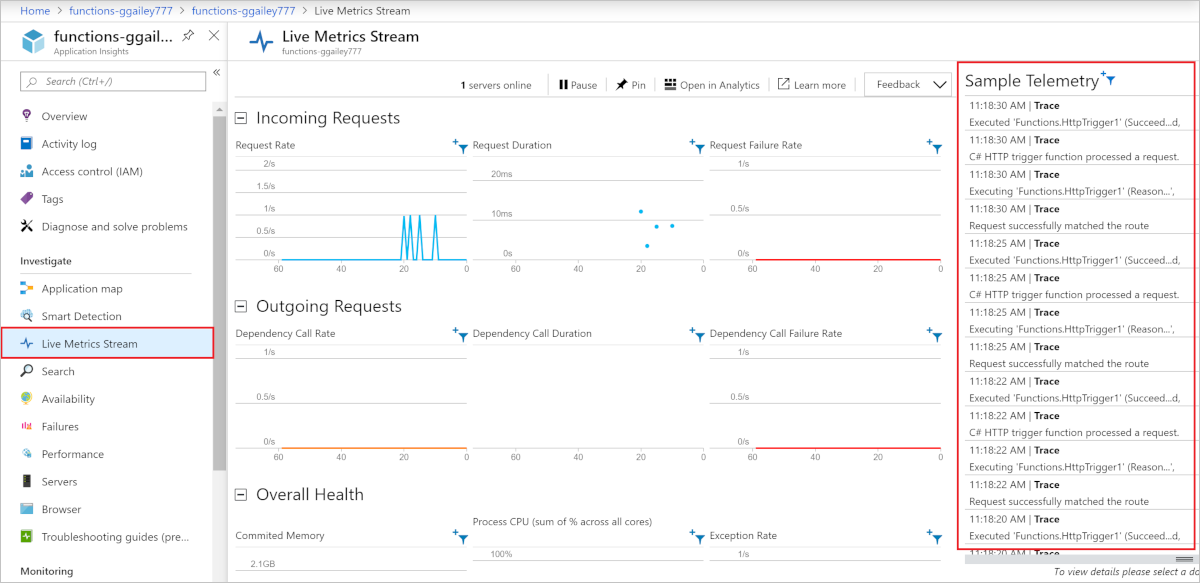
You will see a list of sampled telemetry items. To trace a specific request, you can filter by the Server Instance if you suspect an issue with a particular node. The stream displays requests, dependencies, and logs. Look for the request entry that matches the time and URL of the failing request. Click on it to see the detailed trace, which includes the HTTP status code, duration, and any dependencies called.
If you are using Azure Functions, the Live Metrics stream also shows function execution logs. This allows you to see the input and output of your function code alongside the HTTP request telemetry. The sampled data protects you from overwhelming the stream during peak loads, but it provides a representative view of the request flow.
Use built-in logs for detailed debugging
If you need to see every log line, including those that might be sampled out in Live Metrics, you can use the built-in log stream. This method streams logs from the application and web server directly from the App Service host.
In the Azure portal, go to your App Service or Function app. Select Monitoring and then Log stream. You can toggle between Application logs and Web server logs. Application logs show the output from your code, while web server logs show the raw HTTP requests and responses.
Note that this method is limited. It only shows logs from a single instance and is not supported for Azure Functions running on Linux in a Consumption plan. If your app is scaled out, you will only see logs from one of the instances, which can make troubleshooting difficult if the issue is not reproducible on that specific node. For this reason, Live Metrics is generally preferred for production troubleshooting.
To use the built-in stream locally or in Cloud Shell, you can use the Azure CLI. For App Service, run az webapp log tail --name <appname> --resource-group <resourcegroup>. For Azure Functions, you can use the Core Tools command func azure functionapp logstream <FunctionAppName>. These commands provide a real-time stream of logs to your terminal, which is useful for local development or quick checks.
Verify the trace
To confirm that your trace is working, trigger a request to your app and watch the Live Metrics stream. You should see a request entry appear with the correct URL and status code. If you have enabled detailed error messages or failed request tracing in the App Service logs, you can also view these in the Diagnose and solve problems blade. However, for a complete end-to-end trace, the correlation provided by Application Insights is essential.
If you do not see the request in Live Metrics, check that Application Insights is enabled and that the connection string is correct. If you are using the built-in stream, ensure that application logging is enabled in the App Service logs settings. Remember that the built-in stream is subject to the instance it is connected to, so if the request was handled by a different instance, it will not appear.
References for Trace a request through application and platform logs: Monitor Azure App Service, Stream Execution Logs in Azure Functions, Enable Diagnostic Logging.