
Prepare a hybrid server patching workflow
You cannot patch a hybrid server if you cannot see its state. The first step in preparing a hybrid server patching workflow is ensuring the machine is monitored and its management extensions are kept current. Azure Update Manager relies on the Azure Connected Machine agent to assess patch compliance and detect missing updates. While the Connected Machine agent handles the core patching logic, the Azure Monitor Agent (AMA) provides the telemetry required to understand OS health and patch compliance status. Without AMA, you lose visibility into the machine’s state, making effective patching difficult.
The workflow relies on two distinct mechanisms: deploying the monitoring agents at scale using Azure Policy, and enabling automatic extension upgrades to maintain them. This approach ensures that every Arc-enabled server has the necessary agents installed and that those agents are upgraded when new versions become available, reducing the operational overhead of manual maintenance.
Deploy the Azure Monitor Agent using Azure Policy
Azure Policy provides a scalable way to enforce the presence of the Azure Monitor Agent on Arc-enabled servers. It automatically installs the agent on newly registered machines and reinstalls it if it is removed, ensuring consistent monitoring coverage.
To configure this, you need a Data Collection Rule (DCR) to define what data the agent collects and where it sends it. The Policy definition requires the resource ID of this DCR.
-
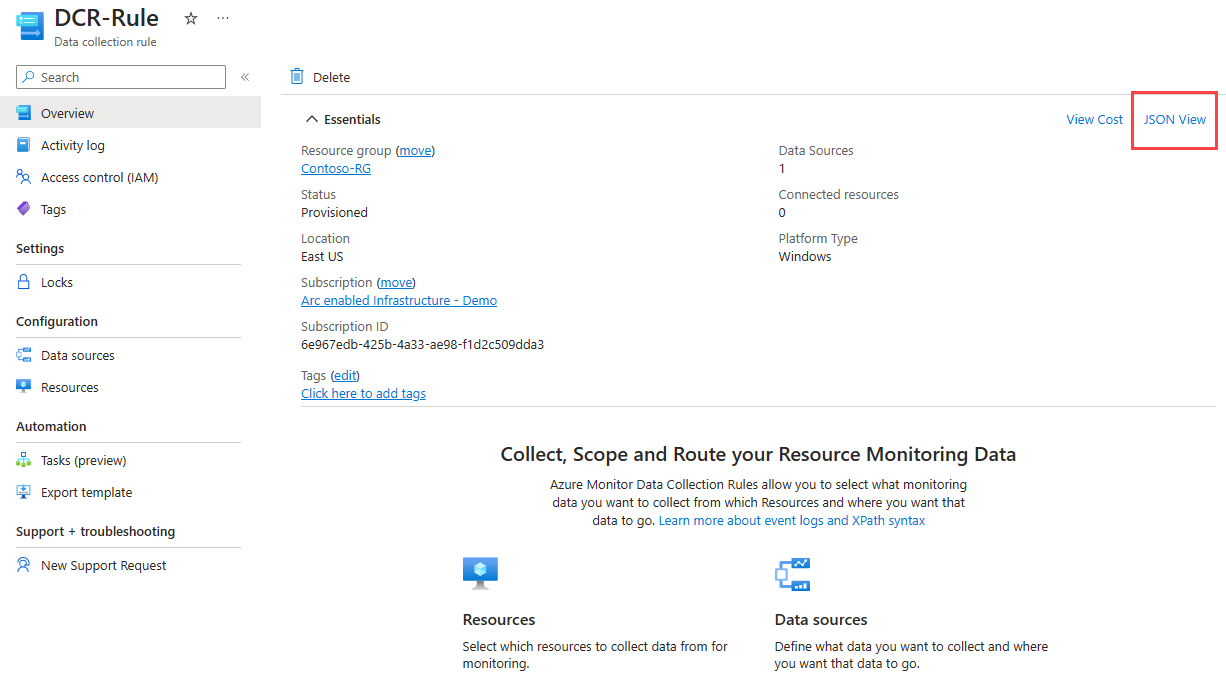
Select or create a Data Collection Rule. Navigate to Monitor | Overview in the Azure portal, select Data Collection Rules under Settings, and choose an existing rule or create a new one. Select JSON View from the overview page to locate and copy the Resource ID of the DCR. This ID is essential for the Policy definition.
-
Create the Policy definition. Use the built-in policy definitions for configuring machines to run the Azure Monitor Agent. Select the appropriate definition for your operating system:
-
Assign the Policy. When assigning the policy, paste the DCR Resource ID into the Parameters tab. This links the agent installation to the specific data collection configuration. Deploy the policy to the desired scope (subscription or resource group).
The standard compliance evaluation cycle runs once every 24 hours. If you need to trigger an immediate evaluation to verify deployment, you can use Azure CLI, Azure PowerShell, or the REST API to start a compliance scan. This ensures that new machines are monitored without waiting for the next scheduled cycle.
Enable Automatic Extension Upgrades
Once the agents are deployed, you must ensure they remain up to date. Automatic extension upgrade is enabled by default for supported extensions on Arc-enabled servers. This feature schedules the installation of new extension versions, preserves settings, and automatically rolls back to the previous version if an upgrade fails.
The Azure Connected Machine agent handles the upgrade process. If an upgrade fails, it attempts to reinstall the last known good version. If the rollback is successful, the extension status shows as Succeeded, and the next upgrade attempt can occur as soon as the next hour. If the rollback fails, the status shows as Failed, and you must manually remove and reinstall the extension.
You can verify the status of automatic upgrades for all extensions on a specific server using Azure CLI:
az connectedmachine extension list --resource-group resourceGroupName --machine-name machineName --query "[].{Name:name, AutoUpgrade:properties.enableAutoUpgrade}" --output tableTo enable or disable automatic upgrades for a specific extension, use the following commands:
az connectedmachine extension update \
    --resource-group resourceGroupName \
    --machine-name machineName \
    --name extensionName \
    --enable-auto-upgrade true
For PowerShell users, you can check and update the setting using:
Get-AzConnectedMachineExtension -ResourceGroup resourceGroupName -MachineName machineName | Format-Table Name, EnableAutomaticUpgrade

Update-AzConnectedMachineExtension -ResourceGroup resourceGroupName -MachineName machineName -Name extensionName -EnableAutomaticUpgrade
Automatic upgrades are issued in batches across regions and subscriptions. It may take 5–8 weeks for every server to receive an automatic upgrade for a new extension version. However, extensions fixing critical security vulnerabilities are rolled out much faster, typically within 1–3 weeks. You can monitor these activities in the Azure Activity Log by filtering for the operation Upgrade Extensions on Azure Arc machines (Microsoft.HybridCompute/machines/upgradeExtensions/action).
Verify the Workflow
To confirm your hybrid patching workflow is ready, check the following:
-
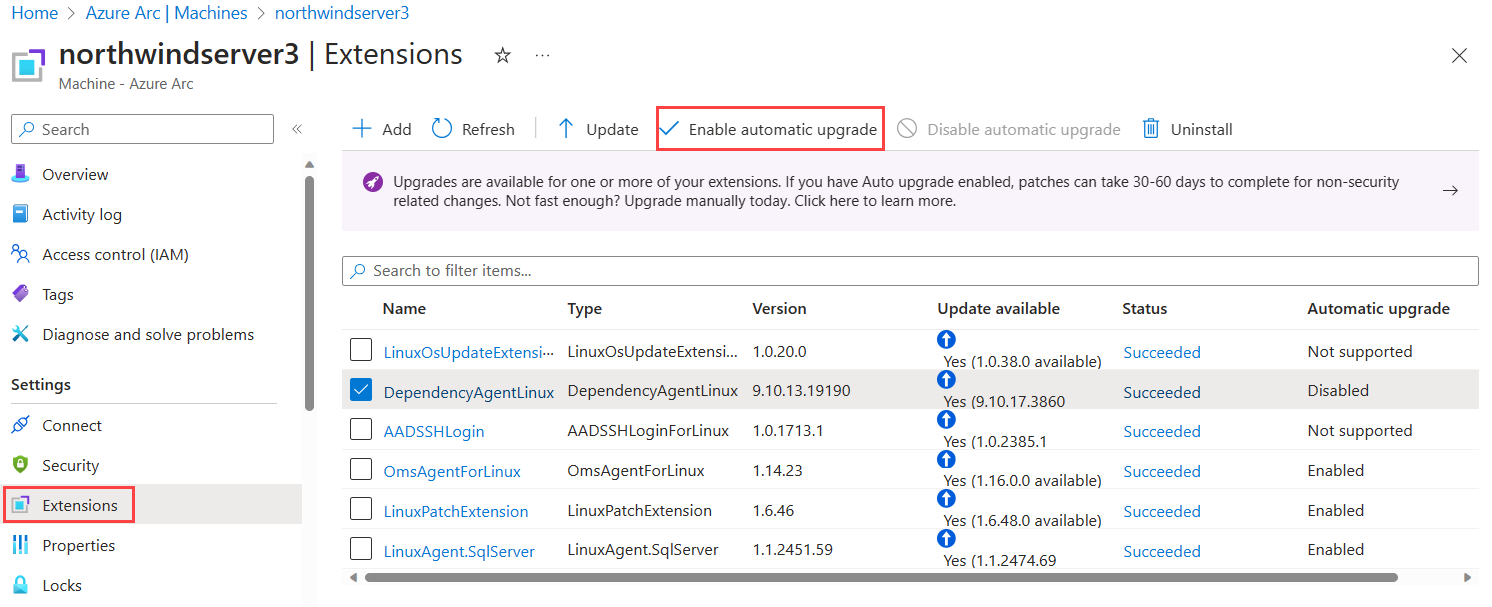
Agent Presence: Ensure the Azure Monitor Agent and Dependency Agent are installed on your Arc-enabled servers. You can verify this in the Extensions tab of the server resource in the Azure portal.
-
Automatic Upgrade Status: Confirm that automatic upgrades are enabled for the installed agents. This ensures that future updates are applied automatically, maintaining the health of your monitoring and patching infrastructure.
-
Policy Compliance: Verify that the Azure Policy assignment is in a compliant state for your target resources. This confirms that the agents are correctly configured and reporting to the intended Data Collection Rules.
With these steps in place, your hybrid servers are monitored and their management extensions are kept current, providing the foundation for Azure Update Manager to perform effective patching operations.
References for Prepare a hybrid server patching workflow: How to deploy and configure Azure Monitor Agent using Azure Policy, Automatic extension upgrade for Azure Arc-enabled servers, Deploy Azure Monitor agent on Arc-enabled servers.