
Document the network path before an infrastructure change
You are about to change a route table, modify a virtual network peering, or adjust an Azure Firewall policy. Before you click save, you need to know exactly where traffic flows today. If you skip the documentation step, you risk breaking connectivity that is not immediately obvious from the resource configuration alone.
The first thing to check is the visual topology and the effective routes for the affected network interfaces. Azure Network Watcher provides two distinct views that, when used together, give you a complete picture of the current state. Topology shows you the relationships between resources. Effective routes show you the actual path packets take from a specific network interface.
Map the resource relationships
Topology in Network Watcher provides an interactive interface to view resources and their relationships across subscriptions, regions, and resource groups. It helps you manage and monitor your cloud network infrastructure by providing insights from Connection Monitor and Traffic Analytics.
Start by opening the Azure portal and searching for Network Watcher.
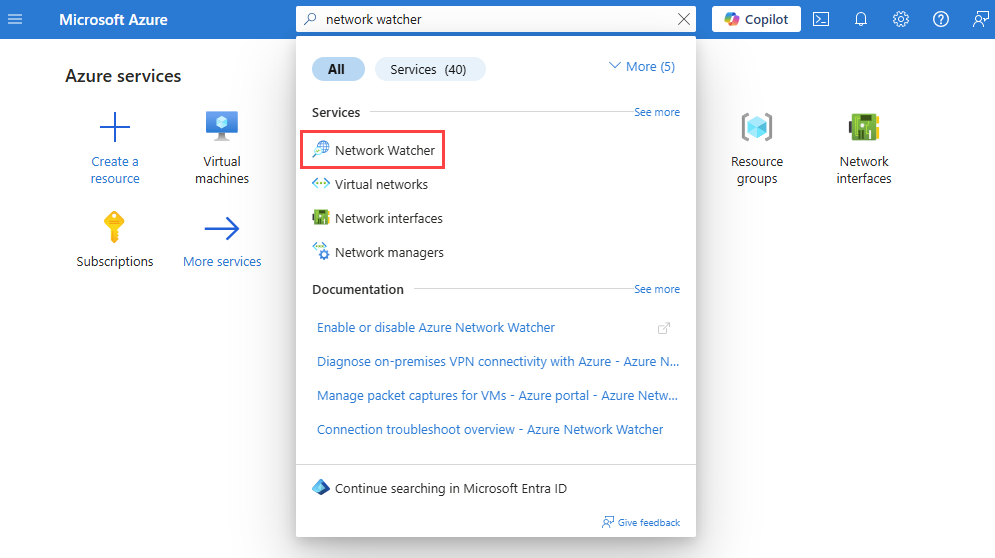
Under Monitoring, select Topology. This opens the interactive graph. You need to define the scope of the topology to match the resources you are about to change. Select Scope and choose the relevant subscriptions, resource groups, and locations. If you are changing a route table in a specific resource group, limit the scope to that group to reduce noise.
Once the scope is set, you can filter by resource type. Select Resource type and choose the components relevant to your change, such as Virtual Networks, Network Interfaces, and Load Balancers. Apply the filter. The graph now displays the connections between these resources. Note that Route Tables are not currently listed as a supported resource type for visualization in the topology view, so you will need to infer their association through the subnet relationships shown.
Use the mouse to zoom and drag the view. You can drill down from the region view to the virtual network, then to the subnet, and finally to the individual network interface. This hierarchical navigation helps you understand the context of the resources involved. For example, if you are changing a route table associated with a subnet, you can see which virtual machines and network interfaces are in that subnet and how they connect to other resources like load balancers or firewalls.
If you need to share this view with your team or keep a record for your change request, select Download topology to save the view as an SVG file. This provides a static snapshot of the resource relationships at the time of the change.
The topology view shows resource relationships regardless of monitoring settings. However, the Traffic and Connectivity tabs within the topology view require additional configuration. Traffic insights are only available when NSG flow logs and Traffic Analytics are enabled. Connectivity insights are only available when Connection Monitor is enabled. If these are not configured, those tabs will prompt you to set them up rather than showing live data.
Check the effective routes
Topology shows you the connections, but it does not show you the routing decisions. To understand why traffic flows the way it does, you need to view the effective routes for the network interfaces involved. Effective routes are a combination of Azure’s default routes, custom routes defined in route tables, and routes propagated from on-premises networks via BGP.
You can view effective routes through the Azure portal, PowerShell, or the Azure CLI. The portal method is useful for a quick check, while the CLI or PowerShell methods are better for scripting or detailed analysis.
Using the Azure portal
Navigate to the virtual machine or network interface you are concerned about. In the VM blade, expand the Networking section and select Network settings. Select the specific network interface. In the network interface blade, expand Help and select Effective routes.
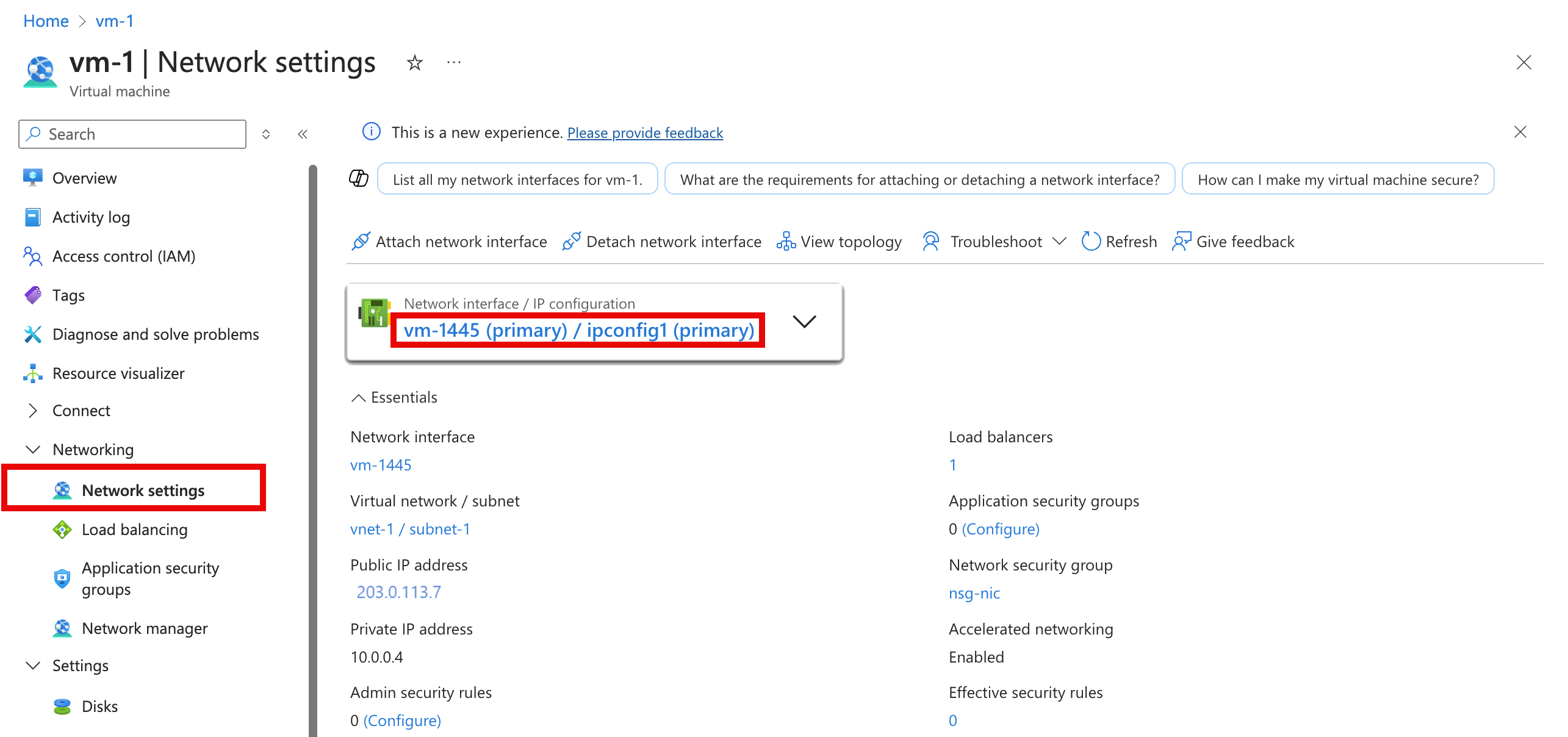
The effective routes list shows the routes that apply to this specific network interface. Each interface might belong to a different subnet, resulting in unique routes. The list includes default routes created by Azure for each subnet, as well as any custom routes from route tables or BGP routes. If there are many routes, use the Download option to save them as a CSV file for easier review.
Using the Azure CLI
For a more programmatic approach, you can use the Azure CLI. The following command gets the effective routes for a network interface named <nic-name> in a resource group named <resource-group>. Replace these placeholders with your actual values.
az network nic show-effective-route-table \
  --name <nic-name> \
  --resource-group <resource-group>
Output is only returned if the network interface is attached to a running VM. If you know the VM name but not the network interface name, you can use the following command to return the ID of all network interfaces attached to the VM:
az vm show \
  --name <vm-name> \
  --resource-group <resource-group>
Document the baseline
Once you have the topology and the effective routes, you need to document them. This documentation serves as your baseline. If the change breaks connectivity, you can compare the current state with the baseline to identify what changed.
Create a simple record that includes:
- Scope: The subscriptions, resource groups, and regions involved.
- Topology Snapshot: The downloaded SVG file or a screenshot of the relevant part of the topology graph.
- Effective Routes: The list of effective routes for each affected network interface, either from the portal download or the CLI output.
- Dependencies: Any external dependencies, such as on-premises networks or third-party services, that are visible in the topology.
This record should be stored in your change management system or a shared location accessible to your team. It provides a clear reference point for verifying the change and troubleshooting any issues that arise.
Verify the change
After you apply the infrastructure change, use the same tools to verify the new state. Re-run the effective routes command or view the topology again. Compare the new effective routes with the baseline. Look for any unexpected changes, such as a route that now points to a different next hop or a route that has disappeared.
If you see a change that you did not expect, use the Next hop capability of Network Watcher to determine the next hop type for traffic destined to a specific location. This can help you identify if the change has affected the routing path in an unintended way.
Document the new state as well. This creates a history of your network configuration changes, which is valuable for auditing and future troubleshooting. By documenting the network path before and after the change, you reduce the risk of unexpected outages and make it easier to resolve issues if they occur.
The goal is not to predict every possible outcome, but to have a clear record of the current state so you can make an informed decision and quickly revert if necessary. If the sources do not cover a specific edge case, such as complex BGP route filtering, you may need to consult additional documentation or test in a non-production environment first.
tags: [network-watcher, topology, effective-routes, infrastructure-change, troubleshooting] diagram: {title: Network Path Documentation Flow, nodes: [{name: Define Scope, desc: Select subscriptions/regions for topology view}, {name: Visualise Topology, desc: Map resource relationships via Network Watcher}, {name: Download Topology, desc: Save SVG snapshot for baseline record}, {name: Check Effective Routes, desc: View routing decisions for specific NICs}, {name: Document Baseline, desc: Record topology and routes in change management}, {name: Verify Post-Change, desc: Compare new state against baseline record}]} claims: [{claim:
References for Document the network path before an infrastructure change: View Topology, Diagnose an Azure virtual machine routing problem.