
Create a recovery checklist for a Windows infrastructure server
When a Windows infrastructure server fails, the difference between a manageable outage and a prolonged disaster often comes down to whether you have a recovery checklist that matches your actual environment. For a domain controller or other critical role, relying on ad-hoc memory is insufficient. You need a documented, tested procedure that covers both the backup creation and the restoration path.
The Active Directory Forest Recovery Guide provides a structured approach for these scenarios, distinguishing between backing up the entire server and backing up just the system state data. The choice between these two depends on your recovery objectives and the hardware or virtualisation environment you are targeting. This article outlines how to prepare those backups and how to structure a checklist that ensures you can restore the server when it matters.
Decide on the backup scope
Before creating a checklist, you must decide what you are backing up. The guidance distinguishes between a full server backup and a system state backup, each with different use cases.
A Bare Metal Recovery (BMR) backup is recommended if you need to restore the server to different hardware or a different operating system instance. This captures the operating system, applications, and system state, allowing for a complete rebuild of the server environment. This is particularly useful if the underlying hardware is compromised or if you are migrating to a new virtualisation platform.
A system state backup, on the other hand, focuses specifically on the components required to recover the domain controller’s directory data and system configuration. If your primary concern is recovering the directory service after corruption or accidental deletion, a system state backup is sufficient and often faster to create and restore.
Your checklist should explicitly state which scope applies to the server in question. If the server hosts multiple roles, consider whether a full server backup is necessary to ensure all dependent services are restored together.
Install and configure Windows Server Backup
Windows Server Backup is not installed by default on Windows Server 2012 R2 and newer versions, including Windows Server 2025. The first step in your recovery preparation is to ensure the tool is available.
- Open Server Manager and select Add roles and features.
- On the Installation Type screen, leave the default Role-based or feature-based installation and select Next.
- On the Server Selection screen, select the local server and select Next.
- On the Server Roles screen, select Next.
- On the Features screen, locate and select Windows Server Backup, then select Next.
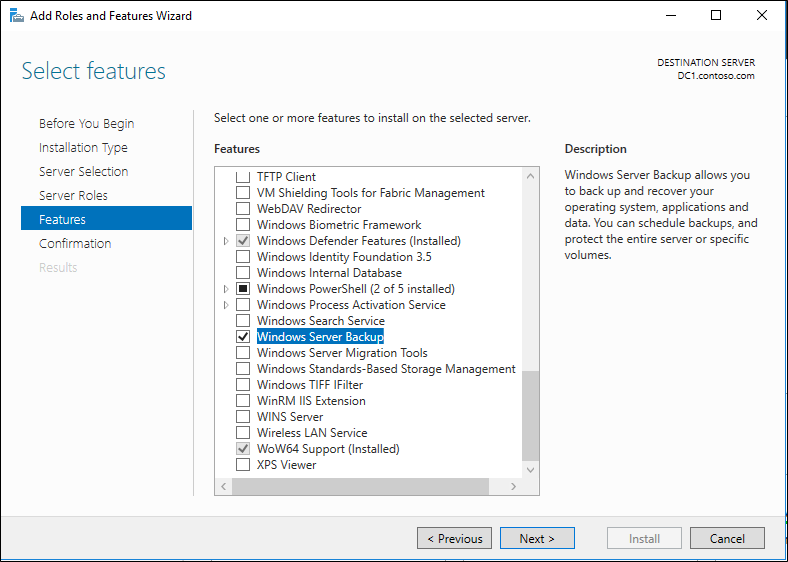
- Select Install and wait for the installation to complete.
- Select Close.
Once installed, you can verify the installation by opening Server Manager, selecting Tools, and then selecting Windows Server Backup. If you are prompted by User Account Control, provide credentials with sufficient permissions, such as Backup Operators or Administrators.
Create the backup using the GUI
For administrators who prefer a graphical interface, Windows Server Backup provides a wizard that guides you through the process. This method is useful for one-off backups or for verifying the configuration before automating with command-line tools.
- Open Windows Server Backup from the Tools menu in Server Manager.
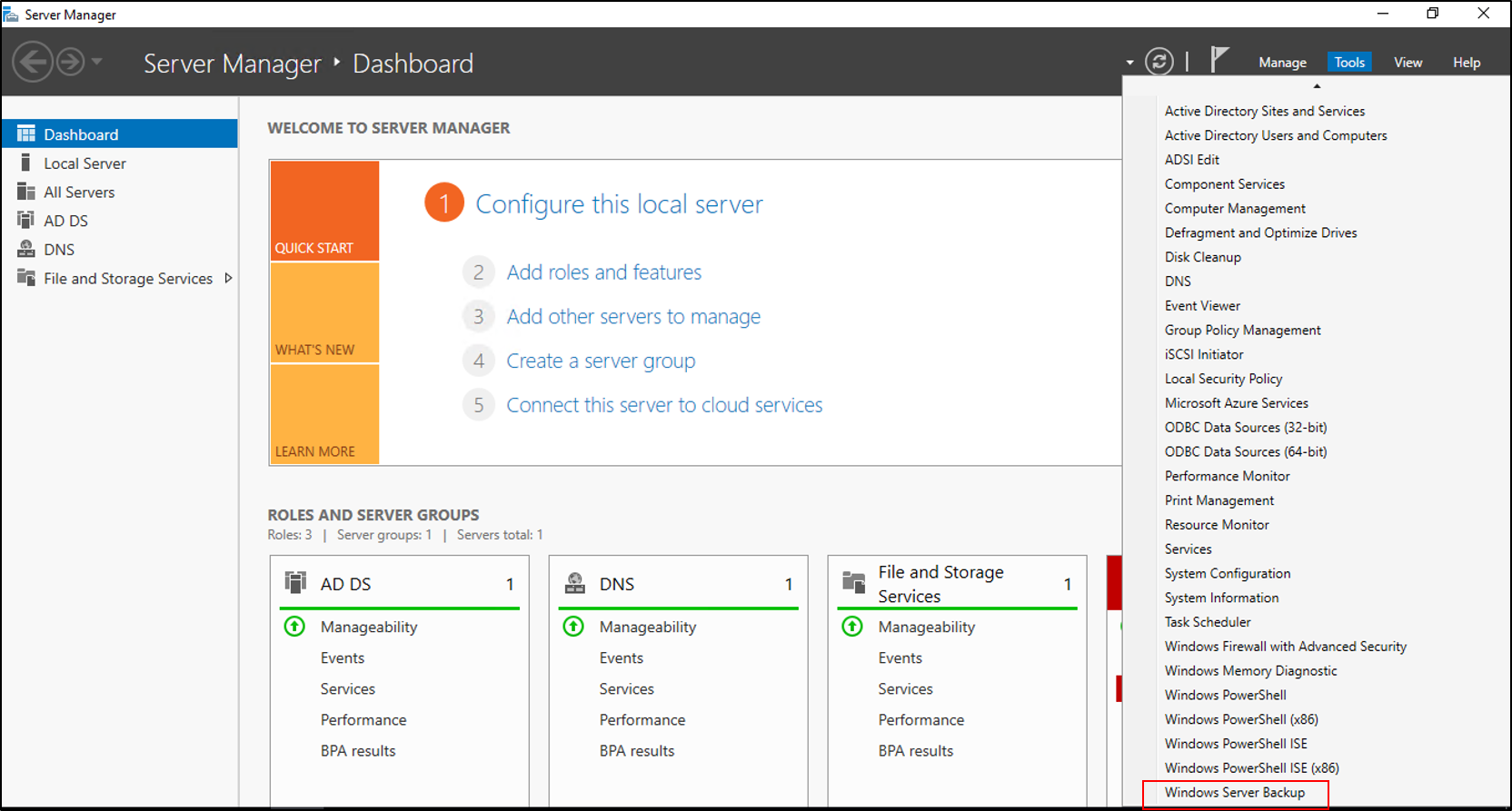
- In the left pane, select Local Backup.
- In the Actions pane, select Backup Once.
- In the Backup Options page, select Different options and select Next.
- On the Select Backup Configuration page, choose your scope:
- For a full server backup, select Full server (recommended).
- For a system state backup, select Custom, then select Add Items and choose System State.
- Select Next.
- On the Specify Destination Type page, choose Local drives or Remote shared folder. If using a remote share, ensure the account running the backup has write access.
- On the Select Backup Destination page, choose the target drive or share.
- Review the summary and select Backup.
The backup process will run in the background. You can monitor progress in the Windows Server Backup console. Once complete, verify that the backup appears in the Backup History section.
Automate with wbadmin
For a recovery checklist, automation is often preferred to ensure backups occur consistently without manual intervention. The wbadmin command-line utility allows you to script these backups.
To perform a bare-metal or full server backup, use the following command in an elevated command prompt:
wbadmin start backup -allCritical -backuptarget:<Drive_letter_to_store_backup>:This command backs up all critical volumes, including the system state and boot files. Replace <Drive_letter_to_store_backup> with the actual drive letter of your backup destination.
For a system state-only backup, use:
wbadmin start systemstatebackup -backuptarget:<targetDrive>:These commands can be scheduled using Task Scheduler to run at regular intervals. Ensure the scheduled task runs with sufficient privileges and that the backup destination is accessible at the time of execution.
Structure the recovery checklist
A recovery checklist should be a living document that mirrors your environment. It should include the following elements:
- Server Identification: Name, IP address, role, and domain membership.
- Backup Location: Path or network share where the backup is stored.
- Backup Verification: Date of the last successful backup and verification steps.
- Restoration Procedure: Step-by-step instructions for restoring the server, including any pre-requisites such as network configuration or domain join status.
- Contact Information: Names and contact details of key personnel involved in the recovery process.
For example, a checklist entry for a domain controller might look like this:
| Item | Detail |
|---|---|
| Server Name | DC01 |
| Role | Domain Controller, Global Catalog |
| Backup Type | System State |
| Backup Location | \FileServer\Backups\DC01 |
| Last Backup | 2026-09-02 02:00 |
| Restoration Steps | 1. Boot from recovery media. 2. Restore system state. 3. Reboot. 4. Verify AD replication. |
Verify the backup
Creating a backup is only half the equation. You must verify that the backup can be restored. This does not necessarily mean a full restoration, but you should check the backup integrity and ensure that the backup files are accessible and not corrupted.
You can use the Backup History section in the Windows Server Backup console to confirm that the backup completed successfully and to review the items included in the backup. If you are using wbadmin, you can check the command output for success messages or review the files on the backup target to ensure they are present and have recent timestamps.
By establishing a clear backup strategy and documenting the recovery steps, you reduce the risk of prolonged downtime. Regularly review and test your checklist to ensure it remains accurate and effective.
References for Create a recovery checklist for a Windows infrastructure server: Active Directory Forest Recovery Guide, AD Forest Recovery - Backing up a full server, AD Forest Recovery - Backing up the System State data.