
Add a health check before enabling application scale-out
You have configured automatic scaling on an App Service plan to handle traffic bursts, but users are still experiencing timeouts or errors during scale-out events. The platform is adding instances, but it is sending live traffic to them before they are ready to serve requests. The solution is not to tweak the scaling thresholds, but to enable the Health check feature and define a path that confirms the application is fully warmed up.
Automatic scaling in Azure App Service prewarms instances to act as a buffer, ensuring smooth performance transitions How to enable automatic scaling. However, prewarming does not guarantee that your application code has finished initialising, connecting to databases, or loading configuration. Health check increases availability by rerouting requests away from unhealthy instances and replacing them if they remain unhealthy Monitor the health of App Service instances. When scaling out, App Service pings the Health check path to ensure new instances are ready before adding them to the load balancer Monitor the health of App Service instances.
Why Health check is a prerequisite for reliable scaling
Automatic scaling monitors HTTP traffic load and adds instances when load increases How to enable automatic scaling. It also monitors worker health assessments at least once every few seconds How to enable automatic scaling. If you do not define a specific Health check path, the platform relies on its internal mechanisms, which may not account for application-specific startup dependencies.
Health check pings a path you choose on your app at one-minute intervals Monitor the health of App Service instances. If the web app does not respond with a status code between 200 and 299 after a configurable number of failed requests, App Service determines the instance is unhealthy and removes it from the load balancer Monitor the health of App Service instances. This prevents traffic from reaching instances that are still initialising.
It is important to distinguish this from the automatic scaling prewarming mechanism. Prewarmed instances are warmed in the background to reduce cold start latency when traffic arrives How to enable automatic scaling. Health check ensures that once an instance is active and receiving traffic, it is actually capable of handling requests correctly. Without a defined Health check path, you risk routing traffic to instances that are technically “up” but functionally unready.
Defining the Health check path
The first step is to create an endpoint in your application that returns a 200 status code only when the app is fully warmed up Monitor the health of App Service instances. This endpoint should check critical components. For example, if your application depends on a database and a messaging system, the Health check endpoint should attempt to connect to those components. If the application cannot connect, it should return a 500-level response code Monitor the health of App Service instances.
If the path does not return a response within one minute, the health check ping is considered unhealthy Monitor the health of App Service instances. This timeout is critical; if your initialisation logic is slow, you may need to adjust the app settings to allow more failed requests before marking the instance as unhealthy.
You can configure the required number of failed requests using the WEBSITE_HEALTHCHECK_MAXPINGFAILURES app setting, which accepts values between 2 and 10 Monitor the health of App Service instances. The default is 10. This means the instance will be removed from the load balancer only after 10 consecutive failed pings. If your application takes longer to start, you might increase this value to prevent premature removal of instances that are still initialising.
Another relevant setting is WEBSITE_HEALTHCHECK_MAXUNHEALTHYWORKERPERCENT, which controls the maximum percentage of instances that can be excluded from the load balancer at one time Monitor the health of App Service instances. The default is 50, meaning no more than half of the instances will be excluded to avoid overwhelming the remaining healthy ones. You can override this if you need more aggressive removal of unhealthy instances.
Enabling Health check in the Azure portal
Once you have a valid endpoint, you can enable Health check for your App Service app.
- Browse to your App Service app in the Azure portal.
- Under Monitoring, select Health check.
- Select Enable and provide the valid URL path for your application, such as
/healthor/api/healthMonitor the health of App Service instances.
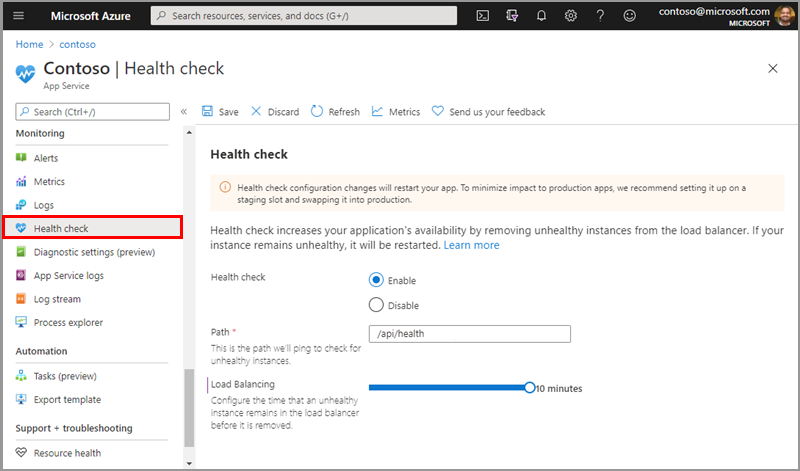
- Select Save.
Note that Health check configuration changes restart your app Monitor the health of App Service instances. To minimize impact to production apps, it is recommended to configure staging slots and swap to production Monitor the health of App Service instances.
Verifying the configuration
After enabling Health check, you can monitor the health of your site using Azure Monitor. From the Health check blade in the portal, select Metrics in the top toolbar Monitor the health of App Service instances. This opens a new blade where you can see the site’s health check status history.
The Health check status metric aggregates successful pings and displays failures only when the instance was deemed unhealthy based on the Health Check Load balancing threshold value configured Monitor the health of App Service instances. By default, this value is set to 10 minutes, so it takes 10 consecutive pings (1 per minute) for a given instance to be deemed unhealthy Monitor the health of App Service instances.
You can also view the status of individual instances from the Instances tab in the Health check blade Monitor the health of App Service instances. This tab shows your instance’s name and status. If an instance is marked as “unhealthy,” you can manually restart it from this tab Monitor the health of App Service instances.
Integration with Automatic Scaling
With Health check enabled, automatic scaling will use the Health check path to verify new instances before adding them to the load balancer Monitor the health of App Service instances. This ensures that when the platform scales out in response to increased HTTP traffic, the new instances are ready to handle requests How to enable automatic scaling.
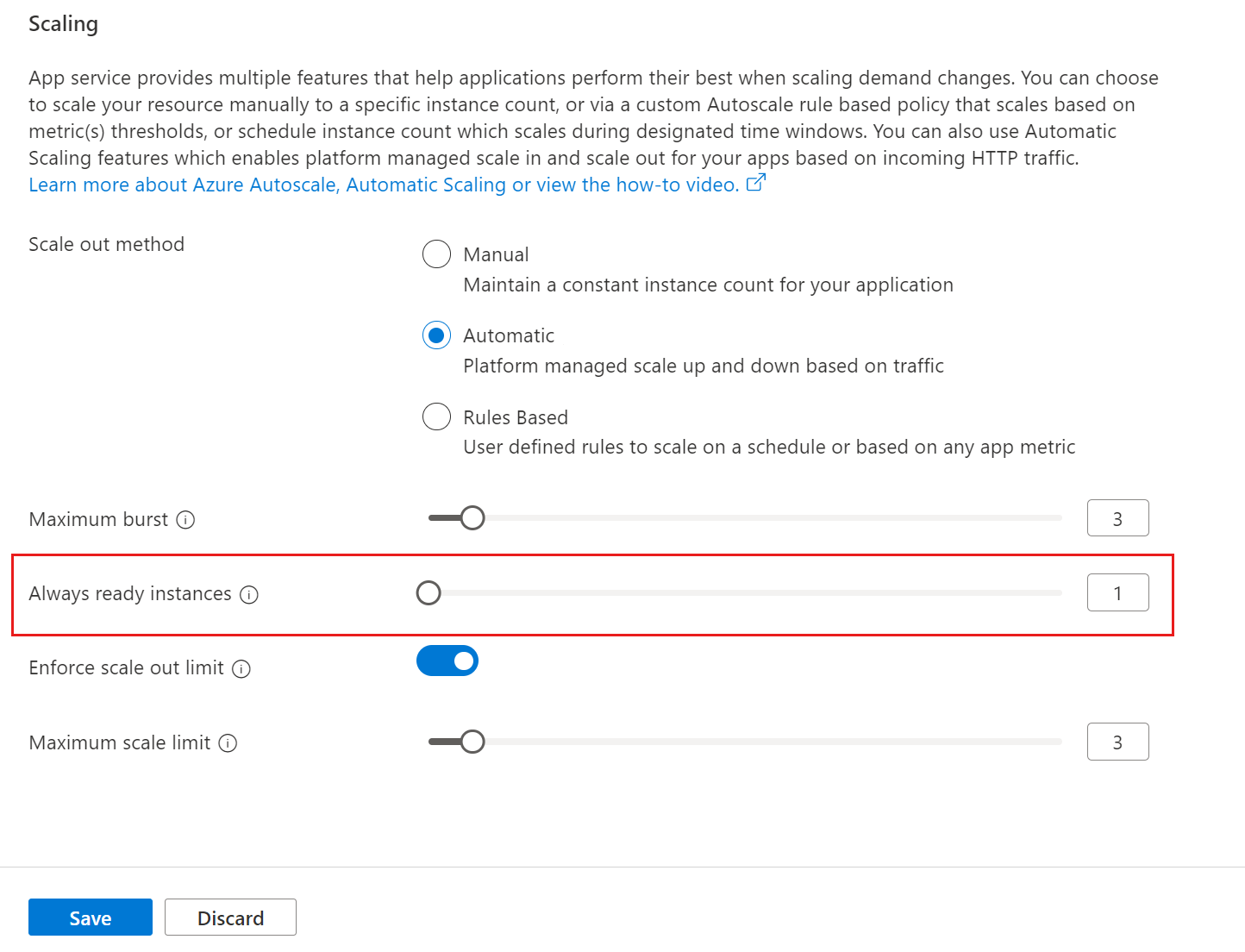
If you are using automatic scaling, you can also configure Always ready instances to specify the minimum number of instances that are always warmed up How to enable automatic scaling. This setting, combined with Health check, provides a robust mechanism for handling traffic bursts without exposing users to unready instances.
To set the minimum number of web app instances, navigate to the web app’s left menu and select scale-out (App Service Plan) How to enable automatic scaling. Update the Always ready instances value and select Save How to enable automatic scaling.
Authentication and Security Considerations
If you have enabled App Service authentication and authorization, the Health check path must allow anonymous access Monitor the health of App Service instances. To provide security for the Health check endpoint, you should use features such as IP restrictions, client certificates, or a virtual network to restrict application access Monitor the health of App Service instances.
Once you have those features in place, you can authenticate the Health check request by inspecting the header x-ms-auth-internal-token and validating that it matches the SHA256 hash of the environment variable WEBSITE_AUTH_ENCRYPTION_KEY Monitor the health of App Service instances. If they match, the Health check request is valid and originating from App Service Monitor the health of App Service instances.
This header is only available on App Service for Windows Monitor the health of App Service instances. For Linux apps, you should rely on IP restrictions or other network-level security measures.
Monitoring and Troubleshooting
If you notice that instances are being marked as unhealthy frequently, check the Health check logs and metrics. You can also enable diagnostic information collection on the Health Check tab for Windows applications, which adds an auto-heal rule that creates memory dumps for unhealthy instances Monitor the health of App Service instances.
Keep in mind that Health check does not follow 302 redirects Monitor the health of App Service instances. If you have HTTPS redirect enabled but HTTPS Only is disabled, the health check ping might fail with an HTTP status code of 307, causing the instance to be marked as unhealthy Monitor the health of App Service instances. Ensure that your Health check path is configured correctly to avoid this issue.
By enabling Health check and defining a robust endpoint, you ensure that automatic scaling only adds instances that are truly ready to serve traffic, improving the overall reliability of your application. Verify the Health check status in the portal and monitor the metrics to confirm that instances are being marked as healthy after scaling events.