
Use Trusted Launch when creating a supported virtual machine
Este artigo ainda não foi traduzido — está a ver a versão em inglês.
You have a Generation 2 virtual machine running in Azure, and you want to enable Trusted Launch to improve its security posture. The good news is that Azure allows you to enable this security type on existing VMs without needing to recreate them. However, the process is not a simple toggle; it requires the VM to be stopped and deallocated, and it imposes a one-way constraint: once enabled, you cannot roll back to the Standard security type.
Trusted Launch is designed to protect against advanced and persistent attack techniques like boot kits and rootkits. It achieves this by combining Secure Boot, a virtual Trusted Platform Module (vTPM), and boot integrity monitoring. While Secure Boot ensures that only signed operating systems and drivers can boot, the vTPM provides a secure vault for keys and measurements, enabling remote attestation. This attestation allows Microsoft Defender for Cloud to verify that your VM booted correctly and has not been compromised.
Check prerequisites before you start
Before attempting to upgrade an existing VM, you must ensure it meets specific criteria. If the VM does not meet these requirements, the upgrade will fail.
First, the VM must be Generation 2. Generation 1 VMs are not supported for this upgrade path, although there is a private preview for enabling Trusted Launch on Gen 1 VMs Enable trusted launch on existing VMs.
Second, the VM size must belong to a supported size family. Trusted Launch is not available on all VM sizes. For example, General purpose sizes like the B-series, Dsv4-series, and Dsv5-series are supported, but older sizes like the Av2-series and Dv2-series are not Trusted launch for Azure VMs. You should verify your current VM size against the supported list in the official documentation Trusted launch for Azure VMs.
Third, the operating system image must be supported. Trusted Launch supports a wide range of Linux distributions (such as Ubuntu 18.04 LTS, 20.04 LTS, 22.04 LTS, and Debian 11, 12) and Windows versions (Windows Server 2016, 2019, 2022, and Windows 10/11 Pro/Enterprise) Trusted launch for Azure VMs. If you are using a custom image, the base image must be Trusted Launch capable.
Fourth, you must check for unsupported features. Certain features are not compatible with Trusted Launch. For instance, Azure Site Recovery protection for Trusted Launch VMs is currently in preview, and you cannot capture a Trusted Launch VM directly as a standard Managed Image; instead, you should use Azure Compute Gallery to share images Trusted launch for Azure VMs. If your VM is part of a scale set, ensure it is a Flexible or Uniform scale set that supports Trusted Launch Trusted launch for Azure VMs.
Finally, if you have Azure Backup enabled, you must be using the Enhanced Backup policy. The Standard policy is not supported for Trusted Launch upgrades. If you are currently on the Standard policy, you need to migrate to the Enhanced policy first Enable trusted launch on existing VMs.
Deallocate the virtual machine
The most critical operational step is that the VM must be stopped and deallocated. You cannot enable Trusted Launch on a running VM. This is because the change affects the underlying security profile of the VM, which requires a restart of the virtualization stack.
When you deallocate the VM, you stop paying for compute resources, but you still pay for the associated storage (OS disk and data disks) Trusted launch for Azure VMs. This is a good time to create a restore point or a snapshot of the OS disk. Although the upgrade is generally safe, having a restore point allows you to recreate the VM with its previous state if the upgrade fails or if the VM fails to boot after the change Enable trusted launch on existing VMs.
Enable Trusted Launch
You can enable Trusted Launch using the Azure portal, Azure CLI, Azure PowerShell, or an ARM template. The portal method is straightforward for single VMs, while the CLI or PowerShell methods are better for automation or multiple VMs.
Using the Azure Portal
- Navigate to your Generation 2 VM in the Azure portal.
- If the VM is running, select Stop and wait for it to reach the “Stopped (deallocated)” state.
- In the left-hand menu, under Settings, select Configuration.
- Under the Security type section, you will see the current setting (likely “Standard”). Click the dropdown and select Trusted launch.
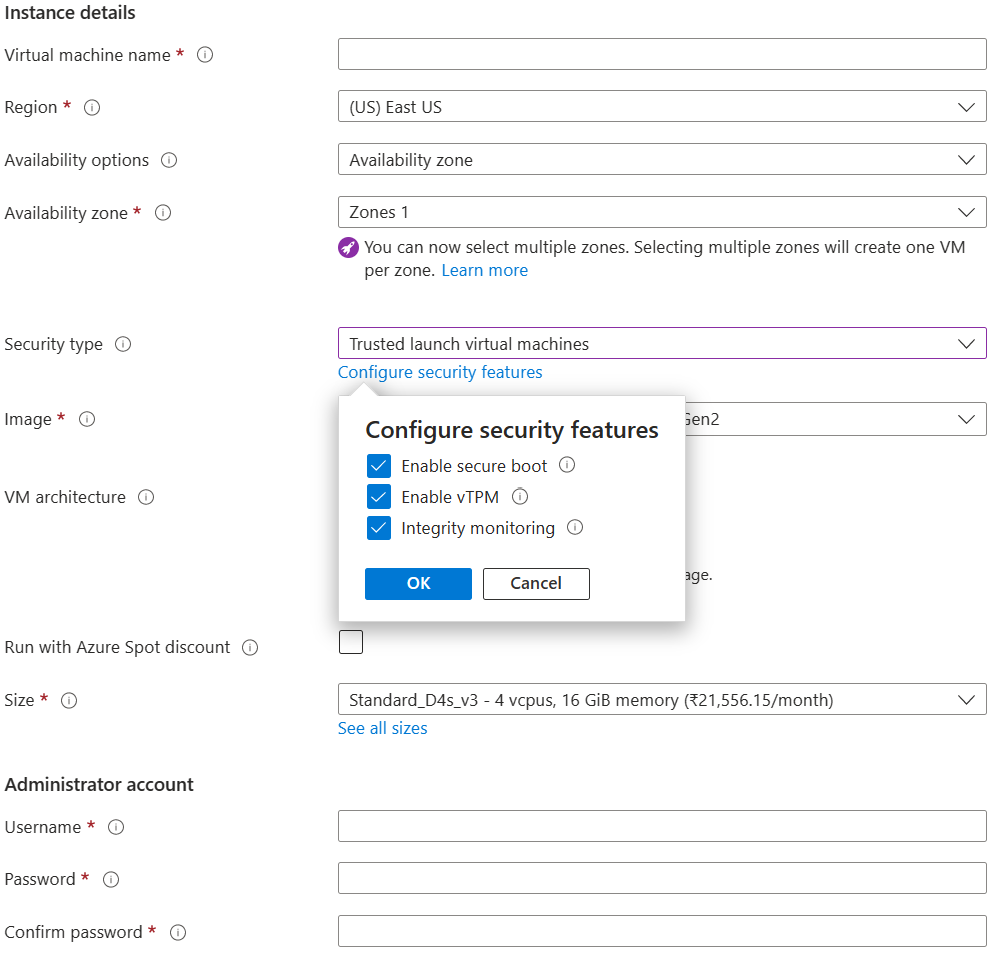
- Once you select Trusted Launch, two additional checkboxes will appear: Enable secure boot and Enable vTPM. vTPM is enabled by default when you switch to Trusted Launch, but Secure Boot is not. It is recommended to enable Secure Boot if you are not using custom unsigned kernel or drivers Enable trusted launch on existing VMs.
- Click Save.
The portal will validate your configuration. If the VM meets all prerequisites, the update will proceed. If it fails, the error message will usually indicate which prerequisite is not met (e.g., unsupported size or backup policy).
Using Azure CLI
If you prefer the command line, you can use the following commands. Ensure you have the latest version of the Azure CLI installed.
First, deallocate the VM:
az vm deallocate \
    --resource-group myResourceGroup \
    --name myVm
Next, update the VM to enable Trusted Launch. Note that you must specify --security-type TrustedLaunch. vTPM is enabled by default, but you must explicitly set --enable-secure-boot true if you want Secure Boot enabled, as it is not on by default for existing VMs being upgraded Enable trusted launch on existing VMs.
az vm update \
    --resource-group myResourceGroup \
    --name myVm \
    --security-type TrustedLaunch \
    --enable-secure-boot true
The output should confirm the securityProfile has been updated:
{
  "securityProfile": {
    "securityType": "TrustedLaunch",
    "uefiSettings": {
      "secureBootEnabled": true,
      "vTpmEnabled": true
    }
  }
}
Finally, start the VM:
az vm start \
    --resource-group myResourceGroup \
    --name myVm
Verify the upgrade and next steps
Once the VM is running, verify that the security type has been updated. In the portal, go to the Configuration page again and confirm that Security type is set to Trusted launch. You can also check the Security blade in the VM overview to see the current security posture.
The upgrade itself does not automatically install the Guest Attestation extension, which is required for boot integrity monitoring. You should check if the extension is installed. If it is not, Microsoft Defender for Cloud will issue a low-severity recommendation to install it Trusted launch for Azure VMs. Installing this extension allows Defender for Cloud to perform remote attestation and monitor the boot integrity of your VMs Trusted launch for Azure VMs.
It is also worth noting that enabling Trusted Launch does not automatically enable Microsoft Defender for Cloud. You need to have your subscription onboarded to Defender for Cloud to benefit from the boot integrity monitoring and attestation alerts Deploy a trusted launch VM. If Defender for Cloud is not enabled, you will still have the foundational security of Secure Boot and vTPM, but you will miss out on the monitoring and alerting capabilities.
After the upgrade, test your application to ensure it boots correctly. If you are using Linux and have custom kernel drivers that are not signed by the distro vendor, you may need to disable Secure Boot. In that case, you can clear the Enable secure boot checkbox during the upgrade process Deploy a trusted launch VM. However, disabling Secure Boot will prevent boot integrity attestation from passing, so you should only do this if absolutely necessary and be prepared to suppress related alerts in Defender for Cloud Trusted launch for Azure VMs.
By following these steps, you can enhance the security of your existing Generation 2 VMs. The key is to plan for the deallocation, verify prerequisites, and ensure that monitoring is in place to validate the boot integrity of your upgraded workloads.