
Use group-based administration without hiding excessive access
Este artigo ainda não foi traduzido — está a ver a versão em inglês.
You want to simplify role management by assigning Microsoft Entra roles to groups. It is a sensible move, but it introduces a specific risk: you might inadvertently grant excessive access or create an unmanageable permission surface if you do not understand the constraints of role-assignable groups. The key is to use them deliberately, not as a drop-in replacement for every group you currently manage.
Role-assignable groups are designed to simplify role management, ensure consistent access, and make auditing permissions more straightforward Use Microsoft Entra groups to manage role assignments. However, they come with strict immutability rules and membership restrictions that differentiate them from standard security or dynamic groups. If you treat them like any other group, you risk creating groups that cannot be modified, cannot use dynamic membership, or can be exploited for privilege escalation.
Understand the immutability and creation constraints
The most critical constraint is that the isAssignableToRole property is immutable. You can only set this property when creating a new group. You cannot change an existing group into a role-assignable group, nor can you remove this capability once set Use Microsoft Entra groups to manage role assignments. This means the decision to use a role-assignable group must be made at the point of creation, based on a clear understanding of the role’s scope and the group’s lifecycle.
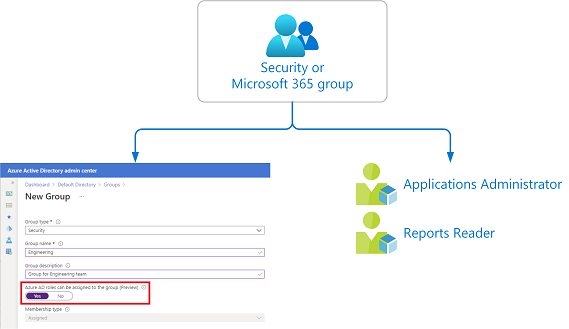
To create a role-assignable group, you must have at least the Privileged Role Administrator role Use Microsoft Entra groups to manage role assignments. In the Microsoft Entra admin center, this is done by setting the Microsoft Entra roles can be assigned to the group option to Yes during group creation Create a role-assignable group in Microsoft Entra ID. The system will warn you that this setting cannot be changed later Create a role-assignable group in Microsoft Entra ID.
# Illustrative example: Creating a Security role-assignable group
# Prerequisites: Microsoft Graph PowerShell module, Privileged Role Administrator role
Connect-MgGraph -Scopes "RoleManagement.ReadWrite.Directory"
$group = New-MgGroup -DisplayName "Contoso_Helpdesk_Administrators" -Description "Helpdesk Administrator role assigned to group" -MailEnabled:$false -SecurityEnabled -MailNickName "contosohelpdeskadministrators" -IsAssignableToRole:$true
This code creates a group that can be assigned the Helpdesk Administrator role. Note that the IsAssignableToRole:$true parameter is mandatory. If you omit it, the group is created as a standard security group, and you cannot retroactively make it role-assignable. While Group.ReadWrite.All might allow group creation, managing the membership of role-assignable groups specifically requires RoleManagement.ReadWrite.Directory Use Microsoft Entra groups to manage role assignments.
Enforce assigned membership to prevent privilege escalation
Role-assignable groups must use Assigned membership. You cannot use dynamic membership rules for these groups Use Microsoft Entra groups to manage role assignments. This restriction is not arbitrary; it is a security measure to prevent privilege escalation through automated population.
Consider this scenario: if dynamic membership were allowed, an administrator with permission to modify dynamic membership rules could add themselves to a role-assignable group, thereby indirectly gaining the assigned role. For example, if a group named Contoso_User_Administrators is assigned the User Administrator role, an Exchange administrator who can modify dynamic membership groups could add themselves to that group and become a User Administrator Use Microsoft Entra groups to manage role assignments. By enforcing assigned membership, Microsoft Entra ID ensures that only users explicitly added to the group receive the role, and only users with the appropriate permissions (Privileged Role Administrator or designated group owners) can modify the membership.
This also means you cannot nest role-assignable groups. A group cannot be added as a member of a role-assignable group Use Microsoft Entra groups to manage role assignments. This simplifies the permission model but requires you to manage membership directly.
Manage ownership and delegation carefully
By default, Privileged Role Administrators can manage the membership of a role-assignable group Use Microsoft Entra groups to manage role assignments. However, you can delegate this management by adding group owners. This is useful for distributing the administrative burden, but it requires careful consideration of who should own these groups.
If you delegate ownership, remember that group owners can manage membership, but they do not necessarily have the Privileged Role Administrator role. This allows you to separate the duty of managing group membership from the duty of assigning roles. However, any user who can manage the group’s membership can effectively grant the role to anyone they add. Therefore, the choice of group owners is as critical as the choice of the role itself.
For Microsoft Graph, the RoleManagement.ReadWrite.Directory permission is required to manage the membership of role-assignable groups. The Group.ReadWrite.All permission is not sufficient Use Microsoft Entra groups to manage role assignments. This distinction is important if you are automating group management via scripts or applications.
Use Privileged Identity Management for just-in-time access
If you do not want members of the group to have standing access to a role, you can use Microsoft Entra Privileged Identity Management (PIM) to make the group eligible for a role assignment Use Microsoft Entra groups to manage role assignments. This allows each member of the group to activate the role assignment for a fixed time duration, providing just-in-time access rather than permanent privilege.
This approach is particularly useful for roles that are only needed occasionally, such as the Global Administrator role. By making the group eligible for PIM activation, you ensure that users only have the role when they explicitly activate it, reducing the risk of persistent excessive access.
Verify and audit
Once you have created and configured your role-assignable groups, you should verify their configuration and audit their membership. Check that the isAssignableToRole property is set correctly and that the membership is as expected. Use the Microsoft Entra admin center to review the role assignments and ensure that only the intended users are members of the groups.
Remember that a maximum of 500 role-assignable groups can be created in a single Microsoft Entra organization Use Microsoft Entra groups to manage role assignments. Plan your group structure accordingly to avoid hitting this limit. Also, be aware that if a role-assignable group is deleted, it is soft-deleted and can be restored within 30 days by group owners Use Microsoft Entra groups to manage role assignments.
The decision to use role-assignable groups should be driven by a clear governance strategy. They simplify management but introduce immutability and strict membership rules. By understanding these constraints and enforcing assigned membership, you can use them to reduce excessive access rather than hide it.