
Use Content Hub templates with a production review
Este artigo ainda não foi traduzido — está a ver a versão em inglês.
You have selected a solution from the Microsoft Sentinel Content hub. It looks comprehensive, but deploying it blindly is where production environments usually break. The Content hub provides packaged content—data connectors, analytics rules, workbooks, and playbooks—but installation is only the first step. The real work begins when you review what has been deployed and configure the dependencies.
The Microsoft Sentinel Content hub is your centralized location to discover and manage out-of-the-box content. Solutions provide a consolidated way to acquire this content in your workspace with a single deployment step Microsoft Sentinel content hub catalog | Microsoft Docs. However, a solution deployment does not automatically configure every component it contains. Some content types, particularly data connectors and playbooks, require additional configuration steps after installation to become active.
Prerequisites and permissions
Before you begin, ensure you have the correct permissions. To install, update, and delete standalone content or solutions in the Content hub, you need the Microsoft Sentinel Contributor role at the resource group level Discover and deploy Microsoft Sentinel out-of-the-box content from Content hub. For other roles and permissions supported for Microsoft Sentinel, refer to the permissions documentation Discover and deploy Microsoft Sentinel out-of-the-box content from Content hub.
It is also worth noting that Microsoft Sentinel is generally available in the Microsoft Defender portal. For now, you can access the Content hub from either the Microsoft Defender portal or the Azure portal.
Discover and select the solution
Navigate to the Content hub. In the Microsoft Defender portal, select Microsoft Sentinel > Content management > Content hub. In the Azure portal, go to Content management > Content hub Discover and deploy Microsoft Sentinel out-of-the-box content from Content hub.
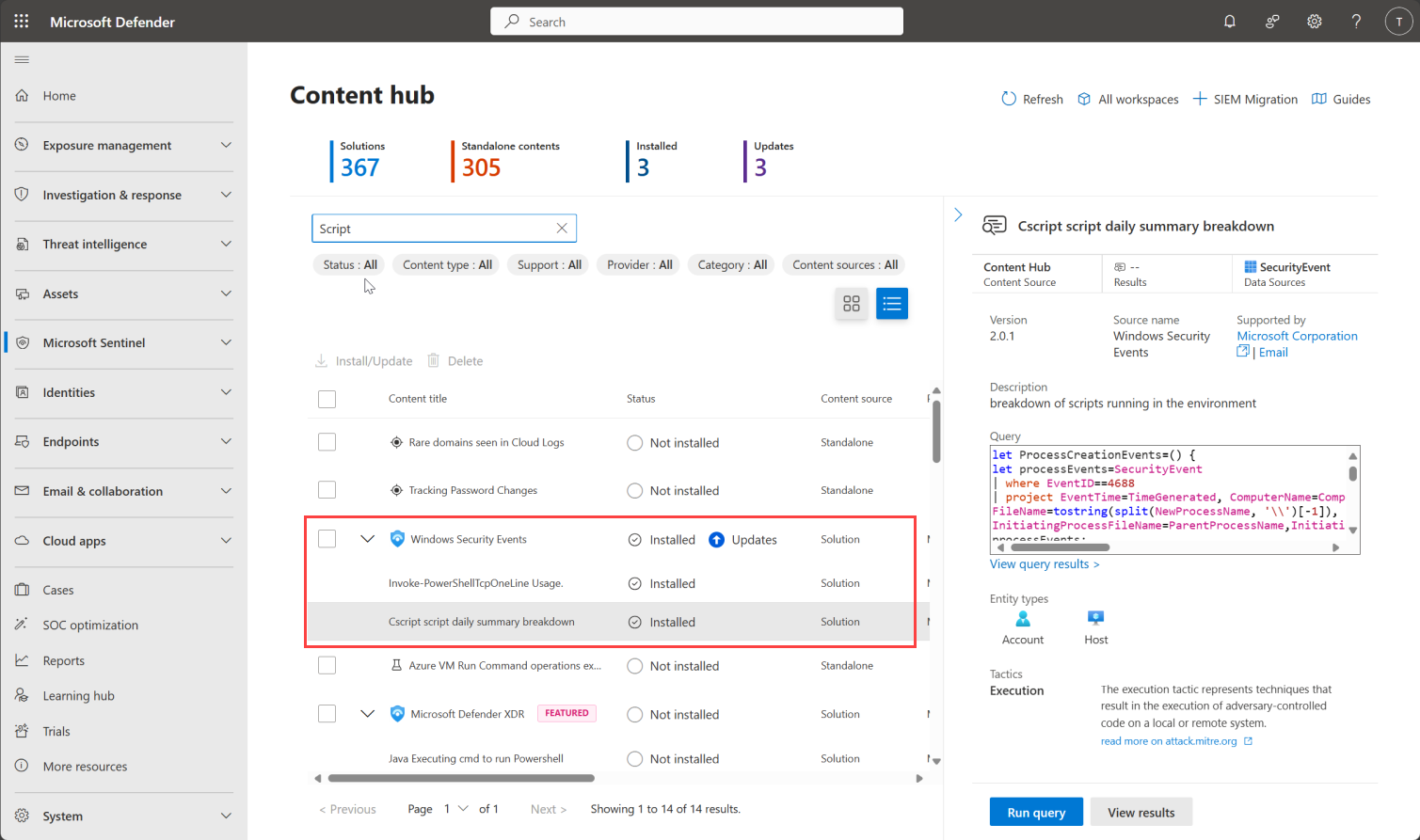
The Content hub displays a searchable grid or list of solutions and standalone content. Use the filters to narrow down the options. You can filter by status, content type, support, provider, and category Discover and deploy Microsoft Sentinel out-of-the-box content from Content hub. The support model for each solution is clearly indicated on its details pane in the Support box, where either Microsoft or a partner’s name is listed Discover and deploy Microsoft Sentinel out-of-the-box content from Content hub. This is important for understanding who to contact if something goes wrong.
[ ]
]
Select the solution you want to deploy. The details pane will show you the types of content items it includes, such as analytic rules, hunting queries, workbooks, and playbooks Discover and deploy Microsoft Sentinel out-of-the-box content from Content hub. If you need to install dependencies, such as data connectors for CEF, Syslog, or custom logs, you can select Install with dependencies to ensure that the required data connectors are also installed Discover and deploy Microsoft Sentinel out-of-the-box content from Content hub.
Deploy with validation
Once you have selected the solution, select View details and then Create or Update Discover and deploy Microsoft Sentinel out-of-the-box content from Content hub. On the Basics tab, enter the subscription, resource group, and workspace to deploy the solution Discover and deploy Microsoft Sentinel out-of-the-box content from Content hub.
Proceed through the remaining tabs to learn about, and in some cases configure, each of the content components. The tabs correspond with the content offered by the solution. Different solutions might have different types of content, so you might not see the same tabs in every solution Discover and deploy Microsoft Sentinel out-of-the-box content from Content hub. You might also be prompted to enter credentials to a non-Microsoft service so that Microsoft Sentinel can authenticate to your systems. For example, with playbooks, you might want to take response actions as prescribed in your system Discover and deploy Microsoft Sentinel out-of-the-box content from Content hub.
In the Review + create tab, wait for the Validation Passed message. This is a critical checkpoint. If validation fails, review the error messages and adjust your configuration before proceeding Discover and deploy Microsoft Sentinel out-of-the-box content from Content hub. Select Create or Update to deploy the solution. You can also select the Download a template for automation link to deploy the solution as code if you prefer an infrastructure-as-code approach Discover and deploy Microsoft Sentinel out-of-the-box content from Content hub.
Enable and configure content items
After installation, each content type within the solution might require more steps to configure. This is where the production review happens. Go back to the Content hub and select Manage for the installed solution Discover and deploy Microsoft Sentinel out-of-the-box content from Content hub.
Data connectors
To connect a data connector, select Open connector page and complete the configuration steps Discover and deploy Microsoft Sentinel out-of-the-box content from Content hub. After you configure the data connector and logs are detected, the status changes to Connected Discover and deploy Microsoft Sentinel out-of-the-box content from Content hub. If you do not configure the connector, the analytics rules dependent on it will not trigger.
Analytics rules
Create a rule from a template or edit an existing rule. If the template isn’t used yet, select Open > Create rule and follow the steps to enable the analytics rule Discover and deploy Microsoft Sentinel out-of-the-box content from Content hub. After you create a rule, the number of active rules created from the template is shown in the Created content column. Select the active rules link to edit the existing rule Discover and deploy Microsoft Sentinel out-of-the-box content from Content hub.
Hunting queries
Run the provided hunting query or customize it. To start searching right away, select Run query from the details page for quick results Discover and deploy Microsoft Sentinel out-of-the-box content from Content hub. To customize your hunting query, select the link in the Content name column. From the hunting gallery, you can create a clone of the read-only hunting query template by going to the ellipses menu Discover and deploy Microsoft Sentinel out-of-the-box content from Content hub.
Workbooks
To customize a workbook created from a template, create an instance of a workbook. Select View template to open the workbook and see the visualizations. Select Save to create an instance of the workbook template Discover and deploy Microsoft Sentinel out-of-the-box content from Content hub. View your saved customizable workbook by selecting View saved workbook Discover and deploy Microsoft Sentinel out-of-the-box content from Content hub.
Playbooks
Create a playbook from a template. Select the Content name link of the playbook, choose the template and select Create playbook Discover and deploy Microsoft Sentinel out-of-the-box content from Content hub. After the playbook is created, the active playbook is shown in the Created content column. Select the active playbook link to manage the playbook Discover and deploy Microsoft Sentinel out-of-the-box content from Content hub.
Verification
Post-installation, verify that content items are configured. Data connectors must be connected, and analytics rules enabled, to function effectively. Check the Created content column in the Content hub for each content type. Ensure that data connectors are Connected, analytics rules are Active, and workbooks are Saved. If any component is not configured, it will not contribute to your security monitoring.
For more information on configuring Microsoft Sentinel content, refer to the configure content documentation Configure Microsoft Sentinel content.