
Use Azure Policy to report on missing configuration
Este artigo ainda não foi traduzido — está a ver a versão em inglês.
You want to know which resources in your Azure environment are missing a required configuration, but you don’t want to block deployments or change anything yet. The answer is to create a policy assignment with an auditing effect, such as Audit or AuditIfNotExist, scoped to the relevant management group, subscription, or resource group.
This approach lets you see the gap between your current state and your desired state without the risk of disrupting ongoing work. Azure Policy evaluates resources against business rules defined in JSON policy definitions. When you assign a policy with an auditing effect, non-compliant resources are flagged in the compliance dashboard, but the deployment or update that caused the non-compliance is allowed to proceed.
Choose the right effect for reporting
Azure Policy offers several effects that determine how the service responds to non-compliant resources. For a reporting-only scenario, you should avoid enforcement effects like Deny, Modify, or DeployIfNotExist.
- Audit: Evaluates existing resources and new updates. If a resource violates the rule, it is marked as non-compliant. This is useful for checking the current state of resources that already exist.
- AuditIfNotExist: Evaluates a condition and, if that condition is true, checks for the existence of a related resource. If the related resource is missing, the primary resource is marked as non-compliant. This is ideal for scenarios like “audit VMs that do not use managed disks” or “audit storage accounts that do not have diagnostic settings.”
Using Audit or AuditIfNotExist ensures that you are only gathering information. If you accidentally use Deny, you will block new deployments that don’t meet the criteria, which is rarely the goal of a initial assessment.
Create the policy assignment
You can create a policy assignment using the Azure portal, PowerShell, or Azure CLI. The following steps use the portal, which is often the most straightforward way to start.
-
Sign in to the Azure portal.
-
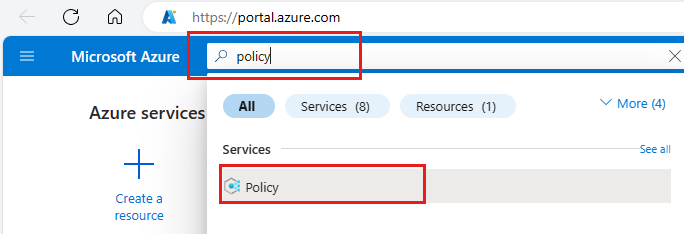
Search for Policy and select it from the list.
-
Select Assignments on the Policy pane, then select Assign Policy.
-
On the Basics tab, configure the following:
- Scope: Select the management group, subscription, or resource group you want to assess. For standard Azure resources, only resources at the subscription or resource group level are evaluated, even if the assignment is at a higher scope. Note that Azure Policy with Azure Arc extends this evaluation to non-Azure resources (servers, Kubernetes) managed by Arc, which have their own scope definitions.
- Policy definition: Search for a built-in policy definition that matches your requirement. For example, search for “Audit VMs that do not use managed disks”. If you need a custom rule, select Custom and provide the JSON definition.
- Version: Accept the default version or select a specific one. Built-in definitions default to the latest version and inherit minor updates unless specified otherwise.
- Assignment name: Provide a descriptive name, such as
audit-vm-managed-disks-reporting. - Policy enforcement: Ensure this is set to Enabled. This controls whether the policy is actively evaluated. For reporting, it must be enabled, but the effect determines the action.
-
Select Next to move to the Parameters tab. If the policy definition has parameters, configure them here. Otherwise, leave the defaults.
-
Select Next to move to the Remediation tab. For a reporting-only assignment, do not select Create a Managed Identity. Remediation tasks are only needed for
DeployIfNotExistorModifyeffects.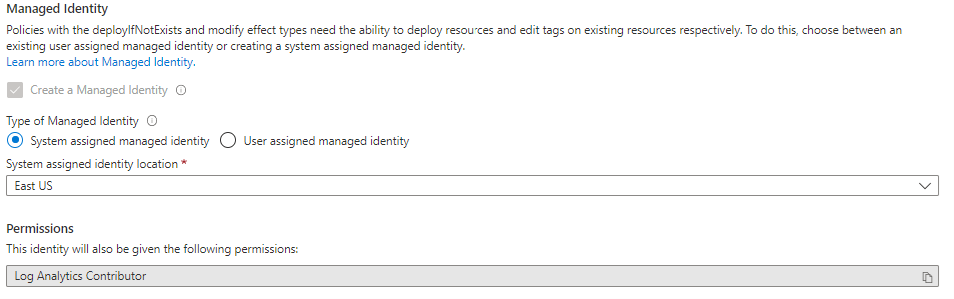
The image above illustrates the Remediation tab where a managed identity is configured. Since you are only auditing, leave this unchecked. Creating a managed identity here is unnecessary and adds complexity without benefit for an
Auditeffect. -
Select Next to move to the Non-compliance messages tab. Add a message that explains the requirement, such as “Virtual machines should use managed disks for data and OS.” This message appears in the compliance details for non-compliant resources.
-
Select Review + create, verify the details, and then select Create.
Verify the compliance state
After creating the assignment, it takes a few minutes for Azure Policy to evaluate existing resources and populate the compliance data. You can check the status by navigating to the Compliance blade in the Policy service.
Locate your new assignment in the list. The Compliance state column will show Non-compliant if any resources in the scope violate the policy rule. To see which specific resources are non-compliant, select the assignment name. The Resource Compliance view lists each resource and its status.
The compliance state is determined by the evaluation outcome:
- If the policy condition evaluates to True for a resource, and the effect is
AuditorAuditIfNotExist, the resource is marked as Non-compliant. - If the condition evaluates to False, the resource is marked as Compliant.
This view gives you a clear inventory of gaps. You can export this data or use it to prioritize remediation efforts. Once you are satisfied with the assessment, you can decide whether to keep the policy in Audit mode, switch to an enforcement effect, or delete the assignment.
To remove the assignment, go back to the Assignments blade, select the assignment, and choose Delete assignment.
Prerequisites and permissions
To create and manage policy assignments, you need specific permissions. The Resource Policy Contributor role includes most Azure Policy operations. Owner and Contributor roles also have access to read policy resources, but only Resource Policy Contributor or Owner can create and update definitions and assignments. Contributor can trigger remediation tasks but cannot create definitions.
Remember that Azure Policy evaluates state based on resource properties, not user identity. Even if a user has permission to create a resource, Azure Policy will still block the deployment if the effect is Deny and the resource is non-compliant. For auditing, this distinction is less critical, but it is important to understand that policy compliance is independent of RBAC permissions.
If you need to assess resources across multiple subscriptions, consider assigning the policy at the management group level. This ensures that all current and future subscriptions under that management group are evaluated. However, keep in mind that there are limits to the number of assignments and definitions you can have at each scope.
Common pitfalls
- Confusing Audit with Deny: Using
Denywhen you only want to report will block deployments. Always double-check the effect before assigning. - Ignoring Evaluation Triggers: Policy evaluation happens when resources are created or updated, when the policy is assigned or updated, and during the regular 24-hour compliance cycle. If you don’t see immediate results, wait for the next cycle or trigger an evaluation by updating a resource.
- Assuming Compliance Equals Security: A compliant resource is one that meets the policy rule, not necessarily one that is secure. Policy is a governance tool, not a security scanner. Use it to enforce standards, but complement it with other security services for threat detection.
By starting with an auditing effect, you gain visibility into your environment’s configuration drift without introducing risk. This allows you to build trust in the policy process before moving to enforcement.
References for Use Azure Policy to report on missing configuration: Overview of Azure Policy, Quickstart: Create policy assignment using Azure portal, Remediate non-compliant resources.