
Use a remote backend for Terraform state in Azure
Este artigo ainda não foi traduzido — está a ver a versão em inglês.
When two people manage the same infrastructure, a state file on one laptop quickly becomes a problem. Terraform needs that file to connect the configuration to the resources it manages. Passing copies between engineers makes it too easy to work from different versions.
For an Azure workload, use the azurerm backend with a private Blob Storage container. Everyone working on that environment must use the same backend configuration and credentials with the appropriate access. Microsoft’s remote state walkthrough explains the storage setup and locking behaviour.
Prepare storage before moving state
Have the storage account and private container ready before initialising the backend. They are dependencies of the deployment workflow, so decide who owns them and how their access is managed. Do not make the container public to resolve an authentication error.
Choose a distinct blob key for each independently managed environment. For example, payments/dev.tfstate and payments/prod.tfstate describe separate state objects. A folder-like name helps organisation; it does not grant or restrict access by itself.
Also check the network path from every machine that runs Terraform. A developer laptop and a build agent might reach Azure through different routes. Storage firewall or private endpoint settings must permit the intended callers, and private endpoint users need working name resolution. Establish this path before moving an existing state file.
Treat state as sensitive data. It can contain values you would never put in a source repository. A private container and encryption at rest are useful controls, but access to the account and credentials still needs deliberate management.
Configure the backend
The following is a backend configuration fragment to add to the root Terraform configuration. Replace the illustrative account name with your own globally unique storage account name. Keep the resource group, container and key consistent across the people and automation managing this environment.
terraform {
  backend "azurerm" {
    resource_group_name  = "rg-terraform-state"
    storage_account_name = "examplestateaccount"
    container_name       = "tfstate"
    key                  = "payments/dev.tfstate"
  }
}
Authentication is a separate choice from this location block. The Microsoft walkthrough demonstrates an access key supplied through ARM_ACCESS_KEY. Keep any such key out of committed configuration, shell transcripts and build logs. Evaluate the backend’s supported authentication options against your organisation’s identity requirements rather than assuming a storage key is the only approach.
For a new configuration with no existing state, initialise it after configuring authentication:
terraform initFor an existing deployment, moving the backend also involves migrating its state. Keep a protected backup, stop other writers and review Terraform’s migration prompts. Do not create a fresh empty state for resources that are already managed elsewhere. These are configuration examples, not a record of an executed migration.
Check what locking protects
The Azure backend uses blob locking to coordinate state writes. During an operation that holds the lock, the storage view can show the blob as Locked and Leased:
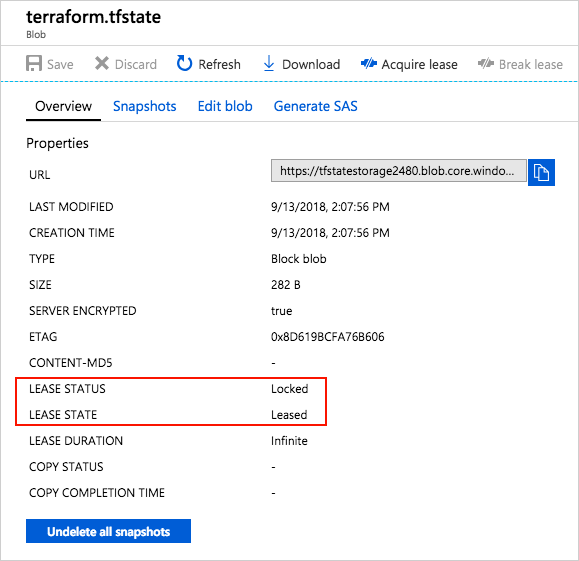
This is a documentation example, so its account name and timestamps will differ from yours. The useful detail is the lease state. A lock helps prevent two writers updating the same state simultaneously; it does not prevent someone choosing the wrong environment or running an unwanted infrastructure change.
If Terraform cannot acquire a lock, identify the operation holding it before taking action. A long-running pipeline and an abandoned operation require different responses. HashiCorp’s state locking guidance warns that forcing an unlock while another writer is active can allow concurrent writes.
Verify the destination before sharing it
After initialisation and the first controlled operation, check that the expected state blob exists in the intended container. Confirm the subscription, storage account and environment key with the team. Check that an authorised build agent can reach it and that unrelated users cannot read it.
Then review the Terraform plan against the resources you expect to manage. Unexpected creation of existing resources is a reason to stop and investigate the selected state. Once the destination and permissions are correct, give the team the backend configuration and authentication procedure so the next engineer starts from the same state.