
Trace a failed request through an API Management policy
Este artigo ainda não foi traduzido — está a ver a versão em inglês.
Intermittent 500 errors or time-outs in Azure API Management often point to backend connectivity issues, but when the backend logs are clean, the problem usually lies in the policy pipeline. The gateway processes requests in milliseconds, making it difficult to spot where a variable is empty or a condition fails. You need a way to step through the logic without guessing.
The most direct way to trace a failed request is to use the Azure API Management extension in Visual Studio Code. This tool lets you initiate a debugging session, send a test request, and step through the effective policies one by one. It also integrates with the trace policy to inject custom diagnostics into the request trace output and Application Insights.
Prerequisites and scope
Policy debugging is currently supported only in the Developer tier of API Management. If you are working in a Premium or Standard tier, you cannot use the VS Code debugger directly. You would need to enable request tracing via the REST API and inspect the trace logs, which is a more manual process. For this guide, we assume you are in the Developer tier.
You also need the Azure API Management extension for Visual Studio Code and the REST Client extension. You must be a service owner to use the built-in all-access subscription, which the debugger uses to trigger the debugging functionality. This is a security measure; the debugger adds the Ocp-Apim-Debug header, which requires this specific subscription key.
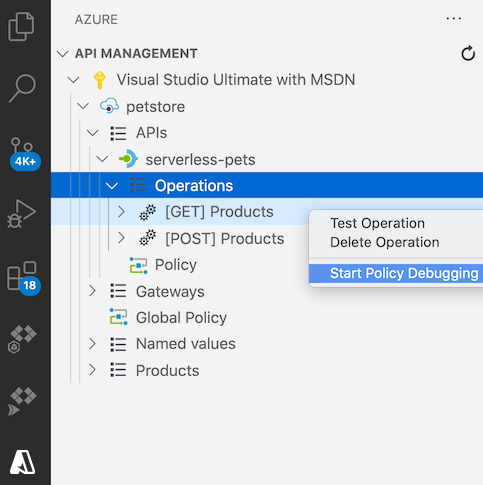
Step 1: Initiate a debugging session
Open the API Management extension in Visual Studio Code. Select the API Management instance you want to debug. Then, select the API and operation you want to trace. Right-click on the operation and select Start Policy Debugging.
The extension starts a debugging session with the API Management gateway. The Debug Console window shows the progress. Starting a debugging session also enables request tracing for the duration of the session.
Step 2: Send a test request
When the debugging session is established, the REST Client extension opens a new editor. This editor allows you to create and send a test HTTP request to the gateway. The Ocp-Apim-Debug header is added automatically to the request. This header is required and the value must be set to the service-level, all-access subscription key.
Modify the HTTP request in the editor according to your test scenario. For example, if you are testing an order validation policy, include the order ID in the request body or headers. Then click Send Request.
Step 3: Step through the policy pipeline
After the test request is sent, the extension opens the debugging window. This window shows the effective policies of the operation and stops at the first effective policy. You can single-step through individual policies or set a breakpoint at a policy and step directly to it.
In the Variables panel, inspect values of system-created and user-created variables. In the Breakpoints panel, view the list of all breakpoints that have been set. In the Call Stack panel, view the current effective policy scope.
If there is an error during policy execution, you will see the details of the error at the policy where it happened. This is particularly useful for identifying where a condition fails or a variable is null.
Adding custom diagnostics with the trace policy
The debugger shows effective policies regardless of whether a trace policy is present. However, adding a trace policy allows you to inject custom messages into the request trace output, which can help you understand the state of the request at specific points.
Take care when enabling tracing, as it can expose sensitive information in the trace data. Ensure that you have appropriate security measures in place to protect the trace data. This is particularly important if you are debugging in a shared environment or if the trace data is logged to Application Insights or resource logs.
Add a trace policy to the scope you want to investigate. For example, to trace a specific operation:
<trace source="OrderProcessing" severity="information">
    <message>Checking order validation</message>
    <metadata name="OrderId" value="static-value"/>
</trace>
The source attribute is a literal string that identifies the trace message. The severity can be verbose, information, or error. The message element can contain policy expressions, which is useful for inspecting variable values. The metadata element adds custom properties to the Application Insights telemetry, but policy expressions are not allowed in the value attribute.
Reviewing the trace
The trace policy adds a custom trace to the request tracing output in the test console when tracing is triggered. It also creates a Trace telemetry in Application Insights, when Application Insights integration is enabled and the severity specified in the policy is equal to or greater than the verbosity specified in the diagnostic setting.
The policy is not affected by Application Insights sampling. All invocations of the policy will be logged.
Exit the debugging session by clicking the Stop button when you are finished. This ensures that the debugging session is closed and the gateway returns to normal operation.
If you are still seeing issues, check the Problems window in Visual Studio Code for any syntax errors in your policy XML. The extension provides explanations for any issues it finds, which can help you correct the policy before deploying it to production.
For more information on policy debugging, see the Azure API Management extension for Visual Studio Code documentation. For details on the trace policy, see the trace policy reference.