
Schedule server updates with Azure Update Manager
Este artigo ainda não foi traduzido — está a ver a versão em inglês.
If you are managing updates for Windows and Linux servers, Azure Update Manager is the current service to use. Microsoft retired the legacy Automation Update Management solution and its Log Analytics agent on 31 August 2024 Azure Update Manager overview. Azure Update Manager is now the unified service for managing updates across Azure VMs, on-premises servers, and Arc-connected machines.
The core mechanism for recurring updates is the maintenance configuration. This resource defines the schedule, the maintenance window, and the update classifications. Once created, you attach it to your machines. For Azure VMs, this requires ensuring the patch orchestration mode is set to Customer Managed Schedules Scheduling recurring updates in Azure Update Manager.
Prerequisites and scope
Before creating a schedule, confirm the scope of your machines. Azure Update Manager supports Azure VMs (Windows and Linux), Azure Arc-enabled servers, on-premises machines connected via Arc, VMware vSphere machines, and System Center Virtual Machine Manager (SCVMM) machines Azure Update Manager overview.
For Azure VMs, you must verify the patch orchestration setting. If the mode is set to Azure orchestrated (AutomaticByPlatform), the platform applies updates according to its own schedule. To use a customer-defined maintenance configuration, set the mode to Customer Managed Schedules Scheduling recurring updates in Azure Update Manager. This is a strict prerequisite for Azure VMs; Arc-enabled machines do not have this requirement Scheduling recurring updates in Azure Update Manager.
You also need appropriate permissions. Azure Update Manager uses role-based access control (RBAC) at the resource level. You need permissions to create maintenance configurations and assign them to the target resources Azure Update Manager overview.
Create a maintenance configuration
A maintenance configuration defines when and what gets patched. You create this resource in the Azure portal.
-
Sign in to the Azure portal and navigate to Azure Update Manager.
-
Select your subscription and click Schedule updates.
-
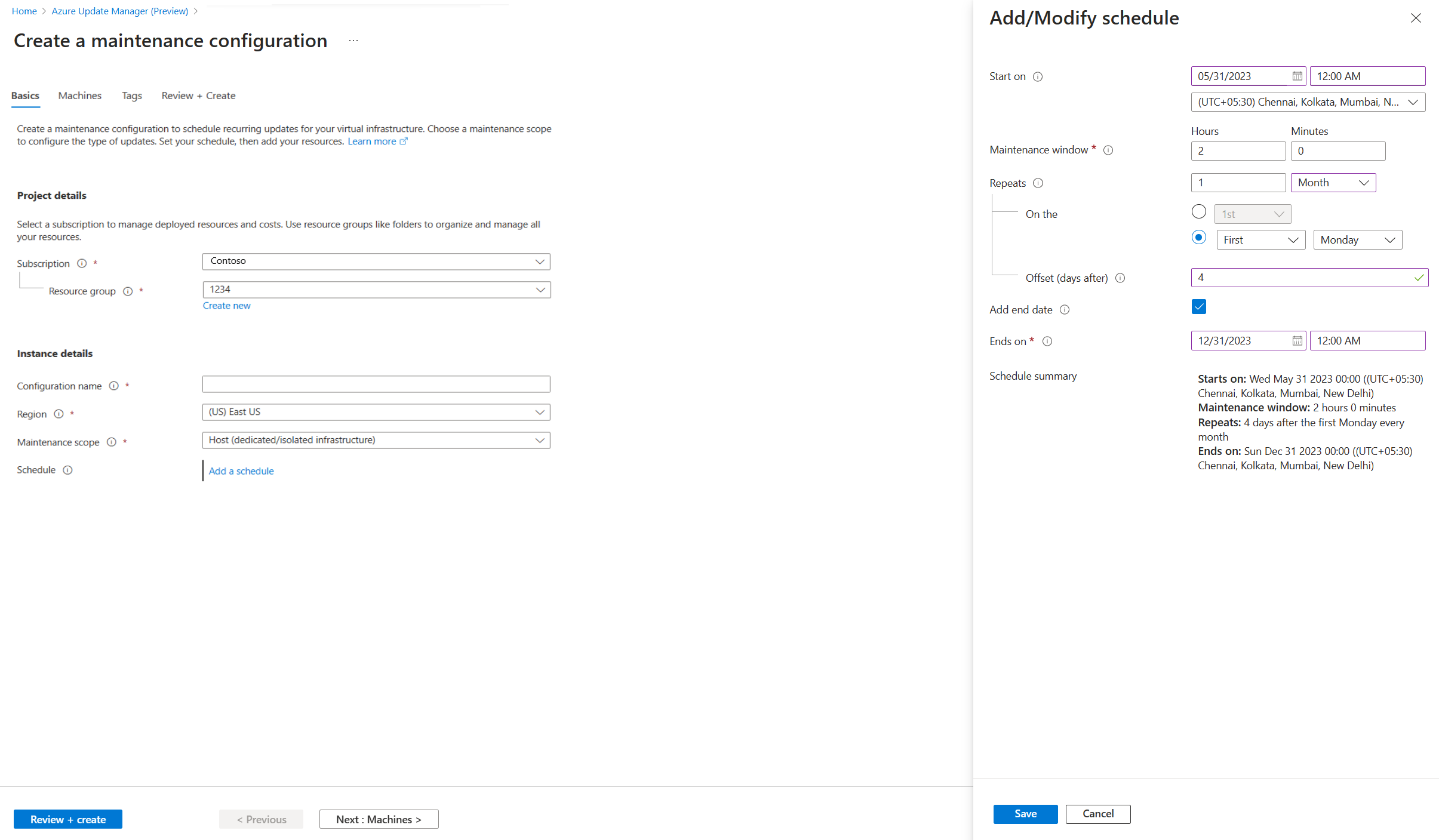
On the Create new maintenance configuration page, fill in the Basics tab:
- Maintenance scope: Select Guest (Azure VM, Azure Arc-enabled VMs/servers) Scheduling recurring updates in Azure Update Manager.
- Add a schedule: Define the recurrence (daily, weekly, or monthly) and the Maintenance window. The maximum window is 3 hours 55 minutes Scheduling recurring updates in Azure Update Manager.
-
On the Machines tab, select the specific VMs or use dynamic scoping if you prefer to manage scope via Azure Policy later Scheduling recurring updates in Azure Update Manager.
-
On the Updates tab, specify the update classifications (e.g., Critical, Security) or specific KB IDs/packages to include or exclude. Note that driver updates are not supported Scheduling recurring updates in Azure Update Manager.
-
Review and create the configuration.
The portal interface does not support hourly schedules; this option is available only via the API Scheduling recurring updates in Azure Update Manager.
Attach the configuration to machines
You can attach the maintenance configuration during creation or afterwards. To attach an existing configuration:
- Go to Azure Update Manager > Machines.
- Select the target machine(s).
- In the Updates pane, select Scheduled updates.
- Click Attach maintenance configuration and select the configuration you created Scheduling recurring updates in Azure Update Manager.
For Azure VMs, ensure the patch orchestration mode remains set to Customer Managed Schedules after attachment Scheduling recurring updates in Azure Update Manager.
Manage scope with Azure Policy
For large estates, managing individual machine attachments is inefficient. Azure Update Manager integrates with Azure Policy to dynamically scope updates. The built-in policy Schedule recurring updates using Azure Update Manager ensures that machines in the scope have the correct patch orchestration mode and are attached to the specified maintenance configuration Scheduling recurring updates in Azure Update Manager.
To assign this policy:
- Navigate to Policy > Assignments and select Assign policy.
- Set the scope (subscription or resource group) Scheduling recurring updates in Azure Update Manager.
- Search for the built-in policy Schedule recurring updates using Azure Update Manager and select it Scheduling recurring updates in Azure Update Manager.
- In the parameters, provide the Maintenance Configuration ARM ID Scheduling recurring updates in Azure Update Manager.
- Optionally refine the scope using resource groups, OS types, locations, or tags Scheduling recurring updates in Azure Update Manager.
- On the Remediation tab, enable remediation and select a System assigned managed identity with Contributor permissions. This allows the policy to automatically fix non-compliant machines by attaching the configuration Scheduling recurring updates in Azure Update Manager.
Verify and monitor
After applying the schedule, verify the deployment status.
- History: Go to Azure Update Manager > Manage > History to view a summary of deployments, including status (Succeeded, Failed, Not attempted) Deploy updates and track results in Azure Update Manager.
- Activity Log: Check the Azure Activity Log for real-time operation status Deploy updates and track results in Azure Update Manager.
- Compliance: If using Policy, view the compliance state under Policy Assignments to see which machines are non-compliant and why Scheduling recurring updates in Azure Update Manager.
Note that the Windows Update history in the VM properties does not show updates installed via Azure Update Manager; you must use the Update Manager History view for this data Deploy updates and track results in Azure Update Manager.
Common pitfalls
- Availability Sets: VMs in the same availability set are updated within update domain boundaries. If multiple schedules target the same set, conflicts may occur. Split machines across schedules or increase the maintenance window Scheduling recurring updates in Azure Update Manager.
- Reboot Settings: Registry keys on Windows can force reboots even if you select Never Reboot in the schedule. Configure these keys according to your environment Scheduling recurring updates in Azure Update Manager.
- Service Limits: Be aware of limits, such as 250 schedules per subscription per region and 3,000 total resource associations Scheduling recurring updates in Azure Update Manager.
Start with a single machine or a small group to validate the schedule and update selection before expanding to your full estate using Policy.