
Run an access review for privileged group membership
Este artigo ainda não foi traduzido — está a ver a versão em inglês.
Privileged group membership drifts. Users leave teams, projects end, and temporary assignments linger. If you rely on groups to grant Microsoft Entra roles, stale membership becomes a direct path to excessive privilege. Access reviews solve this by forcing periodic validation of who actually needs that access.
The first step is ensuring the group itself is designed for role assignment. A standard security group cannot hold Microsoft Entra roles, so the access review will have nothing to validate if the group type is incorrect. You need a role-assignable group, which requires Microsoft Entra ID P1 or P2 and the Privileged Role Administrator role to create [1].
Create a role-assignable group
Before configuring the review, verify the group structure. If you are starting from scratch, create a new group and explicitly enable role assignment. In the Microsoft Entra admin center, navigate to Identity > Groups > All groups and select New group [1].
Set the group type to Security. Crucially, you must set Microsoft Entra roles can be assigned to the group to Yes. This setting is visible only to users with the Privileged Role Administrator role and cannot be changed after creation [1].
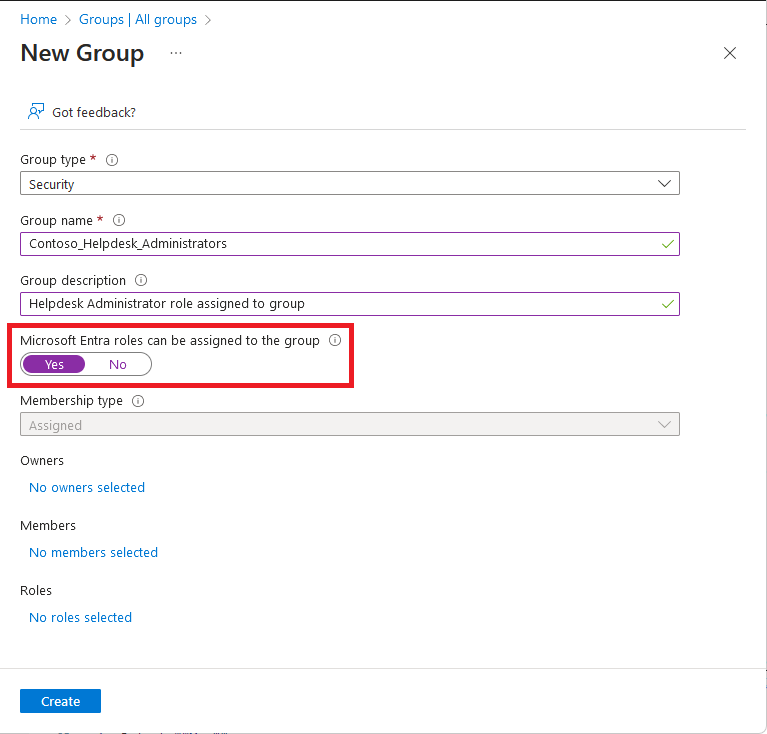
If you already have a group, check its properties. If the role-assignable toggle is absent or set to No, you cannot assign Microsoft Entra roles to it, and an access review on that group will not control privileged access. You would need to create a new role-assignable group and migrate members.
Configure the access review
Access reviews are managed through Microsoft Entra ID Governance. You need the Access Review Administrator role or the Privileged Role Administrator role to configure these reviews [2].
- Sign in to the Microsoft Entra admin center as an Access Review Administrator.
- Browse to Identity governance > Access reviews.
- Select New access review.
- Choose Groups as the resource type.
- Select the role-assignable group you created or identified.
Configure the review settings:
- Reviewers: Select Group members to review their own membership, or select Group owners to have owners validate the list. For highly privileged groups, having an owner or a separate security team review membership is often safer than self-review.
- Frequency: Choose how often the review occurs (e.g., quarterly, annually). Privileged access should typically be reviewed more frequently than standard access.
- Justification: Require reviewers to provide a reason for keeping or removing members. This creates an audit trail.
Manage the review outcomes
When the review runs, reviewers receive an email and can act in the Microsoft Entra admin center. They can keep or remove members. If a member is removed, they are immediately removed from the group, which revokes their Microsoft Entra role assignment [2].
If you are using Microsoft Entra Privileged Identity Management (PIM) with P2 licenses, the experience integrates further. PIM can trigger access reviews for eligible assignments. In this case, the review validates whether a user should remain eligible for the role, not just a static group membership. However, for standard role-assignable groups, the access review directly controls the group membership list.
After the review period closes, check the Results tab in the access review. You will see who was kept, who was removed, and any comments provided. If members were removed, verify that their role assignments are gone. You can do this by browsing to Identity > Roles & admins, selecting the relevant role, and checking the Assignments tab [2].
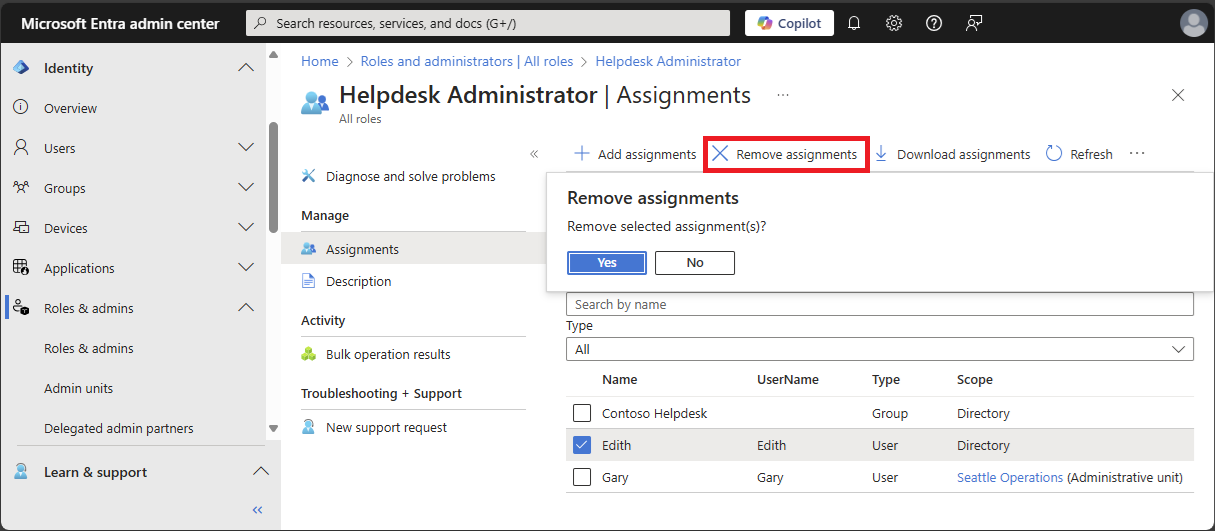
If a user still appears in the role assignments after being removed from the group, check for direct assignments. Access reviews on groups only affect group membership. If a user was directly assigned the role, they will remain assigned until that direct assignment is removed separately [2].
Verify and refine
The effectiveness of access reviews depends on accurate reviewer selection and clear guidelines. If reviewers are unsure whether a member needs access, they may default to keeping them, leading to drift. Provide context in the review instructions, such as the purpose of the role and the expected usage.
Monitor the review completion rate. Incomplete reviews can be configured to escalate to a manager or the Access Review Administrator. This ensures that no privileged group goes unvalidated indefinitely.
For groups with high turnover or temporary projects, consider shorter review frequencies. For permanent operational groups, annual or semi-annual reviews may suffice. The key is consistency. Regular reviews prevent the accumulation of stale permissions that attackers can exploit.
If you find that a role-assignable group is no longer needed, remove the group entirely. This revokes all role assignments associated with it. Remember that removing a group does not automatically remove direct role assignments to its former members [2]. You must clean up those direct assignments separately to ensure complete removal of privilege.
Access reviews are not a one-time setup. They require ongoing management to ensure reviewers are engaged and outcomes are acted upon. Treat each review as an opportunity to refine your privileged access model, removing unnecessary roles and strengthening the security posture of your Microsoft Entra environment.
References for Run an access review for privileged group membership: Create a role-assignable group in Microsoft Entra ID, Remove Microsoft Entra role assignments, Secure access practices for administrators in Microsoft Entra ID.